
Q: My old laptop gave up on me and has my whole iTunes library on it. I recently purchased the iPhone 5 and want to know how to get hold of my apps, music, photos, contacts etc? I understand one can only have one iTunes library on ONE PC so how do I get around this problem without starting all over again?
– Bruce
A: Unfortunately, unless you either have a backup of your old iTunes library or a way of recovering the data from your old laptop, you will pretty much be starting again in terms of the library database itself.
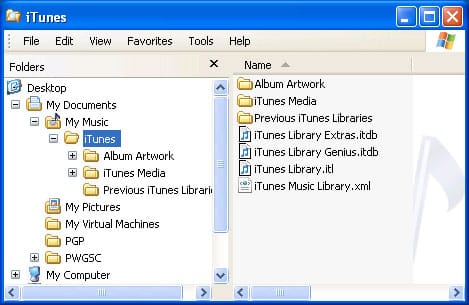
If you can recover your original iTunes library from your old laptop, either from a backup or directly from the laptop itself, then all you need to do is copy the data onto your new computer, placing the iTunes library database and its related files in the same relative location as they were on the original laptop—usually the “iTunes” folder under your “Music” or “My Music” folder. See Transferring your iTunes Library and The Complete Guide to Backing Up your iTunes Library for more information and specifics on how to do this.
Note that there is actually no “single PC” restriction for iTunes or Apple’s mobile devices. You can actually have up to five PCs authorized to play purchased content from a given iTunes Store account, and can have your content on any or all of those PCs.
It is only for syncing content where this sort of applies: an iPhone, iPad or iPod can only automatically synchronize content from one iTunes library, but this is not a function of the computer, but rather the library database, so if you copy your entire library database, as-is, to a new computer, your iPhone or other devices will effectively pick up exactly where they left off without knowing that anything has changed.
The only computer-specific limitation is the need to authorize your computer for your iTunes Store account in order to play any purchased content or transfer it to your device, and this is easily done simply by selecting Authorize This Computer from the Store menu in iTunes and entering your Apple ID and password when prompted. Computer authorizations are hardware-specific for security reasons, and do not transfer automatically with your iTunes library database.

If you do not have a backup, then you will essentially need to start a new iTunes library on your new computer, although you should be able to re-download any apps or media content you previously purchased from the iTunes Store. If you have an iPhone, iPod or iPad that contains at least some of your data, you can also copy that data back to your computer from there, importing media content into your new iTunes library, contacts into your desktop contact app and photos into a series of folders or a photo management app such as iPhoto.
To re-download previously purchased content, sign into the iTunes Store with your Apple ID and then select the Purchased option from the Quick Links sidebar on the right hand side of the iTunes Store home page. This will take you to a list of previously purchased content in your iTunes Store account, organized into categories by content type. From here, you can filter and search through your purchased items and re-download anything that’s not already in your library.

iTunes can also transfer any purchased content from your iPhone, iPad or iPod as long as your computer is authorized for the same iTunes Store account. You can also recover content from an existing iPhone, iPad or iPod, including non-purchased content, by using any number of third-party applications designed expressly for this purpose.











