
iLoungeiLounge
  • News
    • Apple
      • AirPods Pro
      • AirPlay
      • Apps
        • Apple Music
      • iCloud
      • iTunes
      • HealthKit
      • HomeKit
      • HomePod
      • iOS 13
      • Apple Pay
      • Apple TV
      • Siri
    • Rumors
    • Humor
    • Technology
      • CES
    • Daily Deals
    • Articles
    • Web Stories
  • iPhone
    • iPhone Accessories
  • iPad
  • iPod
    • iPod Accessories
  • Apple Watch
    • Apple Watch Accessories
  • Mac
    • MacBook Air
    • MacBook Pro
  • Reviews
    • App Reviews
  • How-to
    • Ask iLounge
Font ResizerAa
iLoungeiLounge
Font ResizerAa
Search
  • News
    • Apple
    • Rumors
    • Humor
    • Technology
    • Daily Deals
    • Articles
    • Web Stories
  • iPhone
    • iPhone Accessories
  • iPad
  • iPod
    • iPod Accessories
  • Apple Watch
    • Apple Watch Accessories
  • Mac
    • MacBook Air
    • MacBook Pro
  • Reviews
    • App Reviews
  • How-to
    • Ask iLounge
Follow US

How-to › Ask iLounge

Ask iLoungeiPadiTunes

Re-enabling the Sync Apps option in iTunes

Last updated: May 16, 2021 4:29 pm UTC
By Jesse Hollington
Re-enabling the Sync Apps option in iTunes

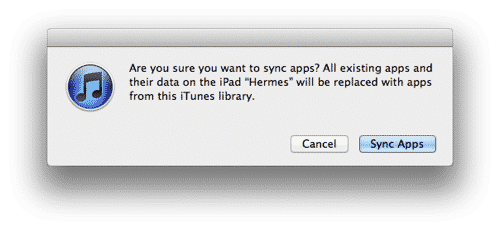
Q: I recently formatted my Windows 7 PC and reinstalled iTunes. I forgot to de-authorize iTunes from my previous Windows installation, so I had to re-authorize my PC as well. When I re-authorized with the iTunes Store and connected my iPad, the “Sync Apps” in iTunes was unchecked. When I click on it to select it I get a warning that “All existing apps and their data on the iPad will be replaced with apps from this iTunes library.”


I think my iTunes library is reasonably up to date (within a day or two prior to the format), and I also have my iPad connected to iCloud, although that doesn’t sync apps. What do I do in this case? Previously I had the option enabled, and apps that I purchased on the iPad transferred back automatically into iTunes whenever I plugged it in. I think all of the important apps are in my library, but what about the content of my apps on the iPad? For instance Pages has documents in it, will I lose these?

Re-enabling the Sync Apps option in iTunes

– Demetris

A: As scary as that warning message sounds, the good news is that you actually won’t lose anything as long as you still have all of the applications in question in your iTunes library.

These warnings for both apps and media content are somewhat common when you’re connecting to a new computer and/or new iTunes library, but can be a bit misleading; the implication is that iTunes will actually remove all of your existing content first, effectively wiping it from your device before syncing the content of your iTunes library back onto your device.


However, what iTunes actually does here is simply perform a comparison between what’s in your library and what’s on your device. In the process, it matches your device up with your selected content from your iTunes library, adding anything new, and removing anything that no longer exists or is no longer selected in iTunes. However, anything that’s already on your iPad that’s still available and selected in iTunes is left alone. This not only saves time by not recopying content that’s already there anyway, but in the case of apps ensures that your data is also left in place.


The catch here, of course, is that the apps must still be selected for synchronization to your device.

If you enable the “Sync Apps” option with no apps selected, iTunes will go ahead and remove all of the apps on your device in order to match what you’ve selected (e.g. nothing).

So as long as you have the same apps available in your iTunes library and those apps are selected for synchronization to your iPad, everything should be fine. You can go ahead and choose “Sync Apps” from the dialog box—nothing actually happens here until you click “Apply” so you can then go through the list and make sure that all of the apps that are actually ON your device are still selected in iTunes. When you click the “Apply” button, iTunes will simply go through a sync process matching up what’s already there and leaving it alone, after which the “Sync Apps” option will remain enabled.

If you want to be extra cautious, you can always make an additional backup of your iPad in iTunes by right-clicking on your iPad in the Devices list and choosing “Back Up” from the context menu.



Latest News
The 14-inch MacBook Pro with M5 Chip 16GB RAM/512GB is $250 Off
1 Min Read
Noise and Static on AirPods Pro 3 Still Unfixed
1 Min Read
New iMac with 24-inch OLED Display May be Brighter With 600 Nits
1 Min Read
The 15-inch M4 MacBook Air 256GB Is $250 Off
1 Min Read
Internal Kernel Debug Kit from Apple Reveals Tests for a MacBook with A15 Chip
1 Min Read
Apple Currently In Talks With Suppliers for Chip Assembly & Packaging of iPhones in India
1 Min Read
Apple Allows Easier Battery Replacement For M5 MacBook Pro with 14-inch Display
1 Min Read
The Apple Watch SE 3 44mm GPS is $50 Off
1 Min Read
20th Anniversary iPhone May Launch in Two Years
1 Min Read
Better Image Generation Capabilities and Apple Music Integration Coming to ChatGPT
1 Min Read
A20 Pro Chip Coming to Next Gen iPad Mini OLED
1 Min Read
Amazon has the AirTag 4 Pack Marked $29 off
1 Min Read

iLounge logo

iLounge is an independent resource for all things iPod, iPhone, iPad, and beyond. iPod, iPhone, iPad, iTunes, Apple TV, and the Apple logo are trademarks of Apple Inc.

This website is not affiliated with Apple Inc.
iLounge © 2001 - 2025. All Rights Reserved.
  • Contact Us
  • Submit News
  • About Us
  • Forums
  • Privacy Policy
  • Terms Of Use
Welcome Back!

Sign in to your account

Lost your password?








