
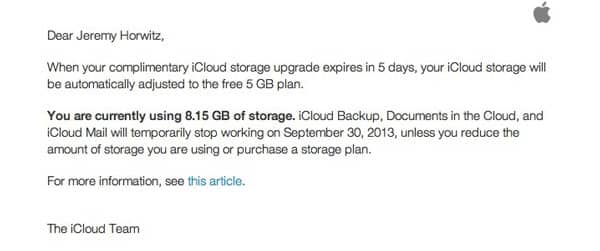
When Apple first rolled out iCloud two years ago, MobileMe members were granted an extra 20GB of iCloud storage for one year at no additional charge—a gift that was later extended until September 30th, 2013. With that date now fast approaching, many iCloud users are receiving notices that they will soon be adjusted downward to Apple’s free 5GB plan unless they’re willing to now pay for the extra storage.

So what if you’re over your iCloud storage limit and don’t want to shell out annual fees to keep your extra 20GB? The good news is that it’s probably not hard to take a close look at what’s taking up the space in your iCloud account and trim it to fit.
Finding out what’s taking up space
The first thing to keep in mind is that there are only three types of data that take up space in your iCloud Storage: iOS Device Backups, Documents and Data, and iCloud Mail (including notes).
Other features such as Calendars, Contacts, Reminders, Safari Bookmarks and Reading List, and even Photo Stream content actually do not count against your iCloud storage. Neither do your apps or media content from iTunes in the Cloud as these are already on Apple’s servers.
So the good news is that you don’t need to start removing photos and videos from your Photo Stream or Shared Streams as these don’t count against your iCloud storage.
Reducing Your Storage Requirements
With that in mind, we can now focus on what you need to do to get back under the 5GB limit, safely ignoring those features that have little to no impact.
iCloud Backups
For the typical user, a single iPhone or iPad backup should fit easily into the free 5GB iCloud allocation. However, if you have multiple iOS devices backing up to the same iCloud account, or you make a habit of keeping a lot of items in your Camera Roll, chances are that your iCloud Backups may be the worst offender here. Remember, however, that iCloud Backups only store your data, and not the applications themselves. Therefore, deleting something like Infinity Blade III from your device isn’t likely to reduce your iCloud storage requirements in any meaningful way.
You can check how much storage your iCloud Backups are using by taking a trip into Settings, iCloud, Storage & Backup and tapping Manage Storage.

This will show you all of the backups currently stored in your iCloud account, identified by device name, with a note indicating the current device. You can select any of the individual backups here and delete them. Doing this will also automatically turn off future backups for that device.

Selecting the backup for the device you’re currently using will show you additional options for excluding specific items from your backup in order to reduce its size.

The Camera Roll is usually the worst offender here, and if you use iCloud Photo Stream, you may be tempted to turn this off to save space, since your photos are being effectively backed up separately anyway. Keep in mind, however, that videos are still not included in the main Photo Stream.
Of course, as an alternative to turning off these backups entirely, you can instead simply clean up your Camera Roll by deleting older photos and videos—especially if you’ve transferred them off your device already to your computer.
Also remember that you can still backup your devices to iTunes, which is a good alternative for some or all of your devices if you want to keep your iCloud storage footprint to a minimum. This can even be done over Wi-Fi as long as you’re on your home network and iTunes is running on your computer.
Further, since every iCloud account gets 5GB of free storage, setting up additional iCloud accounts for separate devices may be another way of dealing with this, particularly if those devices are used by different family members. You’ll lose the ability to share most other iCloud data by doing this, however, although an additional iCloud account can still be configured for Mail, Contacts, Calendars, Reminders, and Notes. See Sharing iTunes & iCloud Accounts in a Family for more information.
Documents & Data
Some apps also store data directly in your iCloud account for backup purposes or sharing data with multiple iOS devices and/or your Mac. The storage taken up by most of these is usually negligible compared to your iCloud backups or your e-mail, but it’s worth a look just to see if there’s anything you don’t need in this area. Scrolling down on your list of backups from the Manage Storage screen in your iCloud settings will show a list of these apps, sorted by size.

Depending on the app, you can sometimes get a specific list of the individual documents contained in iCloud, while in other cases, only a generic “Documents & Data” section will be shown. Standard swipe-to-delete gestures work where individual items are displayed, or in either case tapping the “Edit” button in the top right corner will display a “Delete All” option at the bottom.

If you’ve actively been using iCloud Mail—that is, a me.com or icloud.com e-mail account—then this is very likely also consuming a sizable chunk of your iCloud storage. Going into Manage Storage in your iCloud settings and scrolling down past Documents & Data will show you an entry for how much data your iCloud Mail account is using.

Unlike most traditional ISP mail accounts where your mail is downloaded from the server and then deleted, iCloud Mail actually leaves your e-mail in the cloud so that it can be synchronized with all of your Mail clients. This is a much better way of providing a mail service for users of multiple devices, but it does mean that all of that e-mail does take up storage space as part of your iCloud account. This also includes your sent items, so if you’ve been sending out pictures and videos via iCloud, all of that data is likely still sitting in your iCloud account as well.
You can go through your iCloud Mail account, either via your iOS device, iCloud.com or a mail client such as Apple Mail, and simply delete any large messages you don’t need. On an iOS 7 device, the Attachments Smart Mailbox can be useful for tracking down larger e-mails, although this works only if they’re in your inbox.

A better way to do this is with a desktop e-mail client such as Apple Mail.











