
iLoungeiLounge
  • News
    • Apple
      • AirPods Pro
      • AirPlay
      • Apps
        • Apple Music
      • iCloud
      • iTunes
      • HealthKit
      • HomeKit
      • HomePod
      • iOS 13
      • Apple Pay
      • Apple TV
      • Siri
    • Rumors
    • Humor
    • Technology
      • CES
    • Daily Deals
    • Articles
    • Web Stories
  • iPhone
    • iPhone Accessories
  • iPad
  • iPod
    • iPod Accessories
  • Apple Watch
    • Apple Watch Accessories
  • Mac
    • MacBook Air
    • MacBook Pro
  • Reviews
    • App Reviews
  • How-to
    • Ask iLounge
Font ResizerAa
iLoungeiLounge
Font ResizerAa
Search
  • News
    • Apple
    • Rumors
    • Humor
    • Technology
    • Daily Deals
    • Articles
    • Web Stories
  • iPhone
    • iPhone Accessories
  • iPad
  • iPod
    • iPod Accessories
  • Apple Watch
    • Apple Watch Accessories
  • Mac
    • MacBook Air
    • MacBook Pro
  • Reviews
    • App Reviews
  • How-to
    • Ask iLounge
Follow US

News › Apple TV

Apple TVAsk iLoungeiTunes

Purchasing HD videos without SD versions

Last updated: May 16, 2021 4:29 pm UTC
By Jesse Hollington
Purchasing HD videos without SD versions

Q: I have the new Apple TV (1080p), an iPhone 4S, and an iPad 3; also, I no longer have an iPod Classic. In other words, all of my devices are HD-capable, so I no longer need any of iTunes’ video content in SD. From a previous tip on iLounge, I already know how to remove the SD portion of “HD·SD” content from my iTunes library. So my question is, can I force iTunes to only download HD content from now on? Even more recent content on the iTunes Store, when purchased, will download both HD and SD versions – which is now a waste of bandwidth.


– Farnsworth
Purchasing HD videos without SD versions

A: Unfortunately, there isn’t a setting that you can use to stop iTunes from starting to download both the HD and SD versions of a video when purchasing new content in iTunes.

However, you can manually remove the SD versions from the “Downloads” section in iTunes to avoid downloading them.

You can do this simply by visiting the Downloads section when downloading new content, selecting the SD versions by clicking on them while holding down the CMD key (Mac) or CTRL key (Windows) to select multiple items, and then simply tap the DELETE key to stop the downloads of those items. A second press of the DELETE key will remove them from the queue entirely.


In the past iTunes would re-attempt downloads of removed SD versions the next time you downloaded anything else from the iTunes Store. However, as of early February 2012, Apple has quietly changed this behaviour so that SD items manually removed from the download queue no longer return automatically.

Basically, iTunes performs a one-time download of the SD versions, but they’re not added to your queue on the iTunes servers, so if you remove them, they don’t come back. If the content you’ve purchased is available from iTunes in the Cloud in your particular country—Movies in the U.S., TV shows in most countries—you can of course manually download the SD version at any time from your purchase history.


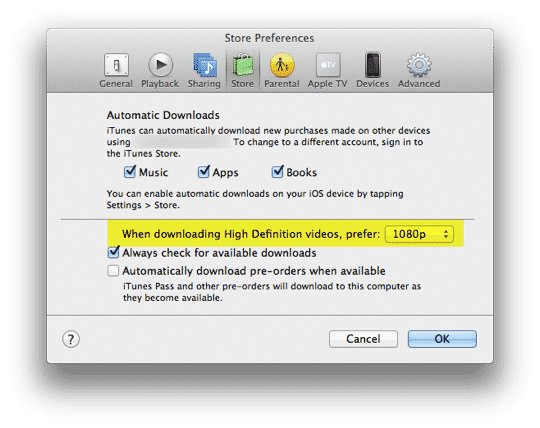
The behaviour for automatically downloaded video content—pre-orders and TV show episodes from season passes—was also changed around the same time; now, only the HD version is automatically downloaded when it becomes available, rather than both the HD and SD versions. For this, you don’t need to do anything special—you’ll simply get whatever HD version is configured in your iTunes preferences.

It’s also worth mentioning that videos purchased directly on the Apple TV are not downloaded by iTunes at all, since on the Apple TV they are streamed directly from iTunes in the Cloud.



Latest News
The 14-inch MacBook Pro with M5 Chip 16GB RAM/512GB is $250 Off
1 Min Read
Noise and Static on AirPods Pro 3 Still Unfixed
1 Min Read
New iMac with 24-inch OLED Display May be Brighter With 600 Nits
1 Min Read
The 15-inch M4 MacBook Air 256GB Is $250 Off
1 Min Read
Internal Kernel Debug Kit from Apple Reveals Tests for a MacBook with A15 Chip
1 Min Read
Apple Currently In Talks With Suppliers for Chip Assembly & Packaging of iPhones in India
1 Min Read
Apple Allows Easier Battery Replacement For M5 MacBook Pro with 14-inch Display
1 Min Read
The Apple Watch SE 3 44mm GPS is $50 Off
1 Min Read
20th Anniversary iPhone May Launch in Two Years
1 Min Read
Better Image Generation Capabilities and Apple Music Integration Coming to ChatGPT
1 Min Read
A20 Pro Chip Coming to Next Gen iPad Mini OLED
1 Min Read
Amazon has the AirTag 4 Pack Marked $29 off
1 Min Read

iLounge logo

iLounge is an independent resource for all things iPod, iPhone, iPad, and beyond. iPod, iPhone, iPad, iTunes, Apple TV, and the Apple logo are trademarks of Apple Inc.

This website is not affiliated with Apple Inc.
iLounge © 2001 - 2025. All Rights Reserved.
  • Contact Us
  • Submit News
  • About Us
  • Forums
  • Privacy Policy
  • Terms Of Use
Welcome Back!

Sign in to your account

Lost your password?








