
Q: I have just upgraded from an iPhone 4 of over 2-1/2 years to a new iPhone 5. I chose to use iTunes to transfer my data across to the new iPhone 5. Once I had completed the process, I noted that NONE of my apps had transferred across to the new phone.
By clicking on the App Store icon on the new phone, and then the Updates, Purchased tabs I was able to re-install most of the missing apps from there. Unfortunately a lot of the existing apps DID not appear in the App Store purchased listing. It was then that I realized that all of these missing purchased apps were the ones I had actually purchased PRIOR to the iCloud change over. I have proof of having purchased these apps, and they have been being used on my old iPhone up until yesterday.
I really don’t want to purchase all of these again, and am wondering if you have a work around or a solution to this problem and have you heard of something similar before? Also I don’t know if this has an influence, but coincidentally, I also moved countries around the time of the iCloud change over, and as a result moved my account to another iTunes Store. I look forward to you reply, many thanks in advance.
– Petar
A: When transferring data from one iPhone to another via iTunes, your apps will only be transferred if you normally synced them from your iTunes library to the original iPhone. If you had downloaded and installed your apps directly from the App Store on the device, then you would have needed to do an iCloud restore in order for these apps to be reinstalled.
If the apps are still in your iTunes library, you can sync them on directly from there to your device—you’ll just need to enable sync on the Apps screen for your device’s sync settings in iTunes and then select them from there. Ignore any warnings about erasing existing app content—iTunes will of course match up the apps on your device to what you select from your library, but as long as you’ve re-selected the same apps that are already on your device, no data will actually be lost. See Restoring Apps from iTunes vs iCloud and Restoring Apps and App folder layouts for more information.
Note that if you still have your original iPhone, you can use the “Transfer Purchases” option to copy your apps back into your iTunes library and then sync them on from there. The key to making this work is that your iTunes library will need to be authorized for the iTunes Store account that was used to purchase these apps. You can do this with the Authorize This Computer option on the Store menu in iTunes; note that you can authorize your computer for multiple iTunes Store accounts, even if they’re from different countries. See Transferring your Content to a new iPhone, iPad or iPod touch for details on this process.
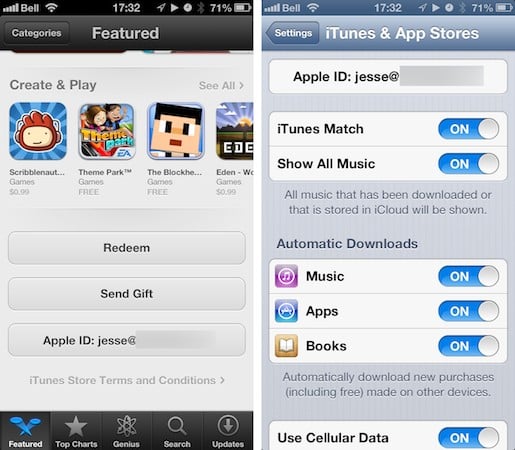
Alternatively, you can simply log into your old iTunes Store account from your new iPhone and re-download the apps directly from the Purchased section in the App Store app on your device. You can sign out of your current App Store account and sign in with a new one either by scrolling to the bottom of the main page in the App Store app, or choosing iTunes & App Stores in the iOS Settings app.
In either case, simply tap on your Apple ID and you will be given the option to sign out, after which you can sign in with your old Apple ID.











