
iLoungeiLounge
  • News
    • Apple
      • AirPods Pro
      • AirPlay
      • Apps
        • Apple Music
      • iCloud
      • iTunes
      • HealthKit
      • HomeKit
      • HomePod
      • iOS 13
      • Apple Pay
      • Apple TV
      • Siri
    • Rumors
    • Humor
    • Technology
      • CES
    • Daily Deals
    • Articles
    • Web Stories
  • iPhone
    • iPhone Accessories
  • iPad
  • iPod
    • iPod Accessories
  • Apple Watch
    • Apple Watch Accessories
  • Mac
    • MacBook Air
    • MacBook Pro
  • Reviews
    • App Reviews
  • How-to
    • Ask iLounge
Font ResizerAa
iLoungeiLounge
Font ResizerAa
Search
  • News
    • Apple
    • Rumors
    • Humor
    • Technology
    • Daily Deals
    • Articles
    • Web Stories
  • iPhone
    • iPhone Accessories
  • iPad
  • iPod
    • iPod Accessories
  • Apple Watch
    • Apple Watch Accessories
  • Mac
    • MacBook Air
    • MacBook Pro
  • Reviews
    • App Reviews
  • How-to
    • Ask iLounge
Follow US

How-to › Ask iLounge

ArticlesAsk iLoungeiTunes

Problems transferring iTunes content to external hard drives

Last updated: May 16, 2021 5:03 pm UTC
By Jesse Hollington
Problems transferring iTunes content to external hard drives

Q: Okay, I screwed up and desperately need some advise. I use an external hard drive for my iTunes library. For some reason last July my downloads switched back to being saved on my C: drive instead of my external drive. Realizing that I needed to move all my iTunes files from my C: drive to my E: drive, I did this by simply copying the files through Windows Explorer. After I had done this, I found your site, and followed your advice about resetting the default location to my E: drive and then using the ‘Consolidate Library’ function. This worked fine, but also duplicated all of my recently transferred files, in individual artist folders on my E: drive. I would like to delete all the duplicated files, but can’t figure out how to do so.


I am not sure if it is possible to see a list of all recently addes files, or if I will have to go through each artist folder individually and delete the song files one-by-one (literally thousands). I thought about just deleting all the transferred files, and using ‘Consolidate Library’ all over again, but I don’t think that will work, as I’ve already relocated all files to my E: drive. I am looking for an easy fix, and you guys seem like a good resource. Please help if you can!

Problems transferring iTunes content to external hard drives

– Erik

A: For clarity, what actually appears to have happened here is that you ended up with two copies of the tracks from your internal hard drive: The copy you made manually with Windows Explorer, and a second copy made by iTunes’ “Consolidate Library” function. How to recover from this situation is going to depend largely upon whether you had manually re-imported the manually copied files into your iTunes library.

If you simply copied the files over and then discovered that iTunes couldn’t find them and therefore decided to do a “Consolidate Library” operation before actually importing them into iTunes, then you will have duplicate files, but these will not be listed in iTunes itself—they will simply be in your iTunes folders. In this case, provided you have sufficient disk space, the easiest solution is to set a new path for your iTunes Music folder, even on the same E: drive, and then use the “Consolidate Library” function to copy your tracks to this new location.


The key here is that “Consolidate Library” only copies tracks that are actually listed in the iTunes database, rather than just copying everything in your iTunes Music folder. Therefore, the new iTunes Music folder will contain only actual valid tracks. Once you’ve confirmed that everything is working, you can simply delete the old iTunes Music folder, since all of your “good” tracks have been copied to the new location.

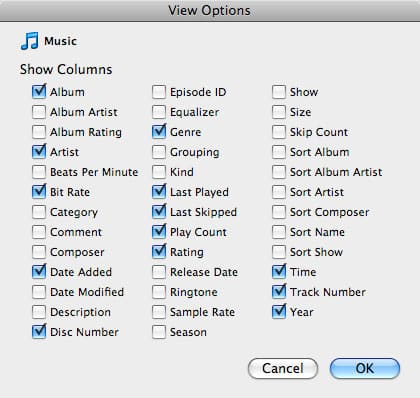
If you had manually re-added the files to your iTunes library after copying them to your E: drive, then you’re in a situation where you actually have duplicates listed in your iTunes library. In this case, you will need to clean these up from within iTunes. The easiest method might be simply to bring up the “Date Added” column in your track listing and then sort by this column in order to sort out the most recently added tracks. You can change your column view by choosing View, View Options from the iTunes menu, or by right-clicking on your column headings.



Latest News
The 14-inch MacBook Pro with M5 Chip 16GB RAM/512GB is $250 Off
1 Min Read
Noise and Static on AirPods Pro 3 Still Unfixed
1 Min Read
New iMac with 24-inch OLED Display May be Brighter With 600 Nits
1 Min Read
The 15-inch M4 MacBook Air 256GB Is $250 Off
1 Min Read
Internal Kernel Debug Kit from Apple Reveals Tests for a MacBook with A15 Chip
1 Min Read
Apple Currently In Talks With Suppliers for Chip Assembly & Packaging of iPhones in India
1 Min Read
Apple Allows Easier Battery Replacement For M5 MacBook Pro with 14-inch Display
1 Min Read
The Apple Watch SE 3 44mm GPS is $50 Off
1 Min Read
20th Anniversary iPhone May Launch in Two Years
1 Min Read
Better Image Generation Capabilities and Apple Music Integration Coming to ChatGPT
1 Min Read
A20 Pro Chip Coming to Next Gen iPad Mini OLED
1 Min Read
Amazon has the AirTag 4 Pack Marked $29 off
1 Min Read

iLounge logo

iLounge is an independent resource for all things iPod, iPhone, iPad, and beyond. iPod, iPhone, iPad, iTunes, Apple TV, and the Apple logo are trademarks of Apple Inc.

This website is not affiliated with Apple Inc.
iLounge © 2001 - 2025. All Rights Reserved.
  • Contact Us
  • Submit News
  • About Us
  • Forums
  • Privacy Policy
  • Terms Of Use
Welcome Back!

Sign in to your account

Lost your password?








