
iLoungeiLounge
  • News
    • Apple
      • AirPods Pro
      • AirPlay
      • Apps
        • Apple Music
      • iCloud
      • iTunes
      • HealthKit
      • HomeKit
      • HomePod
      • iOS 13
      • Apple Pay
      • Apple TV
      • Siri
    • Rumors
    • Humor
    • Technology
      • CES
    • Daily Deals
    • Articles
    • Web Stories
  • iPhone
    • iPhone Accessories
  • iPad
  • iPod
    • iPod Accessories
  • Apple Watch
    • Apple Watch Accessories
  • Mac
    • MacBook Air
    • MacBook Pro
  • Reviews
    • App Reviews
  • How-to
    • Ask iLounge
Font ResizerAa
iLoungeiLounge
Font ResizerAa
Search
  • News
    • Apple
    • Rumors
    • Humor
    • Technology
    • Daily Deals
    • Articles
    • Web Stories
  • iPhone
    • iPhone Accessories
  • iPad
  • iPod
    • iPod Accessories
  • Apple Watch
    • Apple Watch Accessories
  • Mac
    • MacBook Air
    • MacBook Pro
  • Reviews
    • App Reviews
  • How-to
    • Ask iLounge
Follow US

How-to › Ask iLounge

Ask iLoungeiPodiTunes

Problems Syncing Selected Playlists

Last updated: May 16, 2021 5:25 pm UTC
By Jesse Hollington
Problems Syncing Selected Playlists

Q: I deleted some playlists that I had created ages ago on my iPod and added some more
songs and new playlists. My iPod is almost full so I deleted more songs but now all my songs have diappeared and when I connect the iPod the error message “Songs on the iPod cannot be updated because all of the playlists selected for updating no longer exist” comes up. How do I get my songs back onto my ipod!?


– Laurie
Problems Syncing Selected Playlists

A: In this case it sounds like you were synchronizing only “Selected Playlists” to your iPod rather than syncing your entire library. This may be due to you selecting specific playlists, or if your library was too large for your iPod, iTunes may have automatically set up a selected playlist for you to fill your iPod.

Either way, however, iTunes is telling you that it has nothing to sync to your iPod as you’ve deleted the playlists that it was using to determine what to put onto your iPod.


For the same reason, your iPod will be empty as all of the playlists in iTunes that were being copied to the iPod are now gone.

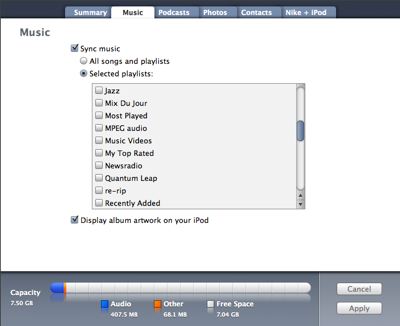
To fix this issue, simply connect your iPod to iTunes, and select it in the source list. The main screen should show a summary of the iPod configuration. Select the “Music” tab, and you’ll see a configuration screen similar to the following:

From here you can either change the setting to “All songs and playlists” (in which case your entire music library will be copied to your iPod during the next sync), or select the specific playlists that you want transferred to your iPod. Once you’ve adjusted these settings, simply hit the “Apply” button that appears in the bottom right corner, and your iPod should synchronize the content you’ve selected.


If after hitting “Apply” iTunes determines that it cannot fit the items you’ve selected to sync on your iPod, it will advise you of this with a warning message. If you’ve chosen to synchronize “All songs and playlists” iTunes will offer to build a playlist for you and autofill your iPod with selected content. It does this somewhat randomly, however, so you may prefer to set up your own playlists for this purpose.


Problems Syncing Selected Playlists

Alternatively, if you’re already syncing only selected playlists and the content is still too large to fit on your iPod, iTunes will simply notify you of this fact, and you will need to revise your selections by either selecting fewer playlists, or removing some of the items from your selected playlists.


Problems Syncing Selected Playlists

One other consideration:  If you think that your iPod should be large enough to hold the music you’ve selected, yet you’re receiving errors telling you that your selected items won’t fit on the iPod, take a look at the amount of storage being taken up in the orange “Other” category on your iPod, which can be observed in the capacity bar at the bottom of the summary screen.



Latest News
The Apple Watch Series 11 46mm GPS Is $100 Off
1 Min Read
Clamshell Style iPhone Being Looked Into By Apple
1 Min Read
Foldable iPhones May Have the Largest Battery Ever
1 Min Read
Apple and TSMC’s 10-Year Collaboration May Be Ending
1 Min Read
The 13-inch M5 iPad Pro 256GB Wi-Fi Is $149 Off
1 Min Read
M5 Pro and M5 Max Chips for the MacBook Pro could Roll Out with macOS 26.3
1 Min Read
Mac Ordering Process Revamped
1 Min Read
Check Signed By Steve Wozniak and Steve Jobs Sold For $2.4 Million
1 Min Read
The Anker 140W 4-Port GaN USB-C Charger is $35 Off
1 Min Read
No iPhone Air 2 This Year, according to Latest Report
1 Min Read
New Report Corroborates Split iPhone Release Dates
1 Min Read
Apple Losing More Researchers As They Plan To Release 2 Siri Versions
1 Min Read

iLounge logo

iLounge is an independent resource for all things iPod, iPhone, iPad, and beyond. iPod, iPhone, iPad, iTunes, Apple TV, and the Apple logo are trademarks of Apple Inc.

This website is not affiliated with Apple Inc.
iLounge © 2001 - 2025. All Rights Reserved.
  • Contact Us
  • Submit News
  • About Us
  • Forums
  • Privacy Policy
  • Terms Of Use
Welcome Back!

Sign in to your account

Lost your password?








