
iLoungeiLounge
  • News
    • Apple
      • AirPods Pro
      • AirPlay
      • Apps
        • Apple Music
      • iCloud
      • iTunes
      • HealthKit
      • HomeKit
      • HomePod
      • iOS 13
      • Apple Pay
      • Apple TV
      • Siri
    • Rumors
    • Humor
    • Technology
      • CES
    • Daily Deals
    • Articles
    • Web Stories
  • iPhone
    • iPhone Accessories
  • iPad
  • iPod
    • iPod Accessories
  • Apple Watch
    • Apple Watch Accessories
  • Mac
    • MacBook Air
    • MacBook Pro
  • Reviews
    • App Reviews
  • How-to
    • Ask iLounge
Font ResizerAa
iLoungeiLounge
Font ResizerAa
Search
  • News
    • Apple
    • Rumors
    • Humor
    • Technology
    • Daily Deals
    • Articles
    • Web Stories
  • iPhone
    • iPhone Accessories
  • iPad
  • iPod
    • iPod Accessories
  • Apple Watch
    • Apple Watch Accessories
  • Mac
    • MacBook Air
    • MacBook Pro
  • Reviews
    • App Reviews
  • How-to
    • Ask iLounge
Follow US

How-to › Ask iLounge

Ask iLoungeiPadiTunes

Organizing video collections on an iPad

Last updated: May 16, 2021 4:19 pm UTC
By Jesse Hollington
Organizing video collections on an iPad

Q: How do I organize videos on my iPad in the same way that I organize my books? I’d like to put them into some type of collections, or if not collections, then folders would be acceptable also. It’s frustrating, not being able to group related videos. Hope you can point me in the right direction.


– Ernest
Organizing video collections on an iPad

A: Unfortunately, the built-in iPad Videos app offers very little in the form of organization, as it’s designed to replicate the organization in iTunes within categories such as Movies, TV Shows, Music Videos, and Podcasts. If your videos are stored as “Movies” in iTunes and you are syncing them on this way, they will simply appear as a single large collection of content.

Third-party apps can provide additional capabilities in this area, but of course lack the ability to easily sync with iTunes or your computer in the same way as the built-in apps.


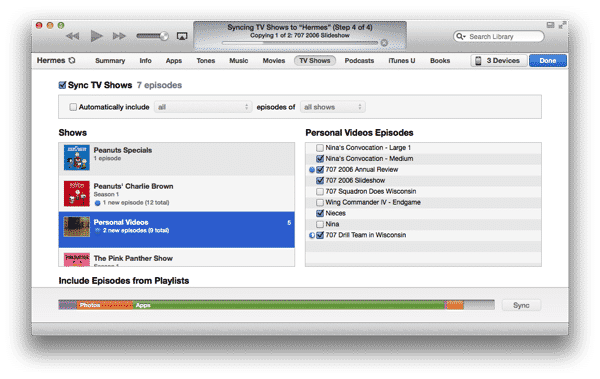
Fortunately, there are a couple of ways to work around this using the stock iOS apps. One option is to re-categorize your videos in iTunes as “TV Shows” instead of “Movies” or “Home Videos”—the latter of which has no meaning outside of iTunes 11 anyway. Since individual TV show episodes are grouped on the iPad by the show name, you could use this field to identify collections, organizing your videos into “Episodes” for each “Show.” More information on how to do this can be found in our Guide to Managing iTunes Videos.


This would translate onto your iPad when these videos were synced from your computer, but keep in mind that you cannot change this information on the iPad itself; you would need to return to iTunes if you wanted to place a video in a different collection.

Further, the iPad Videos app was oddly designed to rely solely on artwork for videos, meaning that your collections may not be clearly identifiable unless you assign custom artwork to your videos in iTunes.


Organizing video collections on an iPad

Organizing video collections on an iPad

An alternative approach is to simply forego the Videos app altogether and store your videos in the Photos app. If you’re a Mac user with iPhoto or Aperture, they can be synced on directly from these apps using iTunes, or synced from a folder of videos on either a Mac or a PC. These folders or albums that you sync to your iPad can include any combination of photos and/or videos. This is configured from the Photos screen in your device sync settings in iTunes, and the process for setting this up for videos is the same as it is for photos; just ensure that collections of your videos are also included in the albums or folders that you want to sync and the Include videos option is selected.



Latest News
The 14-inch MacBook Pro with M5 Chip 16GB RAM/512GB is $250 Off
1 Min Read
Noise and Static on AirPods Pro 3 Still Unfixed
1 Min Read
New iMac with 24-inch OLED Display May be Brighter With 600 Nits
1 Min Read
The 15-inch M4 MacBook Air 256GB Is $250 Off
1 Min Read
Internal Kernel Debug Kit from Apple Reveals Tests for a MacBook with A15 Chip
1 Min Read
Apple Currently In Talks With Suppliers for Chip Assembly & Packaging of iPhones in India
1 Min Read
Apple Allows Easier Battery Replacement For M5 MacBook Pro with 14-inch Display
1 Min Read
The Apple Watch SE 3 44mm GPS is $50 Off
1 Min Read
20th Anniversary iPhone May Launch in Two Years
1 Min Read
Better Image Generation Capabilities and Apple Music Integration Coming to ChatGPT
1 Min Read
A20 Pro Chip Coming to Next Gen iPad Mini OLED
1 Min Read
Amazon has the AirTag 4 Pack Marked $29 off
1 Min Read

iLounge logo

iLounge is an independent resource for all things iPod, iPhone, iPad, and beyond. iPod, iPhone, iPad, iTunes, Apple TV, and the Apple logo are trademarks of Apple Inc.

This website is not affiliated with Apple Inc.
iLounge © 2001 - 2025. All Rights Reserved.
  • Contact Us
  • Submit News
  • About Us
  • Forums
  • Privacy Policy
  • Terms Of Use
Welcome Back!

Sign in to your account

Lost your password?








