
Q: My wife and I bought a new PC. On our last PC we both had our own profile, each with its own iTunes. If the same song is being saved on each iTunes is it taking up twice the memory?
– Brady
A: In the default iTunes configuration, you would have two completely separate libraries, including your music folder where all of your iTunes music is stored. This does in fact mean that if you add the same song to both libraries, you are taking up twice the disk space.
You can work around this fairly easily however by changing a couple of settings in iTunes itself to store your music in a common location.
First, create a common folder for all of your music files that both profiles have access to. By default, iTunes stores its music in your current user profile’s “My Music” folder (Windows) or “Music” folder (Mac), which is not necessarily accessible to all users. A good location for a common music folder is either under the “All Users” profile on Windows (C:\Documents and Settings\All Users) or the Shared user folder on a Mac (/Users/Shared). Alternatively, you could store it on a secondary hard drive or external har drive.
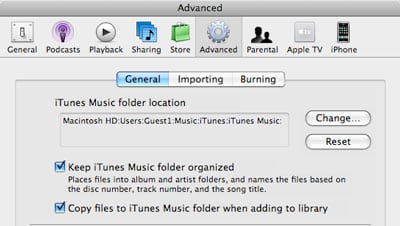
Once you have established where you are going to be storing your music files, go into both of your iTunes libraries, in each profile, and change the “iTunes Music Folder” path under Preferences, Advanced from within iTunes:

While you’re in this preference screen, ensure that you also turn on the options to “Copy files to iTunes Music folder when adding to library” and “Keep iTunes Music folder organized” if they are not already enabled. Do this in both user profiles. This will ensure that any new music gets placed in the appropriate location, and ensure that files are stored consistently in both profiles.
Once you have set this up, go into each iTunes library and choose Consolidate Library from the Advanced menu. This will transfer all of your music from each profile into the new iTunes Music Folder location—the shared directory that you created earlier. This will require some time depending upon the size of your iTunes libraries, and note that it will also copy the files to the new location, rather than moving them, so you will want to ensure that you have enough available disk space to store an extra copy of your library.
When you have confirmed that all of the music has been copied into the appropriate location and is accessible from both iTunes libraries, you can delete the original music files from your “iTunes Music” folder. Be sure to only delete the “iTunes Music” sub-folder, and not the parent “iTunes” folder in your profile, as this still contains your actual iTunes library database—only the media files are stored in the new location.
Note that even after you have done this, you will still need to add new tracks into each library separately for them to appear in the iTunes track listing. However, once you’ve added the track to one iTunes library, make sure to reference that file that is already in the iTunes Music Folder when adding it to the second library so that iTunes references the existing file rather than creating a copy.
Note that if you don’t mind sharing information such as ratings, playlist, and playcounts, you might simply prefer to share the same actual library database as well.











