
Q: How do I store my music on my internal slave drive and still have it accessible through iTunes?
– Sharon
Q: How do I move the library (both downloaded from CD and purchased via iTunes Store) to an external hard drive, so that my iPod finds the library for download and I do not “lose” any files and also insure that the iTunes Store files are not confused by iTunes/my iPod as “pirated?”
– Brad
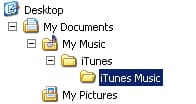
A: Firstly, it’s important to note that iTunes makes a distinction between its configuration and database files (your “iTunes Library Database”) and your actual media content (your “iTunes Music Folder”). By default, iTunes stores both of these on your primary hard drive, where your operating system is installed. This is located in a subdirectory called “iTunes” under the current user’s “My Music” folder (Windows) or “Music” folder (Mac). The media content by default is contained within this “iTunes” folder, in a sub-folder labelled “iTunes Music.” Despite its name, the “iTunes Music” folder contains all of your media content including music, audiobooks, videos and even games.

Changing the location of the iTunes Music Folder is relatively straightforward, and can be done through the iTunes preference settings. iTunes preferences are accessed through the Edit, Preferences menu on Windows, or the iTunes, Preferences menu option on Mac OS X. From the Preferences window, the iTunes Music Folder is specified under the “Advanced” tab, along with some other relevant settings for where and how your media content is stored:

Note, however, that changing this location only affects where iTunes places new music files that you import.
Existing files will remain in whatever location they were originally imported to. Since iTunes stores the specific location of each and every individual file, simply moving the files themselves manually will not generally work, as iTunes will still look for these files in their original location. Fortunately, there is a function built in to iTunes to facilitate this, the “Consolidate Library” function. Our iPod 201 article, Moving your iTunes Library to a New Hard Drive provides an excellent step-by-step set of instructions for moving the iTunes Music Folder to a new hard drive of new location through the use of this function. Whether moving to a new location on an existing hard drive, a secondary internal hard drive or an external hard drive, the process is basically the same.
One important thing to note when specifying this location on an external hard drive is that if the external drive is not available when iTunes starts, it will revert to using the default library location (under the “My Music” folder). This can cause confusion, as any tracks imported will end up on the local hard drive rather than the external drive.
To avoid this, always ensure the external hard drive is connected and visible to the operating system before starting iTunes.
Note that none of this will affect any authorization information for iTunes Store content, as this is stored internally to the computer and iTunes database, and is not in any way based on the location of the purchased content. Content purchased from the iTunes Store should continue to be recognized and play properly as long as it remains listed in the iTunes library regardless of its physical location on your computer.
Keep in mind that this will move your media content, however the iTunes Library—that is the database and other files that make up iTunes’ configuration and the index to your music, will remain in their initial default location. However, these files take up relatively little space compared to the “Music Library” itself, so if optimizing disk space is the only consideration for moving your library to another hard drive, it probably doesn’t hurt to leave these files in their default location.
For those that would like to move the iTunes database files themselves, however, the good news is that iTunes 7’s “Multiple Library” feature now allows you to do this as well. To do this, one would simply need to shut down iTunes and then copy the entire “iTunes” folder (located under your “My Music” folder) to the new location.











