
Q: I’ve been a Windows PC user since 1994. I recently purchased my first Mac—a late 2011 13” MacBook Pro—that I use primarily like one would use an iPad. I have already copied my music, videos and photos to the Mac but so far I’ve been hesitant to use it for actually syncing my iPhone and iPod classic. Obviously, syncing with a portable, always-on Mac would be more convenient than powering up an old Windows desktop, but I have a couple of concerns…
1. Barring significant price reductions or an increase in my income, it’s highly unlikely that my next computer will be a Mac. Given that a Mac and PC use different hard drive formats, how difficult would it be to batch-move my personal files back to a PC (either from the Mac or from an external backup drive)?
2. I get the impression that Apple goes to greater lengths to protect users from themselves, with the unintended result of locking the user’s data inside Apple’s walled garden. Is this an accurate impression or am I just not familiar with the Apple way of doing things?
I guess what I’m asking is if the convenience of being able to sync with a portable Mac will be worth the hassle of committing hours to learn the ins and outs of an OS that I may never use again should my MacBook need replacing?
– Paul
A: How difficult this will be depends largely on how your music library is organized now and how concerned you are with preserving your own file system organization versus simply letting iTunes organize those files for you.
The first thing to keep in mind is that iTunes is basically the same application on both Mac and Windows.
Although there are a few subtle differences, if you’re familiar with the Windows version, you should be able to pick up the Mac version without any difficulty at all. The key problem when moving an iTunes library between the Mac and Windows OS isn’t even the hard drive format (i.e. HFS+ vs NTFS) but rather the way that the two different operating systems refer to the file systems. For example, Windows uses drive letters while Mac OS X uses drive names, Windows uses backslashes () in path names, while OS X uses forward slashes (/) and so forth.
Since iTunes stores the full paths to the media files and apps in your library, this means that you can’t just copy the iTunes library database between a Windows PC and a Mac and expect it to find the files—even if those files are on an external hard drive or network drive that you’re sharing between both machines. Put simply, if iTunes has stored a file in “D:Music” on your Windows PC, Mac OS X won’t have any idea how to actually find that file since it has no idea what “D:Music” means.
However, there actually is a workaround to this problem if iTunes is managing your file system for you. When iTunes cannot locate a file in its specified location it will fall back to looking in the default location for that file—that is, the location where iTunes would normally place the file in your iTunes Media folder during import. By default, your iTunes Media folder is located under your main “iTunes” folder on your internal hard drive—normally under your home “Music” or “My Music” folder.
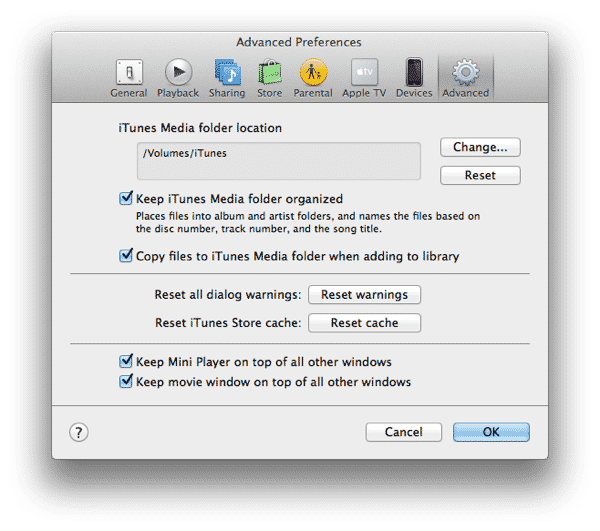
However, you can set the location of your iTunes Media folder to anywhere on your computer, or even on an external hard drive or network share. This option is found under the Advanced tab in your iTunes Preferences.

Also take note of the Copy files to iTunes Media folder when adding to library option in this section; when importing new files into your iTunes library this option determines whether those files are copied into your iTunes Media folder or simply left in their original locations and referenced from there. Note that this only applies to importing existing media files—content you download from the iTunes Store or import from CD will always be placed in the iTunes Media folder regardless of this setting.
Within the iTunes Media folder, iTunes organizes your files into a hierarchical sub-folder structure, with the first level of folders organized by content type (e.g. Music, Movies, TV Shows, etc), and then sub-folders specific to each content type (e.g. Artist/Album for music, Show/Season for TV shows, etc).

As long as everything is in its “proper” location within the iTunes Media folder, then you shouldn’t have any problem migrating your iTunes library between the Windows and Mac OS X operating systems; when iTunes can’t find your files in their specified paths—because those paths have no way of existing on the other OS—then it simply goes and looks in the iTunes Media folder, finds the file where it’s supposed to be, and updates its location. This entire process is transparent; iTunes will simply pick up the files in their new location without any prompts or warnings.











