
iLoungeiLounge
  • News
    • Apple
      • AirPods Pro
      • AirPlay
      • Apps
        • Apple Music
      • iCloud
      • iTunes
      • HealthKit
      • HomeKit
      • HomePod
      • iOS 13
      • Apple Pay
      • Apple TV
      • Siri
    • Rumors
    • Humor
    • Technology
      • CES
    • Daily Deals
    • Articles
    • Web Stories
  • iPhone
    • iPhone Accessories
  • iPad
  • iPod
    • iPod Accessories
  • Apple Watch
    • Apple Watch Accessories
  • Mac
    • MacBook Air
    • MacBook Pro
  • Reviews
    • App Reviews
  • How-to
    • Ask iLounge
Font ResizerAa
iLoungeiLounge
Font ResizerAa
Search
  • News
    • Apple
    • Rumors
    • Humor
    • Technology
    • Daily Deals
    • Articles
    • Web Stories
  • iPhone
    • iPhone Accessories
  • iPad
  • iPod
    • iPod Accessories
  • Apple Watch
    • Apple Watch Accessories
  • Mac
    • MacBook Air
    • MacBook Pro
  • Reviews
    • App Reviews
  • How-to
    • Ask iLounge
Follow US

How-to › Ask iLounge

Ask iLoungeiPad

Migrating from shared to personal iPads

Last updated: May 16, 2021 4:08 pm UTC
By Jesse Hollington
Migrating from shared to personal iPads

Q: My wife and I currently share an iPad 2, but with the new iPads coming out this month, we’re thinking of buying separate iPads for each of us. We might get an iPad Air today and an iPad mini later this month, but I’m curious as to how easy it is to separate our data later when we both have our own personal iPads.


– Phil
Migrating from shared to personal iPads

A: Although Apple doesn’t offer an actual migration path for moving only specific apps and data between iPads, in a family environment the easiest way to do this is to simply to restore the shared iPad configuration onto each of your new iPads to use as a baseline, and then customize from there.

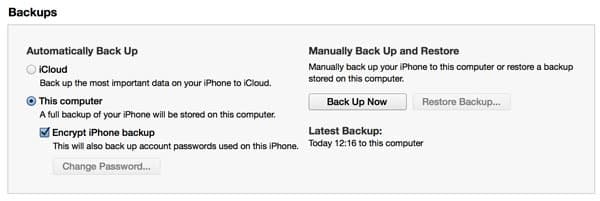
In essence, you’re basically treating the setup in the same way you would if you were upgrading to a single new device and transferring your data. To do this, you backup the device to iTunes or iCloud and the restore both of the new devices from that backup. Our Guide to Transferring your Content to a new iPhone, iPad, or iPod touch has all of the details on how to handle this.


If at all possible, we recommend using iTunes to do this rather than iCloud. It is much faster as you’re transferring data over USB rather than the Internet, plus if you select the option to encrypt your backups you can transfer all of your passwords to the new devices for things like your Wi-Fi networks and e-mail accounts.

Once this process is complete, you will have two identically configured iPads, with the same configuration, same apps, and same data on each. They will also have the same name. You can rename each device by going into Settings, General, About,  tapping on the device name at the top, and entering a new name. This can also be done from iTunes by clicking on the device name in the “Summary” screen that appears when your iPad is connected to your computer.


Migrating from shared to personal iPads

Note that iTunes and iCloud identify devices based on their internal hardware ID, not the device name, so you don’t need to worry about syncing two devices with the same name to the same computer—iTunes actually can tell the difference, regardless of what you’ve chosen to call the devices; the name is merely there so you can tell the difference.

Once you’ve renamed both devices, you can proceed to customize them for each user by adjusting settings, switching accounts for things like iCloud, iTunes, iMessage, FaceTime, and Game Center, deleting apps that you don’t want on each specific device, and so forth. There’s nothing particularly special at this point in the process—it’s simply a matter of managing your iPad settings and apps like you normally would if you were cleaning up your own device. The same applies to syncing content with iTunes; even though both devices were restored from a common backup, iTunes sees them as separate devices, and you can customize your sync settings for each one individually without affecting the other.

The only minor caveat to this whole process is that it can get a little bit tricky if the new iPads you’re purchasing are lower-capacity than the original, shared one. In this case, you’ll need to make sure that everything from the old iPad actually fits on the new ones.



Latest News
The 14-inch MacBook Pro with M5 Chip 16GB RAM/512GB is $250 Off
1 Min Read
Noise and Static on AirPods Pro 3 Still Unfixed
1 Min Read
New iMac with 24-inch OLED Display May be Brighter With 600 Nits
1 Min Read
The 15-inch M4 MacBook Air 256GB Is $250 Off
1 Min Read
Internal Kernel Debug Kit from Apple Reveals Tests for a MacBook with A15 Chip
1 Min Read
Apple Currently In Talks With Suppliers for Chip Assembly & Packaging of iPhones in India
1 Min Read
Apple Allows Easier Battery Replacement For M5 MacBook Pro with 14-inch Display
1 Min Read
The Apple Watch SE 3 44mm GPS is $50 Off
1 Min Read
20th Anniversary iPhone May Launch in Two Years
1 Min Read
Better Image Generation Capabilities and Apple Music Integration Coming to ChatGPT
1 Min Read
A20 Pro Chip Coming to Next Gen iPad Mini OLED
1 Min Read
Amazon has the AirTag 4 Pack Marked $29 off
1 Min Read

iLounge logo

iLounge is an independent resource for all things iPod, iPhone, iPad, and beyond. iPod, iPhone, iPad, iTunes, Apple TV, and the Apple logo are trademarks of Apple Inc.

This website is not affiliated with Apple Inc.
iLounge © 2001 - 2025. All Rights Reserved.
  • Contact Us
  • Submit News
  • About Us
  • Forums
  • Privacy Policy
  • Terms Of Use
Welcome Back!

Sign in to your account

Lost your password?








