
Q: Is it possible to unify content from two iTunes libraries? I currently have my media library on a Mac mini and my apps library on my MacBook Pro. I have synced with both libraries on my iPhone and iPad, but now I want only one complete library.
– Felix
A: Although there is no easy way to simply “merge” two completely separate library databases, there are several ways you can go about consolidating your actual content into a single, unified iTunes library.
The most straightforward solution is to simply copy the media content to whichever computer you want to designate as your main library and then import that content using the File, Add to Library menu option in iTunes. Copying the content can be done using any method you would normally use to move files; an external hard drive or USB flash drive, a network connection between the two computers, or even burning it to DVDs or CDs.
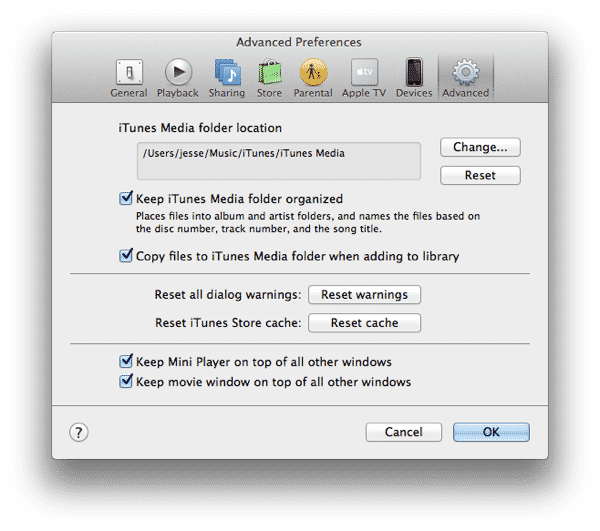
Finding where all of your content is located can sometimes be a challenge, although if you’ve been using the iTunes default settings everything should be located in the “iTunes Media” folder, located under your ~/Music/iTunes folder. If for some reason you have changed your settings and turned off the Copy files to iTunes Media folder when adding to library option, then you may have content scattered through your hard drive, since in this case iTunes will leave any files you import in their original locations and reference them from there, rather than copying them into your iTunes Media folder.
In this case, you can use the Consolidate option described in our article on Transferring your iTunes library to organize all of your files into a single iTunes Media folder that can more easily be transferred over to the new computer. Note as well that the Copy files… option only applies to actual media files that you’ve imported manually into iTunes; tracks ripped from CD and items downloaded from the iTunes Store are always placed in the iTunes Media folder.
Another trick that you may find useful for copying content out of your iTunes library is to simply select the track(s) in iTunes and drag-and-drop them directly from the iTunes window onto an open folder in a Finder window; iTunes will copy the files to that location, regardless of their original location. This can be an effective way to copy all of the tracks from a specific playlist, for example, without having to wander through the iTunes Media folder hierarchy and track them all down individually. It’s also worth noting that this method works for content such as apps and books as well.
The most significant limitation of simply moving your media content over and re-importing it is that you will lose any iTunes-specific tracking metadata such as ratings, play counts, and skip counts. Note that track identifying information such as title, album, artist and genre are normally stored within the files and will therefore transfer to the new library along with the tracks themselves. The exception to this if you’re using lossless WAV audio files, as the WAV format does not provide any way to store this information. In this case, you can use iTunes to convert these to AIFF or Apple Lossless, however, which will allow your tags to be stored in the file.
Artwork is a special case here, however. Embedded artwork—that which you have manually added yourself or was originally included in the tracks—will come across in the same manner as other identifying metadata such as the track name and artist.
However, artwork added automatically by iTunes using the Get Artwork feature will not come over as this is not embedded in the files themselves. You can either simply ask iTunes to re-fetch your artwork after importing these tracks into the new library, or you can use an AppleScript such as Embed Artwork to write the automatically downloaded artwork to each of your tracks.
Playlists are also not migrated by this process of course, since these only exist in the iTunes database. You can migrate playlists manually, however, by opening these other libraries, selecting the individual playlists you want to export and then choosing File, Library, Export Playlist and saving them to an XML file. You can then copy the resulting XML files to the computer with your main library and use the File, Library, Import Playlist option to import them. Be sure to do this after you’ve imported your media content from the other library, however, as iTunes can’t associate playlists to tracks that aren’t actually in your library already.
Keep in mind that none of this really affects apps, so if your MacBook Pro library actually only contains apps and no media content, you really have to do nothing more than simply copy those apps over to the Mac Mini and import them into your iTunes library there. In fact, you could simply ensure file sharing was enabled on your MacBook Pro and then open a network connection from your Mac Mini to the ~/Music/iTunes/iTunes Media/Mobile Applications folder on your MacBook Pro and drag-and-drop its content directly into iTunes on the Mac Mini. This would import all of your apps into the iTunes library on the Mac Mini, copying them into its local iTunes Media folder in the process—provided the Copy files to iTunes Media folder when adding to library option described above is enabled, which is the default setting on iTunes for Mac OS X.











