
Q: I want to add videos to my iPod, but when I try to sync them, a window pops up that says “an iPod can be synced with only one iTunes library at a time. Erasing an syncing replaces the contents of this iPod with the contents of this iTunes library.” So if I do this, will it replace everything on my iPod with the videos I’m trying to put on?
– Anna
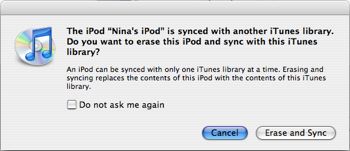
A: In principle, the short answer is yes. Essentially, when using automatic synchronization, an iPod becomes a mirrored image of the iTunes library that it is being automatically synchronized with. This means that any content that is on your iPod that is not in the current iTunes library will be removed when using automatic synchronization.

Note that this message normally only appears when your iPod has previously been synchronized to another iTunes library. iTunes keeps track of which iPods have been synchronized with the current library, and prompts you with this warning in the event that your iPod is not on this list.
In reality, however, this message can also appear in situations where you may have started a new iTunes library, such as when you restore your music from backup and reimport it into your library.
In this case, you technically are syncing your iPod with a new library, but since the library itself would already contain all of the same media that is also on your iPod (since you recovered it from backup), then the result of selecting “Erase and Sync” in this case will essentially be to remove all of the content from your iPod and then replace it with what is essentially going to be the same content.
However, this does not change the fact that selecting “Erase and Sync” will basically do exactly what the option suggests: Erase all media content from your iPod and replace it with the content of the current iTunes library, whatever that may be. If your iTunes library has the same content that is already on your iPod, then you will not actually lose anything, as this content will just be loaded back onto the iPod. However, if you have loaded content onto your iPod from a different computer and not transferred that content to your current iTunes library, then that content will be lost as part of the “Erase and Sync” process.
If you are in fact using your iPod on more than one computer, and simply want to add a few songs or videos from an alternate iTunes library, the simplest solution is to set your iPod to “Manual” mode, which will not automatically synchronize any music or video from your computer—instead you will simply drag it from your library to your iPod manually.
To enable this option, connect your iPod, ensuring that you hit “Cancel” when presented with the prompt above. Your iPod will not sync, but will remain connected and visible in iTunes so you can adjust the settings on it. You can then select your iPod in the source list in iTunes, and on the “Summary” tab you will find an option labeled “Manually manage my music and videos.” Place a checkbox beside this option, and hit the “Apply” button, and your iPod will switch to manual mode.

From this point on, no music or video content will be automatically synced to your iPod (with the exception of Podcasts, which are still synced automatically regardless of this setting). Instead, you will add music from your iTunes library (or any other library) simply by dragging it from the main library screen to the iPod in the source list on the left-hand pane of iTunes. Copying playlists to your iPod will also be done in much the same way: Drag the playlist from the lower part of the source pane and drop it onto the iPod itself, and the playlist entry and all tracks within will be copied to your iPod.
Likewise, to remove content from your iPod in manual mode, you will need to select the iPod itself and click on the small triangle that appears to the left of it to expand the list of categories and playlists that are on the iPod itself.

From there, simply select a specific category or playlist, highlight the track(s) you wish to remove, and delete them as you normally would from the iTunes library itself.
Note that there are a few disadvantages to manual mode: The most significant is that information such as rating, playcount, and last played time will not be transferred from the iPod back to your iTunes library. Further, you will want to be a bit cautious when dragging and dropping tracks onto your iPod, as duplicates may be created if those tracks are already on your iPod.











