
Q: I have over 10,000 songs in iTunes, and have recently replaced my 60 GB iPod with an 8 GB iPod nano. I would like to have iTunes do a random autofill when I sync my nano. iTunes did build a random playlist but won’t ever change the contents of the playlist, it is always the same. Is there a way to have different songs without dragging them myself?
– Jim
A: This is most definitely possible through the use of one of iTunes’ more powerful features, “Smart Playlists.”
As you’ve observed, iTunes itself will offer to select content for your iPod in the event that your library is larger than the capacity of your iPod. Unfortunately, it does this through creating a standard playlist and randomly filling it with content. Since a standard playlist is used, this content remains static unless you manually update the tracks listed within.
On the other hand, iTunes supports a feature called “Smart Playlists” that allows you to build playlists in your iTunes library based on specified criteria that can be found within the tags of each song. In a new iTunes library, you will normally see some default Smart Playlists that have already been created for you, and you can edit these to get an idea of what sort of options are available.
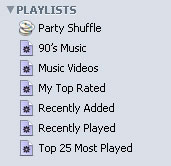
Smart Playlists are identified in iTunes by a purple icon with a gear on it.

You can easily create additional Smart Playlists and select these for synchronization to your iPod nano either instead of, or in addition to the standard playlist that iTunes builds for you automatically.
Unfortunately, while there’s no way to do this completely at random, certain criteria can be set in your Smart Playlist to ensure that iTunes will at least keep relatively fresh and relevant content loaded onto your iPod. This is best done based on criteria like the following:
- Date Added: The date the track was added to the iTunes library (not necessarily the date added to the iPod)
- Last Played: The date the track was last played in iTunes or on any iPod that is automatically synced with this library.
- Last Skipped: The date the track was last skipped in iTunes or on any iPod that is automatically synced with this library. A track is considered “Skipped” when the “Next Track” button is used to skip to the next track between 2 and 30 seconds into the track. Selecting a new track in iTunes or on the iPod does not increment this counter—only hitting the “Next Track” button. Also note that the tracking of this is only supported on the iPod nano and 5G iPod models.
- Play Count: The number of times a track has been played through to the end, either in iTunes or on any iPod that is automatically synced with this library.
- My Rating: The rating for a track, from 0 through 5 stars.
The information from playing, skipping, or rating tracks on the iPod (or the iPhone or Apple TV for that matter) is automatically transferred back to the iTunes library from any iPod that is automatically synced to that library, and can be viewed within iTunes by displaying the appropriate columns.
By combining these criteria, you can easily create a playlist that contains the content that you wish to have loaded onto your iPod, and you can even limit each playlist to a maximum number of items, duration or size.
To create a new Smart Playlist, you simply choose New Smart Playlist from the File menu in iTunes. Alternatively, you can click on the Create a Playlist button found in the bottom-right corner of the iTunes window while holding down the SHIFT key (Windows) or OPT key (Mac)—you will see the button change from a plus sign to a gear symbol, and clicking on it while continuing to hold the SHIFT/OPT key will create a Smart Playlist instead of a standard playlist.

When creating a Smart Playlist, you will be presented with a dialog box, which will allow you to specify the criteria for which tracks should be included in your Smart Playlist. There are obviously many possible options that can be used to set criteria for Smart Playlists, depending upon your own library and preferred criteria.
The following are some examples of Smart Playlists that may provide a useful starting point:
- Select 1GB worth of tracks, at random, that have not been played in 7 days, not been skipped in 5, and are rated between 3 and 5 stars:

- Select 1GB worth of tracks from the “Rock” genre, grouped by artist, that have never been played and have not been skipped in the past three days:
- Select 60 minutes worth of music that has been added to your iTunes library in the past two weeks, with the least recently added tracks being given priority:
- Select 15 tracks from the Jazz or Blues genre, grouped by album:


Note that you can also use other playlists as criteria within a Smart Playlist. These other playlists can be either standard playlists or other Smart Playlists, and this can be a very useful way of specifying more complex and/or criteria, or selecting a limited number of tracks from a larger playlist.
- Select all tracks in the “JDH Mix” standard playlist that have not been skipped in the past two days:
- Select 60 minutes worth of music from the “Workout” playlist, with the least recently played tracks being given priority:


Note that the “Limit to” settings can be a very useful way of limiting the content of a Smart Playlist to the storage of your iPod nano, and can even be combined across several Smart Playlists, so you could for example have four individual Smart Playlists that each select 2 GB of content, and then sync them all to your 8 GB iPod nano.











