
Q: What is the proper way to remove videos from my iPhone but still keep them in the iTunes library?
– Rick
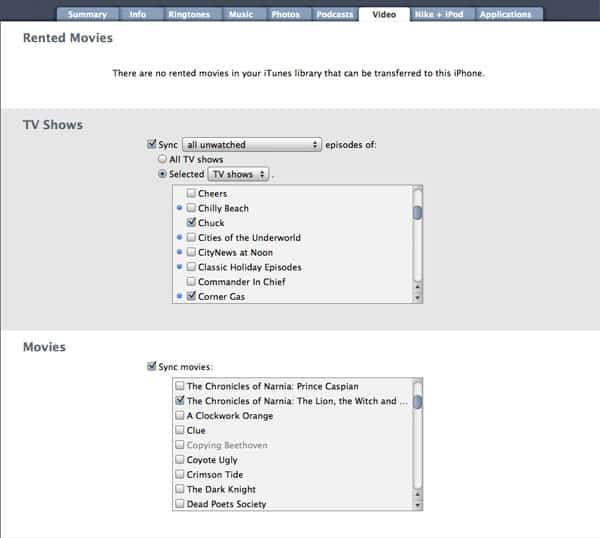
A: If you are using automatic synchronization with your iPhone, the video content that is stored on your iPhone is managed through iTunes. While you can delete video files directly from your iPhone to save space, iTunes will put these back on during the next automatic synchronization unless you also de-select them in iTunes.
There are a couple of different ways that you can determine which videos are synced from iTunes to your iPhone. The simplest way is to connect your iPhone to your computer, select it in the iTunes Devices list on the left-hand side, and then choose the “Videos” tab from the main screen.
On the Videos tab, you will see sections for transferring any rented movies that you may have in iTunes or on your iPhone as well as sections for determining which TV Shows or Movies are synced to your device. For TV Shows, you can either sync by TV Show or by any playlists you have created containing your TV Show episodes, and can choose to sync either all episodes or only a certain number of unwatched episodes. For Movies, which encompass any type of video in iTunes that isn’t tagged as anything else, you simply choose which specific Movies to sync.
Syncing of Music Videos is controlled in a different manner. For the purposes of synchronization, Music Videos are treated like any other music track in your library, and will be synchronized based on the settings on your “Music” tab.

A global “Include Music Videos” option determines whether music videos are transferred to your iPhone. If this option is enabled, your Music Videos are synced alongside your music tracks based on the settings on this screen, so if you’re syncing all of your music, you’ll get all of your music videos. On the other hand, if you’re syncing selected playlists only, then only music videos included in those playlists will be synchronized to your iPhone.
Video podcasts on your iPod are similarly managed through the “Podcasts” tab.
Another option for managing the video content on your iPhone is to use the “Sync only checked songs and videos” option found on the main “Summary” tab.
When this option is enabled, any items in your iTunes library that are not checked will not be transferred to your iPhone, and if you UNcheck an item, it will be removed from your device during the next sync with iTunes.

The “Sync only checked items” has the advantage that you can make adjustments to your synced content without having to connect your iPhone to your computer. The downside to this option is that any unchecked items in your iTunes library are never played unless you specifically select them, so if you have a a playlist of items, any unchecked items will be skipped over during normal playback.
Lastly, you can also choose to manage the content on your iPhone manually, in which case your iPhone is treated as a separate library. To enable manual mode, simply select the option to “Manually manage my music and videos” on the iPhone Summary screen in iTunes.

In manual mode, adding content to your iPhone is done by dragging-and-dropping the content from your iTunes library onto your iPhone icon in the iTunes Devices list. To delete content from your iPhone, you would click on the small triangle to the left of the iPhone icon in your iTunes Devices list, which will present a list of the categories and playlists of content on your iPhone.











