
Q: I mainly use my iPod nano for podcasts. However, if I have a large number loaded at any one time it’s easy to lose track of which ones I have listened to, especially if I mix them up a bit rather than play them sequentially. Is it possible to delete podcasts once they have been listened to? I can find no such function. Alternatively, what’s the best way of managing the playing of podcasts, other than restricting the number residing on the iPod?
– Ian
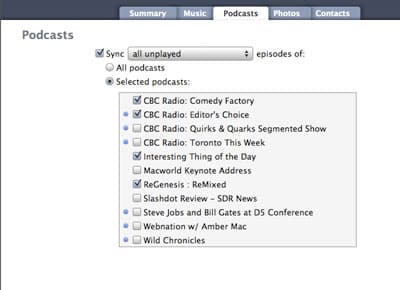
A: While it is not possible to delete podcasts from the iPod interface itself, these can be automatically removed by iTunes on the next synchronization, leaving you with a list of only those podcasts that you have not yet listened to.
The easiest way to do this is to simply select one of the “Unplayed” or “New” settings from your podcast synchronization options found under the “Podcasts” tab for your iPod device within iTunes:
From the “Sync” option at the top, you can choose to either sync all episodes, all unplayed episodes, or all new episodes, or you can further limit these selections to the only the most recent episodes, unplayed episodes, or new episodes:

In the context of podcasts, a “New” episode refers to one that you have not listened to any portion of, whereas an “unplayed” episode refers to an episode that has not been listened to completely through to the end.
“New” episodes are indicated with a blue dot to the left of the episode title in iTunes, whereas the played status of an episode is indicated by a play count greater than zero (in the same manner as with music tracks and other content). This allows for more effective control over which podcast episodes are retained based on your normal listening preferences (ie, dependent upon whether you normally listen to a podcast episode through to the end or not).
Another method that can be used for more effective podcast management is to create Smart Playlists for your podcasts. This will allow you more flexibility over the content loaded onto the iPod, since you can select a different number of episodes, based on different criteria, and can also perform selections based on things like least recently added. A Smart Playlist has the added bonus of updating “live” on the iPod itself, so if you listen to your podcasts from a Smart Playlist, and use a criteria such as “Play Count” you can easily maintain a list of only unplayed episodes of each podcast without having to return to your computer and resync your iPod to update the content.
A Smart Playlist such as the following, for instance, will select the 5 least recently added (oldest) episodes of a given podcast that have not yet been listened to:

Once you listen to an episode, it will be removed from the Smart Playlist the next time you select that particular Playlist, leaving you with a list of only those episodes that you have not yet listened to. When playing podcast episodes using a playlist or Smart Playlist, the iPod will play them all in sequence if the shuffle setting is turned off (on the iPod, under Settings, Shuffle), or will play one episode and stop if the shuffle setting is enabled. This can be used for more effective control over how you want to listen to your podcast episodes.
You can combine normal podcast synchronization (via the iPod “Podcast” settings in iTunes), with the selection of Smart Playlists (which would be selected under the “Music” tab) to control how many podcast episodes are actually loaded on your iPod. The Smart Playlist will still only reflect those episodes that actually meet the playlist criteria, but all episodes selected under the “Podcast” settings in iTunes will actually be transferred to the iPod itself (and available through the “Podcasts” menu on the iPod).











