
iLoungeiLounge
  • News
    • Apple
      • AirPods Pro
      • AirPlay
      • Apps
        • Apple Music
      • iCloud
      • iTunes
      • HealthKit
      • HomeKit
      • HomePod
      • iOS 13
      • Apple Pay
      • Apple TV
      • Siri
    • Rumors
    • Humor
    • Technology
      • CES
    • Daily Deals
    • Articles
    • Web Stories
  • iPhone
    • iPhone Accessories
  • iPad
  • iPod
    • iPod Accessories
  • Apple Watch
    • Apple Watch Accessories
  • Mac
    • MacBook Air
    • MacBook Pro
  • Reviews
    • App Reviews
  • How-to
    • Ask iLounge
Font ResizerAa
iLoungeiLounge
Font ResizerAa
Search
  • News
    • Apple
    • Rumors
    • Humor
    • Technology
    • Daily Deals
    • Articles
    • Web Stories
  • iPhone
    • iPhone Accessories
  • iPad
  • iPod
    • iPod Accessories
  • Apple Watch
    • Apple Watch Accessories
  • Mac
    • MacBook Air
    • MacBook Pro
  • Reviews
    • App Reviews
  • How-to
    • Ask iLounge
Follow US

How-to › Ask iLounge

Ask iLoungeiCloudiPadiPhoneiPod

Managing multiple iCloud accounts for Contacts

Last updated: May 16, 2021 4:23 pm UTC
By Jesse Hollington
Managing multiple iCloud accounts for Contacts

Q: I have a few questions about your article on Sharing iTunes & iCloud Accounts in a Family from April 5, 2012.


When using two iCloud accounts on a device, is it possible to select which iCloud account is used to store new contacts that I create? Also, how do I go about moving or copying contacts from a main iCloud account to a shared iCloud account and vice-versa?  Is there a way to recognize on my iPad/iPhone which iCloud account is being used to store a given contact? Many thanks for your answer.
Managing multiple iCloud accounts for Contacts

– Daniele

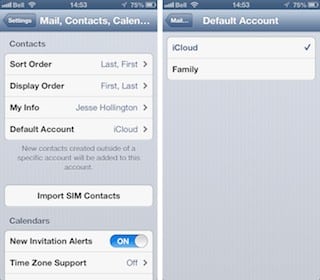
A: When you have more than one account configured for Mail, Contacts or Calendars, an additional option will appear in the iOS Settings app for the appropriate category allowing you to select the default account where new items should be created. This can be found in the Mail, Contacts, Calendars settings.


For Contacts, this default setting will apply when creating a new contact from another application—such as from a recent calls entry in the Phone app—or when viewing more than one account in your contacts list.

A Groups button will appear in the top-left corner of the Contacts app (or the Contacts section in the Phone app) when multiple accounts are configured for contacts; this screen can be used to select which accounts and/or groups you want contacts to be displayed for.


Managing multiple iCloud accounts for Contacts

If more than one contact account is selected here, any new contacts you create will be placed in the default account, as specified in your Mail, Contacts, Calendars settings above. To create a new contact in a specific account, simply ensure that only that account is selected before creating the new contact.

If the same contact exists in more than one account, the Contacts app will display a “unified” contact card, merging the information from both accounts into a single view. A Linked Contacts section will be displayed at the bottom of the contact screen with a list of the accounts from which the contact information is gathered and links to view the individual contact records in each account.


Note, however, that the account type is displayed here for each account (e.g. iCloud, Exchange), rather than description defined in the account’s settings.


Managing multiple iCloud accounts for Contacts

Unfortunately, there is no other indication provided on the contact screen as to which account you are viewing a given contact from, although the filtering options described above can be used to display a list of contacts from only a single account.

The iOS interface also does not provide any method for moving contacts between iCloud accounts. If you’re a Mac user, you can do this by using the Address Book or Contacts app in OS X Lion or Mountain Lion—simply drag-and-drop the contacts between the different accounts.



Latest News
The 14-inch MacBook Pro with M5 Chip 16GB RAM/512GB is $250 Off
1 Min Read
Noise and Static on AirPods Pro 3 Still Unfixed
1 Min Read
New iMac with 24-inch OLED Display May be Brighter With 600 Nits
1 Min Read
The 15-inch M4 MacBook Air 256GB Is $250 Off
1 Min Read
Internal Kernel Debug Kit from Apple Reveals Tests for a MacBook with A15 Chip
1 Min Read
Apple Currently In Talks With Suppliers for Chip Assembly & Packaging of iPhones in India
1 Min Read
Apple Allows Easier Battery Replacement For M5 MacBook Pro with 14-inch Display
1 Min Read
The Apple Watch SE 3 44mm GPS is $50 Off
1 Min Read
20th Anniversary iPhone May Launch in Two Years
1 Min Read
Better Image Generation Capabilities and Apple Music Integration Coming to ChatGPT
1 Min Read
A20 Pro Chip Coming to Next Gen iPad Mini OLED
1 Min Read
Amazon has the AirTag 4 Pack Marked $29 off
1 Min Read

iLounge logo

iLounge is an independent resource for all things iPod, iPhone, iPad, and beyond. iPod, iPhone, iPad, iTunes, Apple TV, and the Apple logo are trademarks of Apple Inc.

This website is not affiliated with Apple Inc.
iLounge © 2001 - 2025. All Rights Reserved.
  • Contact Us
  • Submit News
  • About Us
  • Forums
  • Privacy Policy
  • Terms Of Use
Welcome Back!

Sign in to your account

Lost your password?








