
iLoungeiLounge
  • News
    • Apple
      • AirPods Pro
      • AirPlay
      • Apps
        • Apple Music
      • iCloud
      • iTunes
      • HealthKit
      • HomeKit
      • HomePod
      • iOS 13
      • Apple Pay
      • Apple TV
      • Siri
    • Rumors
    • Humor
    • Technology
      • CES
    • Daily Deals
    • Articles
    • Web Stories
  • iPhone
    • iPhone Accessories
  • iPad
  • iPod
    • iPod Accessories
  • Apple Watch
    • Apple Watch Accessories
  • Mac
    • MacBook Air
    • MacBook Pro
  • Reviews
    • App Reviews
  • How-to
    • Ask iLounge
Font ResizerAa
iLoungeiLounge
Font ResizerAa
Search
  • News
    • Apple
    • Rumors
    • Humor
    • Technology
    • Daily Deals
    • Articles
    • Web Stories
  • iPhone
    • iPhone Accessories
  • iPad
  • iPod
    • iPod Accessories
  • Apple Watch
    • Apple Watch Accessories
  • Mac
    • MacBook Air
    • MacBook Pro
  • Reviews
    • App Reviews
  • How-to
    • Ask iLounge
Follow US

How-to › Ask iLounge

ArticlesAsk iLoungeiTunesMac

Managing iTunes media files on an external hard drive

Last updated: May 16, 2021 5:08 pm UTC
By Jesse Hollington
Managing iTunes media files on an external hard drive

Q: I’m looking for a third party application for use on Mac OS X (Leopard) that allows me to add songs to my iPod from an external hard drive without making copies of those songs onto the computer’s hard drive. I have over 150GB of music and a MacBook with a 120GB HD, so I have no room for storing libraries of copied MP3 files. As far as I can see iTunes always makes copies of the songs. If there’s a way of managing it so it just retains a link with the files on the external drive, that would be a solution I guess.


– Mark
Managing iTunes media files on an external hard drive

A: Actually, iTunes can take care of this for you without a need for any third-party applications.

Specifically, there are two different ways you can handle this, depending on how you prefer to manage your music files.

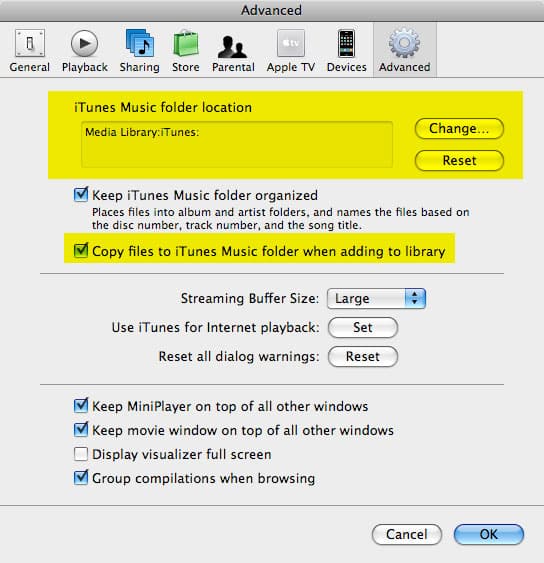
The simplest solution is just to set your “iTunes Music folder” location to the external drive within your iTunes preferences. To access this setting, simply open your iTunes preferences (select Preferences from the iTunes menu), and choose the Advanced tab:

Managing iTunes media files on an external hard drive

At the top of this screen, simply click the “Change” button and browse to the new location for your iTunes Music folder—in this case on the external hard drive. Once you have updated this setting, any music files you add to your iTunes library will be copied to this location, instead of your MacBook’s internal hard drive. Note that your iTunes library database will still remain in your Music/iTunes folder on the MacBook itself (although you can also move this using a separate procedure if you so desire), but all of your actual media files will be stored in the “iTunes Music folder” location specified here.


Only iPhone/iPod touch applications and Click-wheel iPod Games will remain in the MacBook’s “iTunes” folder.

Note that if the external hard drive is not available when you start iTunes, the iTunes Music folder setting will revert back to the default location on your MacBook. This is a temporary change, however, and if you connect the external hard drive and then restart iTunes, it will remember your specified iTunes Music folder location on the external hard drive and automatically switch back to it.

The second approach if you would prefer to keep your iTunes Music folder on your MacBook and simply leave the files on the external hard drive in whatever location you’ve already put them is to turn off the “Copy files to iTunes Music folder when adding to library” setting found in the Advanced preferences. With this setting off, iTunes will never copy an imported file into your iTunes Music folder—instead it will simply link to the original file.



Latest News
The 14-inch MacBook Pro with M5 Chip 16GB RAM/512GB is $250 Off
1 Min Read
Noise and Static on AirPods Pro 3 Still Unfixed
1 Min Read
New iMac with 24-inch OLED Display May be Brighter With 600 Nits
1 Min Read
The 15-inch M4 MacBook Air 256GB Is $250 Off
1 Min Read
Internal Kernel Debug Kit from Apple Reveals Tests for a MacBook with A15 Chip
1 Min Read
Apple Currently In Talks With Suppliers for Chip Assembly & Packaging of iPhones in India
1 Min Read
Apple Allows Easier Battery Replacement For M5 MacBook Pro with 14-inch Display
1 Min Read
The Apple Watch SE 3 44mm GPS is $50 Off
1 Min Read
20th Anniversary iPhone May Launch in Two Years
1 Min Read
Better Image Generation Capabilities and Apple Music Integration Coming to ChatGPT
1 Min Read
A20 Pro Chip Coming to Next Gen iPad Mini OLED
1 Min Read
Amazon has the AirTag 4 Pack Marked $29 off
1 Min Read

iLounge logo

iLounge is an independent resource for all things iPod, iPhone, iPad, and beyond. iPod, iPhone, iPad, iTunes, Apple TV, and the Apple logo are trademarks of Apple Inc.

This website is not affiliated with Apple Inc.
iLounge © 2001 - 2025. All Rights Reserved.
  • Contact Us
  • Submit News
  • About Us
  • Forums
  • Privacy Policy
  • Terms Of Use
Welcome Back!

Sign in to your account

Lost your password?








