
Q: I have iTunes on my PC. I DO NOT want this iCloud thing messing with iTunes. I synced my iPod classic with iTunes and then disconnected my iPod from iTunes and closed iTunes. When I later opened up iTunes it was reading iCloud stuff and my entire iTunes Library is now GONE. The iTunes Library is also reading the NEW iCloud Library, NOT THE Library with all of my music and playlists!
I turned off the iCloud sharing thing at iTunes, and now iTunes is EMPTY. How do I stop this iCloud thing? I have over 4000 songs, including Playlists…they are ALL GONE. I DO have the CDs in a folder at iTunes, but NO recent Library.
– Lori
A: This is an unusual situation, as iTunes should never remove anything from your iTunes library unless you specifically delete it.
The iCloud integration will add to your library in terms of displaying your purchased content that isn’t already on your hard drive, but it will never remove or replace anything unless you specifically delete it. Even if you subscribe to iTunes Match, your original content remains on your hard drive unless you manually remove it.
Considering that everything seems to have disappeared entirely, including your playlists, it sounds quite likely that you may have somehow either lost your underlying iTunes library database, or inadvertently switched to a new one somehow. This wouldn’t have anything at all to do with iCloud, but could be the result of something else that has happened on your computer.
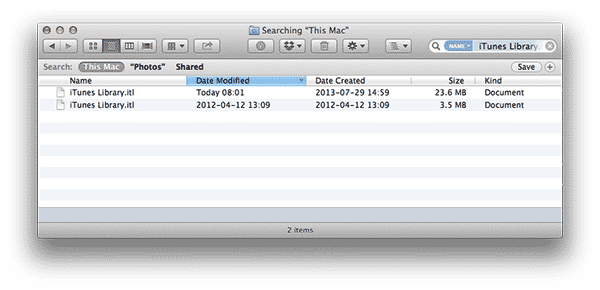
Hopefully this is just a question of iTunes having created a new database somewhere else, and your old database is still intact. If you open up Windows Explorer or Finder, you can perform a search for the file “iTunes Library.itl” and see what that turns up. You should find at least one version in the form of the new, empty database that iTunes has created, but if you find others there’s a good possibility that one of these is your old iTunes library database. Check the size and date of any files you’ve found—a larger file is more likely your actual iTunes library database.
Note that iTunes also keeps a copy of previous iTunes libraries in a “Previous iTunes Library” folder under the main iTunes folder every time you upgrade to a new version of iTunes, so even if you can’t find a more recent copy, reverting to one of those older ones may be better than nothing at all. These are named with the date and time each was created.

If you’ve found your main iTunes database file residing somewhere else, the next step depends on whether the entire iTunes folder structure is in that other location, or whether only the iTunes Library database file itself has been moved. If it’s only the individual file, simply moving it back into your main “iTunes” folder, normally located under your home “Music” folder, should suffice, as this is where iTunes will look for it by default.
If the entire folder structure, including the other databases and the “iTunes Media” folder are in the same location as the actual database file, then you probably need to point iTunes back to use the database at that location. You can do this by holding down the SHIFT key (Windows) or OPT key (Mac) when starting iTunes, which will prompt you to either create a new iTunes database or choose a location of an existing one. Simply select the latter option and point iTunes to the folder that contains your actual iTunes library database.

If you can’t find a current copy of your iTunes library database but have a backup available elsewhere, you can simply rename this to “iTunes Library.itl” and move it into your main iTunes folder, as described above.











