
Q: Any service that I try to access on my iPhone shuts down within 1-5 seconds. I cannot access Safari, camera, iPod, phone, calendar, etc. I do not want to reset my phone from iTunes because I am afraid I will lose all my information that I have configured on my phone. What are my options at this point? Will I lose all info if I reset to default?
– Michael
A: As with any such problem, the first recommended step is to always try a “Restore” to factory settings to ensure that some aspect of your iPhone’s operating system or data stored on it is not causing the problem.
The good news is that assuming that your iPhone has been syncing properly to your computer, most of the information stored on your iPhone is actually backed up by iTunes itself and can be restored to the iPhone after a full “Restore” operation, or in the event that your iPhone is replaced with a new unit. If you are running the latest v1.1.1 firmware, you will in fact find that pretty much everything gets restored back to the iPhone after an iTunes restore.
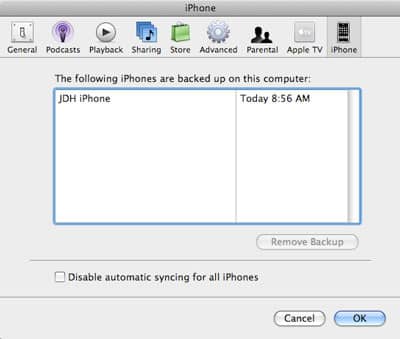
You can confirm that your iPhone is being backed up, and the time of the last backup by going into your iTunes Preferences, and selecting the “iPhone” tab:
This will show the names of all iPhones that have been backed up to this computer, as well as the time of the last backup. You can also remove backups from this dialog box, should you desire to do so (ie, in the event that you have an older iPhone backup, or somebody else synced their iPhone to your computer).
This backup includes pretty much everything stored on your iPhone that is not otherwise synced with iTunes. So, while obviously media content would not be included, the backup does include such information as your SMS messages, call history log, phone favorites, your phone’s configuration and settings, and even your Safari browser cache and history. Some information is not included in this backup simply due to the fact that it is already stored elsewhere: For example media content will simply be re-synced from iTunes as it would for an iPod, and your mail messages can be re-downloaded from your mail server (mail account settings are backed up and restored, but the messages themselves are not). The settings for which content is synced to the iPhone do form part of the backup, however, so it is not necessary to reconfigure synchronization settings after a restore.
Note that if you are using the v1.0.x iPhone firmware, there is some information that is specifically not backed up or restored that may be of concern. Most significantly this includes photos you have taken with the iPhone’s camera. Photos can be transferred from the iPhone using any number of photo transfer applications, but are not backed up by iTunes itself. If you are using the v1.0.2 firmware, always ensure that you transfer any photos that you wish to keep off of your iPhone prior to restoring it or sending it in for service.
Further, auto-lock settings, passwords for mail accounts and WiFi networks, and YouTube bookmarks are also not backed up in the v1.0.x firmware. Passwords will simply need to be re-entered manually, and YouTube bookmarks will simply be lost.
The good news is that the v1.1.1 firmware addresses this, and now all of this additional information is backed up, even photos taken with the iPhone’s built-in camera will be included in the backups from an iPhone running v1.1.1.
Making use of this backup is really as simple as performing a “Restore” on your iPhone and waiting for it be restored back to factory settings. Once the iPhone has finished restoring and restarts, it will appear in iTunes with a note that there is a backup available, and provide you with the option to either restore the iPhone from backup, or set it up as a new iPhone:

Simply select the backup to restore and choose “Continue.” iTunes will restore the backup files to the iPhone, displaying its progress as it does so:

After which the iPhone will be restarted with your restored settings:

Once the iPhone is re-detected by iTunes, it will commence an initial sync to reload with any other content such as music and video files. The content selected for synchronization in iTunes previously is also restored and iTunes will therefore sync the same content to the iPhone that was stored on it before the restore operation.
In all, the backup process makes restoring an iPhone almost entirely seamless, particularly if you’re using the v1.1.1 firmware. An iPhone that is backed up properly can have a full wipe-and-restore run on it and be back up and running with all of its previous settings in a matter of a few minutes, with the only significant delay being the time required to re-transfer the media content itself.











