
Soon after Apple debuted the completely redesigned iOS 7 on June 10, 2013, it became obvious that the iOS user experience has changed enough to merit a public re-introduction—a forward-looking discussion of the updated user interface and integrated apps. Over the next week, our series on iOS 7 will look at every key section of Apple’s new operating system, starting with setting up iOS devices, the new Lock Screen and Home Screen, then continuing through other major UI elements and built-in apps. For a broad look at all of iOS 7’s changes from iOS 6, check out our big picture look at iOS 7, published on June 10. Note that some features and graphics may change before iOS 7’s final release.
On-Device Setup Procedure

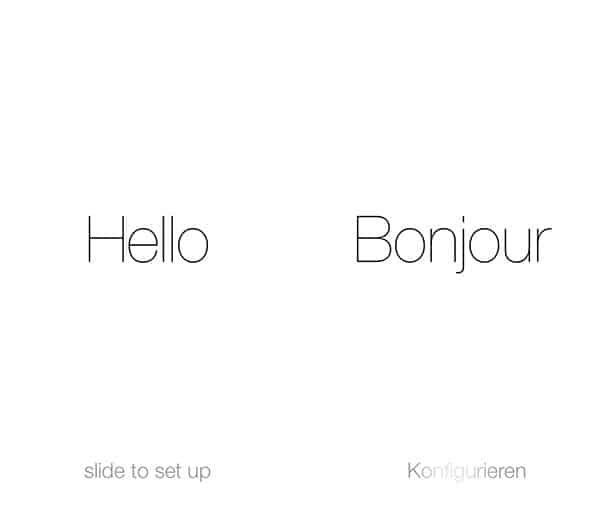
At least in the initial beta release, the actual setup and configuration process in iOS 7 is almost entirely cosmetic—it has not actually changed in any functional way from iOS 6, and in fact retains the same basic flow first introduced with the debut of “PC free” on-device setup in iOS 5. Starting with a fresh device, one that isn’t being upgraded with existing iOS 6 settings, you’ll see a stark white screen that displays the word “Hello” in multiple languages, with instructions to “slide to set up” similarly alternating through those languages. This replaces the gray setup screens seen in prior versions of iOS.

A quick swipe from left to right takes the user into basically the same setup procedure found in iOS 6, first prompting the user to first choose a language and country. This is followed by the usual prompt to select a Wi-Fi network or connect to iTunes in order to “Activate” the device.

The user is then prompted to enable location services, sign in with an Apple ID, and agree to a set of terms and conditions.
Users can also choose to skip signing in with an Apple ID, in which case some of the later screens concerning iCloud, Find My Device, and iMessage will be skipped as well.

At that point, the user will also be prompted to choose whether to set the device up as a new device, or restore from an iCloud or iTunes backup. This works much as it did before, prompting the user to either sign into an iCloud account and choose a backup, or connect to iTunes to restore a backup from iTunes.

If the user chooses to set the device up as new, he or she can then choose whether or not to use iCloud, Find my Device, and Siri, as well as choosing whether to automatically send diagnostic information to Apple. As in iOS 6, all of these options can later be enabled or disabled separately in the usual places within the Settings app.

Users can choose which of their phone numbers and e-mail addresses to use for iMessage and FaceTime on the current device. This list is based on the device’s phone number in the case of an iPhone, along with those addresses stored with their Apple ID.

As before, a triple-tap of the Home Button will enable VoiceOver support to assist visually impaired users, and users can also access additional Wi-Fi settings or start the iOS setup assistant over by holding down the Home Button.

Activating Via iTunes
Alternatives, users can simply connect the device directly to iTunes to activate it, which will bypass most of the on-device steps as well, such as restoring from a backup and the actual activation procedure. Note that you don’t actually need to start the setup assistant and choose the “Connect to iTunes” option on the Wi-Fi selection screen; you can actually just plug your device right in out of the box.

The iOS setup assistant will still run through most of the steps to configure a Wi-Fi network, enable location services, setup an Apple ID, use iCloud, use Find My Device, choose iMessage and FaceTime addresses, use Siri, and automatically send diagnostic information to Apple.
Upgrading From iOS 6
When updating a device in-place from iOS 6 rather than restoring it as new, the setup process is generally much simpler, much as it was in prior iOS versions. In fact, you may set nothing more than a note that the update has been completed, followed by a welcome screen.

Basically, the iOS setup assistant will only take you through those steps that aren’t already configured on your device. For instance, you’ll only be asked to enter an Apple ID if you hadn’t already set one up on your device previously.
Find My iPhone Security
iOS 7 introduces a new security feature to the setup process that will normally be invisible to most users, but hopefully may help to deter theft of iOS devices. If the “Find My Device” feature has been enabled, the device can no longer be wiped or restored through normal means without first turning this feature off. Further, doing so now also now requires the user’s iCloud ID and password, regardless of whether you’re simply switching the individual feature off, or removing the iCloud account from the device entirely.

Even if the user tries to get around this by placing a device in “DFU” or “recovery” mode in order to forcibly restore it, Apple will prevent the device from being activated without the original owner’s iCloud Apple ID and password, basically rendering it useless. This applies regardless of whether the user is trying to activate the device via iTunes or the iOS setup assistant.











