
Soon after Apple debuted the completely redesigned iOS 7 on June 10, 2013, it became obvious that the iOS user experience has changed enough to merit a public re-introduction—a forward-looking discussion of the updated user interface and integrated apps. Our series on iOS 7 now looks at every key section of Apple’s new operating system, starting with setting up iOS devices, the new Lock Screen and Home Screen, then continuing through other major UI elements and built-in apps. For a broad look at all of iOS 7’s changes from iOS 6, check out our big picture look at iOS 7, published on June 10, as well as our articles on iOS 7 setup, the Home Screen, and Lock Screen; this article was published on June 12 and subsequently updated. Note that some features and graphics may change before iOS 7’s final release.
Control Center
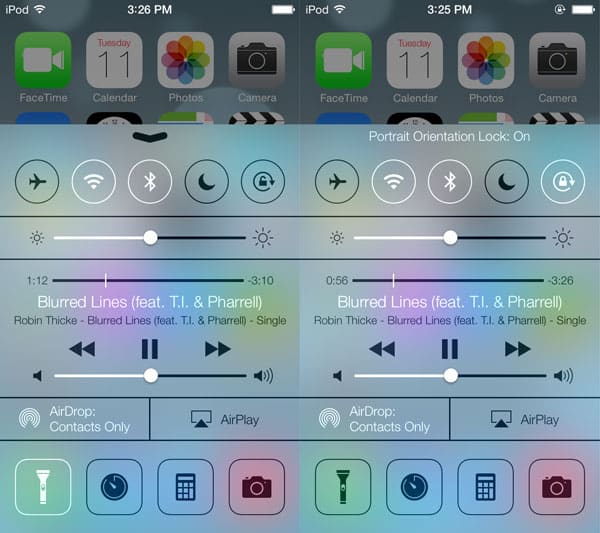

Control Center is one of iOS 7’s biggest new features, and it’s something users have wanted for years. From anywhere within the system, you can now swipe up to reveal this new control panel, which rises as a translucent pane from the bottom of the screen in either landscape or portrait orientation. Control Center is designed to provide quick access to a number of useful settings, many of which were previously only available by diving into the Settings app. Across the top, there are buttons that toggle Airplane Mode, Wi-Fi, Bluetooth, Do Not Disturb, and Portrait Orientation Lock on and off. Directly beneath that are a brightness slider and a mini player for audio content. An AirDrop wireless sharing settings menu is located next to an AirPlay receiver toggle, and finally, quick access is provided to four different apps along the bottom row. The first is a flashlight feature to activate the rear LED lights on certain iPod touch and iPhone models—the first time Apple has built such functionality into iOS. Clock, calculator, and camera icons each take you directly to those respective apps.

Tapping the AirDrop button brings up a prompt that allows users to turn the new wireless sharing feature off, make the device visible to everyone nearby, or only allow it to be seen by current contacts.
Currently, the only setting for Control Center is a switch that disables access from the Lock Screen, should you want to reduce the number of swipe options that are available before unlocking the iPod or iPhone.
Notification Center

First introduced in iOS 5, Notification Center has received a rather significant overhaul. It’s still activated by pulling down from the top of any screen; this now includes the Lock Screen, unless the feature’s disabled in Settings. Notification Center is now split into three tabs: today, all, and missed. The first displays information about what’s going on that day. It displays the day of the week and date, and then information about the day such as the weather, and birthdays. Immediately above the calendar of the day, it lists the next event in plain text. By default, stocks follow, and then there’s a brief summary of information about the next day.

The “all” view is a list of notifications received, similar to how the feature worked previously in iOS. Organized by app, any listing can be tapped to open the appropriate app, or you can dismiss a notification by tapping the x-button on the right. “Missed” shows all notifications that haven’t been viewed within the past 24 hours.

iOS 7’s Settings app offers granular controls for Notification Center. Starting at the top, users have a choice of what information is viewed when Notification Center is accessed from the Lock Screen: Notifcations View, Today View, both, or neither.
Turning them both off removes the translucent arrow from the lock screen, disabling the feature altogether. The Today View can be set up as desired with toggles for information such as Today Summary, Reminders, and Stocks, and below that, each app has its own control pane.

Spotlight

While it initially appeared that Apple had done away with its Spotlight search feature, it actually only removed it from the previous location left of the first Home Screen. Now, Spotlight can be accessed from any Home Screen simply by swiping down anywhere between the status bar and the dock. Doing so brings up the “Search iPod” or “Search iPhone” bar at the top of the screen, while activating a keyboard at the bottom. The center of the screen displays a frosted translucent pane with categorized results.
Multitasking

As always, the multitasking app switcher is triggered by double tapping the iPhone’s Home Button. Instead of simply displaying the icons of the four most recently accessed apps, iOS 7 now includes a full-screen snapshot-based system. The three most recently used apps are displayed in their live states, with the one that was previously accessed in the center. You can still scroll through a carousel of apps in the order they were last used, now complete with snapshots of where you left off in them. To dismiss an app, you simply swipe up and away on the snapshot; up to three apps can be removed from the switcher at a time on iPhones and iPods.











