
Apple used its Back to the Mac special event in Cupertino to introduce FaceTime for the Mac, a free standalone application that enables iPhone 4, iPod touch 4G, and now Macintosh computer users to video call one another over Wi-Fi connections. FaceTime is being called a “beta” application, but thus far it seems stable and useful enough to qualify as a finished release by most companies’ standards. iLounge’s editors have been testing FaceTime for the Mac with their iPods and iPhones, and have some early details to report.
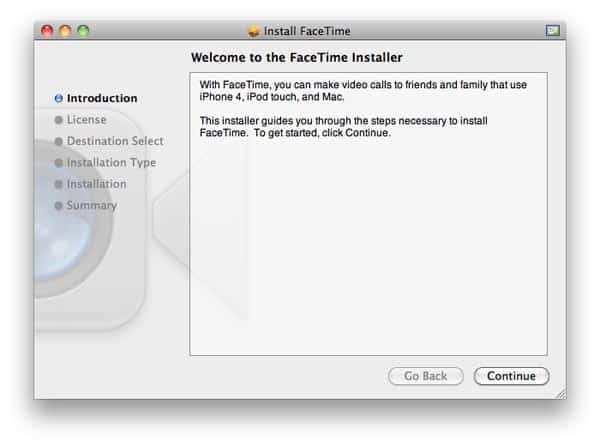
1. The FaceTime App. It’s a free download from Apple.com’s FaceTime page and is 13.4MB compressed, requiring 38.9MB of hard disk space when uncompressed. Contrary to what we’d originally hoped, it’s a standalone application rather than built directly into iChat—a decision by Apple that may herald an eventual FaceTime for Windows release.

2. FaceTime Setup. Designed to be as simple as possible, FaceTime loads up, asks you for an Apple ID—the same one you’d use for Apple Store or iTunes Store purchases—and then allows you to assign that or a different e-mail address to be associated with the Apple ID for making and receiving calls. As with the iPod touch version of FaceTime, an e-mail is then sent to the secondary address for verification purposes, thereafter allowing you to place or receive calls just by clicking on any name in your contacts list.

A dark gray scrolling window off to the right of your own camera image provides a full list of your contacts, plus buttons for Favorites, Recents, and Contacts that work just like the ones in the iPod touch FaceTime application.

You have the ability to switch cameras and microphones from a Video menu at the top of the screen, as well as to manually toggle between landscape and portrait orientations, enter a full screen mode, and mute the audio.

3. Receiving Calls. FaceTime continues to be able to receive incoming calls even when the app is not loaded and active—unless you deactivate FaceTime in its Preferences menu.
This keeps you from having to watch a persistent video of your own face, which by default is shown in portrait orientation rather than landscape. The app runs in the background when turned off, launching automatically when a call comes in, letting you accept or reject the call. On both sides, you hear the familiar multi-beep tone used for iChat calling and FaceTime calling on iPod touch and iPhone 4 devices. If you accept the call, the app becomes “active;” if you reject it, it disappears as if it was never opened.

4. Making Calls. You can try to contact any of the people on your contacts list with a phone number or e-mail address. For the time being, you can’t manually type in a new e-mail address or phone number to a contact using the FaceTime application—this needs to be handled through Address Book, or by having the person contact you first. You can then add the contact with a button press. If the person accepts your call, the small FaceTime calling window may grow to a larger size; if not, you’re given Call Back and Cancel buttons, with a “is not available for FaceTime” message.

5. Performance. Predictably, FaceTime is silky smooth on Macs—at least as good as it is on iPhone 4 and iPod touch 4G devices. Our editors have already been able to have two simultaneous discussions going on separate FaceTime devices using the same two Wi-Fi networks—one Mac connected to one iPod touch 4G, and one iPhone 4 connected to a different Mac. Both sets of video and audio feeds were smooth on both ends, which isn’t a huge surprise given that Macs have been able to handle four-person iChat sessions for years, but speaks to FaceTime’s ability to handle multiple discussions over different devices in public Wi-Fi settings.

6. Camera Differences. Apple uses different cameras in its Macs than it has used in its iPhone 4 and iPod touch devices, another “obvious” point that turns out to be a little surprising when you go into full-screen mode with the FaceTime application. In addition to whatever color rendition and resolution differences there may be between devices—and we have at this point seen some Mac camera output that is noticeably higher in resolution than iOS camera quality—the iPod touch and iPhone 4 cameras have different aspect ratios: thus far, our testing on past and current-generation Macs has shown 16:10 aspect ratios for either tall or wide video, while iPhones and iPod touches have 3:2 aspect ratios. Blow up an iPhone 4 or iPod touch 4G video image on your Mac’s screen and you’ll see black bars on the sides; the iPod touch and iPhone always display Mac images as full-screen, cropping the 16:10 downwards.

7. Forcing Landscape and Portrait Modes. Once again, the Mac by default shows a Mac caller in portrait mode rather than landscape, a big difference relative to the default landscape presentation of iChat/iSight videos. Additionally, it displays both callers in the same orientation every time a caller with an iPhone 4 or iPod touch switches his or her orientation—just as was the case on the handheld devices. But since there’s no way to turn the Mac on its side (unless you’re on a laptop), when using FaceTime on the Mac, you can force your image to be turned automatically using the Video > Use Portrait/Use Landscape feature. When this is activated, your image is forced into the preferred orientation on the receiving caller’s screen, regardless of the way that they turn their device, or how FaceTime would normally look on the Mac.

8. Missed Calls. When FaceTime is running in the background on the Mac, it keeps track of missed calls with a red numeric pop-up, and brings you to your list of recent calls on startup, showing you in red whose calls you’ve missed. Returning the call is as easy as hitting their name. There’s not, as of yet, a way to leave video messages for people who you can’t reach on the other side—true Visual Voicemail.











