
Early this morning Apple released the much-anticipated iPhone 2.2 firmware update, adding significant new enhancements to the Maps application and podcast downloading capabilities, as well as a few other bug fixes and improvements.
The update is installed in the same way as any other update: Connect your iPhone to iTunes and click the “Check for Update” button. iTunes will notify you that a new update is available for your iPhone, and prompt you to either download it for later or download it and install it right away.
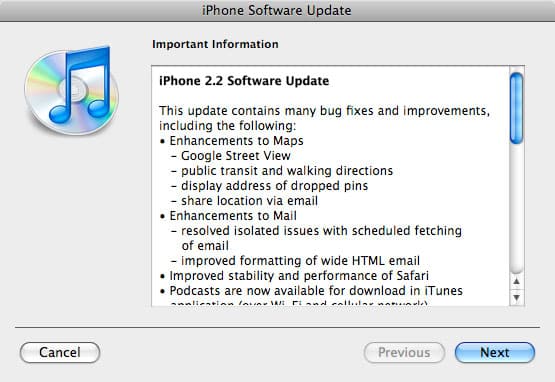
Beginning the process displays an information dialog box with information on some of the more significant improvements:

Proceeding with the installation will take about 15-20 minutes. This update should not erase any data from your iPhone in the process.
So what’s new in this iPhone firmware release and how does it all work? Read on.
iPhone vs iPod touch
We have normally focused these Instant Expert articles on the iPhone since iPod touch firmware updates have normally included the same basic features, differing in only those features that would be specifically iPhone-dependent. However, for the first time the v2.2 firmware updates for the iPhone and iPod touch do not deliver the same new features. Specifically, the iPod touch v2.2 update is missing the enhancements to the Maps application—an indication that perhaps Apple now intends to deliver certain features to each device. Certainly the Nike+ enhancements found in the second-generation iPod touch seem to indicate that both devices are now diverging into different areas.

Street View
Possibly the most significant new feature in iPhone 2.2 is the addition of the Google Street View, allowing you to select a location and get a view of what you would typically see if you were standing in that location. Street view is accessed by choosing a location on the map and then clicking the red Street View icon that appears to the left of the location address or name:

Tapping this icon immediately opens street view in landscape mode on the iPhone:

From the street view, you can zoom and rotate the camera using the usual multi-touch controls. A small circular radar-style map view is displayed in the bottom left corner to provide a representation of the direction you are facing and your field of view.

Tapping any of the arrows displayed along the streets themselves will move you to the next street view location, effectively allowing you to “walk” along the street to follow a path.

Tapping the street view display shows buttons to exit street view and to report any inappropriate image content you may find.

If your selected location does not show a street view icon, this simply means that there is no street view data available for that particular location. Street View is presently available only in certain countries, a list of which can be found at http://en.wikipedia.org/wiki/Google_Street_View
Walking and Transit Directions
In addition to the driving directions that have been available in the Maps application since the beginning, users may now choose to see directions appropriate to walking, or transit information (where available). When viewing directions in Maps, three buttons are now shown at the top of the screen to allow you to toggle between the three types of directions. Driving and walking directions differ both in terms of the selected routes and the travel time displayed. Driving routes tend to prefer major streets and highways while walking routes naturally avoid them, preferring a more direct route and even using pedestrian-only pathways where this data is available.

Transit directions, on the other hand, provide not only details about transit routes, but also the time of the next departure.

Tapping on the clock icon will bring up detailed transit information, including alternative departure and arrival times, as well as the ability to adjust your desired departure or arrival time—so you could for instance find the next train or bus that would get you somewhere at a specific time, thereby planning how early you have to leave in order to arrive on time.

Transit information is available only in specific cities. The transit directions button will be greyed out if there is no transit information available for the location or route that you have selected. A list of cities with transit information available can be found on Google’s Transit page at http://www.google.com/transit
Location Sharing
The Maps application now allows you to share any selected location via e-mail. The release notes describe this as sharing your current location, but you can actually e-mail out a Google Maps link to any selected location. Simply tap on the pin as you normally would, and you can see a new “Share Location” option at the bottom.

Tapping on this button will immediately open an e-mail containing a Google Maps link to the selected location.

Other Maps Changes
To accommodate the new “Share Location” button, the button layout at the bottom of a location info screen has been rearranged to display three buttons side-by-side. Instead of two separate buttons for creating a new contact and adding an existing one, a single “Add to Contacts” button is now provided that in turn brings up a separate pop-up menu asking you what you want to do.

Another minor enhancement to the Maps application now displays the address for any pins that you drop onto the map. As you move the pin around, the address shown will update the current pin location, and of course bookmarking or adding the pin’s information to a contact will reflect that address information.

Podcast Downloading
The other big news in iPhone 2.2 is the ability to actually download podcasts over-the-air using the iTunes Wi-Fi Store. Although many users (ourselves included) questioned why this feature was conspicuously missing when the original iTunes Wi-Fi Store was rolled out last year, it’s nice to see that it has finally been added. The iTunes Wi-Fi Store adds an additional tab down at the bottom specific to Podcasts, and the standard Search feature also includes podcasts in your search results. Both audio and video podcasts are supported.

This feature enables you to download specific audio or video podcast episodes individually. Note that there is no way to subscribe to a podcast from the iPhone, or to have the iPhone automatically update with new podcast episodes on a regular basis—for that you will either need to hunt down the newest episodes yourself or simply rely on syncing with iTunes as you have in the past. Unfortunately, the iTunes Wi-Fi Store also does not provide any indications for podcasts that you are already subscribed to, or episodes that you already have on your device, so you will need to check back with your iPod application to avoid downloading episodes you already have. The iPhone will thankfully not actually duplicate the episodes, but you will be wasting time and bandwidth to download them. However, when viewing a podcast episode listing in your iPod application, a “Get More Episodes” button is shown at the bottom that will take you directly to that podcast on the iTunes Wi-Fi Store so you can download additional episodes.

Podcast downloading works in the same way as music, except that of course podcast episodes are free to download. Tapping the “Free” link changes it to show “Download” and then tapping on the green “Download” button will immediately begin downloading that particular podcast episode.
Download progress can be viewed by tapping on the “Downloads” button, and as with any other iTunes Wi-Fi Store content, downloads will continue in the background even if you exit the application.

While the iTunes Wi-Fi Store previously only worked over Wi-Fi and not 3G/EDGE connections, iPhone 2.2 has taken a page from the App Store application’s book in allowing podcast content to be downloaded over the cellular network provided the individual episode is less than 10MB in size. Attempts to download larger episodes will result in a notice that you will need to use a Wi-Fi connection or iTunes to download the selected item, similar to the same 10MB restriction on the App Store.

Note that you can, however stream podcast episodes that are larger than 10MB in size—simply tap on the podcast title itself and the podcast will begin playing directly over-the-air in real-time, rather than downloading it. This of course works for any podcast episode, audio or video (audio podcasts will open in a portrait-mode Quicktime player, similar to audio files played back from within Safari or Mail).

Accessing the iTunes Wi-Fi Store while connected over 3G/EDGE will limit you to only browsing the Podcasts section or searching for podcasts—attempting to access any of the music-related tabs will show a notice that music can only be downloaded over Wi-Fi.

As with podcasts downloaded directly to the Apple TV, podcasts downloaded directly to your iPhone synchronize back to iTunes the next time you connect to your computer, and will appear directly in your Podcasts section. You will not be automatically subscribed to these podcasts—only the individual episodes are kept—however a Subscribe button will appear in iTunes beside the podcast to allow you to easily subscribe to it if you so desire.

Other Changes
The iPhone 2.2 update brings a few other minor changes with it as well, some of which are described in the release notes.
Pressing the Home button when already on the Home screen will immediately return you to the first page of your Home screen. Since most users keep their frequently-used applications on this page, this provides a convenient way to quickly get back to that page. Other Home button settings and functions remain the same.
The MobileSafari browser has seen a slight cosmetic change in terms of the address field and search field locations, which are now placed beside each other on a single line. This allows for more convenient access to the search field, since only a single tap is now required (previously, you would have had to tap the address field first in order to make the search field appear). With this new layout, the refresh button is now less prominently displayed and is placed directly inside the address field.
UPDATE: As several commenters have pointed out, the previous iPhone firmware version did in fact allow single-tap access to the search field via the magnifying glass button to the left of the address book field, although the new method is still more convenient and intuitive in our opinion, particularly considering that some of us had forgotten the search button was there in the previous version.

The auto-correction feature can now be globally disabled via a new option found in the Settings application under the General, Keyboard options.

You can now view all of the available screenshots for an application from its App Store page on the iPhone itself. A main screenshot is shown with smaller thumbnails of any individual screenshots. Tapping on any of the screenshots will open them in a full-screen viewer and you can navigate through them using the normal multi-touch photo navigation controls.

Deleting an application from the iPhone now prompts you to add a rating for the application before deleting it. You can either provide a rating by tapping on the number of stars and then the “Rate” button or skip this by tapping “No Thanks.”

Screen shots taken on the iPhone and stored in the iPhone’s Camera Roll now display thumbnails when accessing your iPhone from your computer (ie, via iPhoto or the Windows Scanner and Camera wizard). Previous iPhone firmware versions displayed only generic PNG icons.











