
Q: How do I import CD Audiobooks into iTunes?
– Clyde
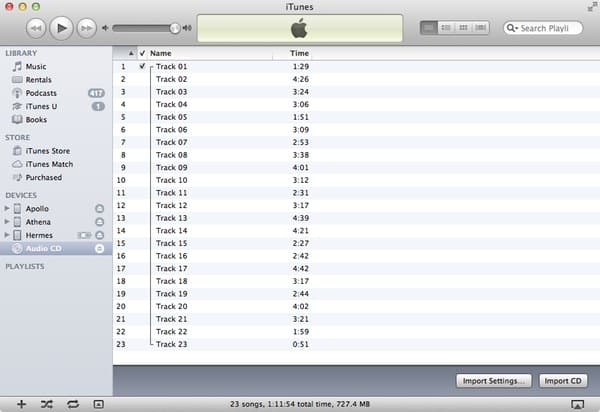
A: At the most basic level you can import an audiobook CD into iTunes in the same manner as you would any other type of CD—simply insert it into your optical drive and use the iTunes import feature to copy the tracks into your library. However, since you generally want your audiobooks to be treated a bit differently than music tracks, there are a few things to be aware of when importing an audiobook CD into your iTunes library.
The first decision you need to make during the actual import process is how you want individual audiobook chapters or sections handled; many audiobook CDs are divided into separate tracks by chapter and by default iTunes will import each track as its own file. You can simply choose to import your audiobook in this manner and use a playlist to group all of the chapters together or you can use the Join Tracks option in iTunes to import all of the tracks from CD as a single file. To do this, simply highlight the tracks you would like to join and select Join CD Tracks from the Advanced menu in iTunes.
You’ll probably want to select all of the tracks on the CD and join them into a single file for the entire audiobook, which will make it easier to deal with going forward.
Another consideration is whether you want to use a lower bit-rate for your audiobook in order to save space on your computer or mobile device. Audiobooks are generally monaural spoken word and therefore don’t benefit from the 128kbps – 256kbps bit-rates that are typically used for music; in fact many digital audiobooks you purchase use a bit-rate in the 32kbps – 64kbps range depending on whether the source is mono or stereo. The ideal bit-rate to use here will depend on the source material, but a typical monaural audiobook that is simply one person narrating with no effects or music will usually sound just fine at 32kbps and take up considerably less space; even audiobooks with multiple narrators and effects seldom require more than 64kbps stereo encoding.
You can adjust your preferred encoding settings before importing your audiobook CD by going into your iTunes Preferences and choosing the Import Settings button from the General section. The Spoken Podcast pre-set for the AAC encoder should be suitable for most audiobooks. If you’d prefer to use the MP3 format for your audiobooks you will need to adjust for these settings manually by choosing the Custom… setting from the drop-down menu.


Once you’ve actually imported your audiobooks, the next step is to get iTunes to recognize them as audiobooks rather than music so that they’re placed in the appropriate section in your iTunes library and your iPod or iOS device. You’ll probably also want to enable the ability for audiobooks to remember the last playback position so that you can continue listening where you left off. These options can all be found by selecting the imported track(s), choosing Get Info from the iTunes File menu and going to the Options section of the file information dialog box.

In here you can change the “Media Kind” to Audiobook and enable the option to Remember playback position. The Skip when shuffling option is also typically enabled here for audiobooks, although it’s not really required unless you regularly shuffle your entire music library on an older iPod model or plan to add audiobooks to playlists that would otherwise contain music.
If you’re combining your audiobook chapters into a single track you may also want to take advantage of the ability for iTunes, iPods and iOS devices to use chapter markers within the audiobooks.











