
Q: My first generation iPad, a third-generation iPod touch and my husband’s iPod shuffle are all backed up in the MobileSync folder. How do I tell which is which if I want to save a copy of one of the backups to another location?
– Melba
A: The MobileSync folder will actually only contain backups of your iPad and iPod touch in this case; iTunes only backs up iOS devices, not traditional iPod models such as the iPod shuffle, iPod nano or iPod classic.
If you are seeing more than two sub-folders in the MobileSync folder, it is possible that the others are for previous iOS devices that you may have used. Backups are stored based on a unique hardware identifier, so each device gets its own backup folder; even if you restore a backup from a previous device onto a replacement model, the new iOS device will create a new backup folder, leaving the prior one in place. iTunes will also sometimes create additional backups prior to performing major iOS updates, depending on the particular update and iOS model.
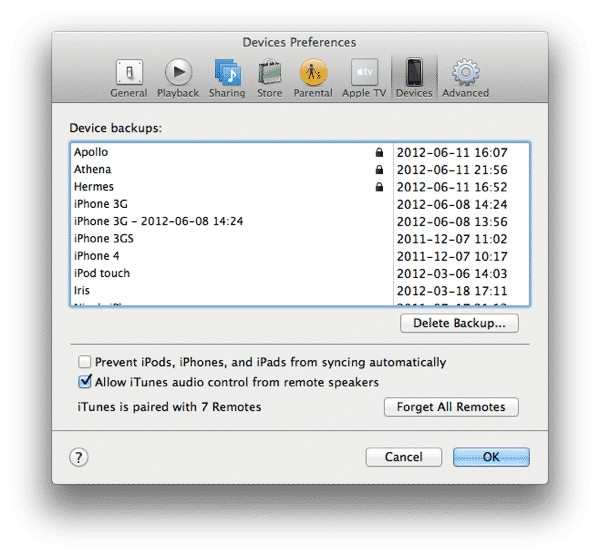
You can see a list of all of the backups being stored by iTunes by going into your iTunes Preferences and selecting the Devices section. Unfortunately, this screen does not provide any indication as to where the actual backup folders are, but it can be helpful for cleaning out older device backups that you no longer require.
That said, if you only have one or two backups, you can compare the dates shown on this screen to the date stamp on the actual backup folders to give you an idea of which one is which.
You can select any backup from here and click the Delete Backup button to remove it; note that backups are not actually removed until you subsequently click the OK button, so if you make a mistake here you can back out by clicking Cancel, instead. You can identify specific backups by hovering over them with the mouse pointer, which will show a tooltip overlay with the serial number of the device that the backup is from—a useful feature if you have two or more backups with the same name and similar time stamps and are uncertain which one to delete. Backups from cellular capable devices will also display IMEI information here, and iPhone backups will show the cellular phone number.

You can identify the actual backups in the MobileSync folder in a couple of different ways. Backup folders are named based on the unique device identifier (UDID) of each device. The easiest way to get your device’s UDID is simply to go into the Summary screen for your device in iTunes and click on the “Serial Number” field—it will change to show the UDID instead, which should match the name of the appropriate backup folder.

The same technique works on the Software Version field to show the Build Version, and for on the Phone Number field to show the IMEI and ICCID for an iPhone. On a cellular-equipped iPad model, you can also click on the “Serial Number” field again to toggle through the Cellular Data number, IMEI and ICCID before returning to the serial number. The clipboard “Copy” function also works on this screen for copying the Serial Number of UDID to the clipboard, according to whichever is displayed.
Alternatively, if you do not have your iOS device handy, or can’t start iTunes for whatever reason, you can dig into the backups folder and look inside the Info.plist file, which will display all of the relevant information for that particular backup, including the device’s name and serial number, as well as phone number and IMEI/ICCID information for cellular iOS devices.

Keep in mind, however, that if you have additional backup folders stored within your MobileSync folder, you may want to double-check serial numbers and backup dates in the Info.plist to ensure that you’re copying over the correct backup folder. Deleting unnecessary backups from within your iTunes preferences, as described above, can also help in this regard by cleaning out any folders that are no longer necessary. However, the UDID method is the more reliable way to ensure that you’re matching the correct backup to the correct device.











