
iLoungeiLounge
  • News
    • Apple
      • AirPods Pro
      • AirPlay
      • Apps
        • Apple Music
      • iCloud
      • iTunes
      • HealthKit
      • HomeKit
      • HomePod
      • iOS 13
      • Apple Pay
      • Apple TV
      • Siri
    • Rumors
    • Humor
    • Technology
      • CES
    • Daily Deals
    • Articles
    • Web Stories
  • iPhone
    • iPhone Accessories
  • iPad
  • iPod
    • iPod Accessories
  • Apple Watch
    • Apple Watch Accessories
  • Mac
    • MacBook Air
    • MacBook Pro
  • Reviews
    • App Reviews
  • How-to
    • Ask iLounge
Font ResizerAa
iLoungeiLounge
Font ResizerAa
Search
  • News
    • Apple
    • Rumors
    • Humor
    • Technology
    • Daily Deals
    • Articles
    • Web Stories
  • iPhone
    • iPhone Accessories
  • iPad
  • iPod
    • iPod Accessories
  • Apple Watch
    • Apple Watch Accessories
  • Mac
    • MacBook Air
    • MacBook Pro
  • Reviews
    • App Reviews
  • How-to
    • Ask iLounge
Follow US

News › iTunes

How-toiTunes

How to import CD tracks to iTunes

Last updated: May 12, 2021 7:41 pm UTC
By Jerrod H.
How to import CD tracks to iTunes

New to the world of iPod and digital music management?  What better way than to load all your audio CDs into iTunes and begin building your library.  This can be a daunting task if your collection is large, but worry not; Apple makes it easy, and iLounge is here to help. This is the first article in our new iPod 101 series to help our readers get familiar with basic functionality of the iPod and music management software. Today we start with iTunes for Mac or Windows.


First, make sure you’re running the latest version of iTunes for Mac OS X or Windows.  Chances are that the iPod you received shipped with an outdated version.  Bypass the Install CD entirely and download the latest version of iTunes from Apple.com.  Install it on your computer (Mac OS X or Windows XP, 2000), and follow the instructions below to begin building your song library.
How to import CD tracks to iTunes

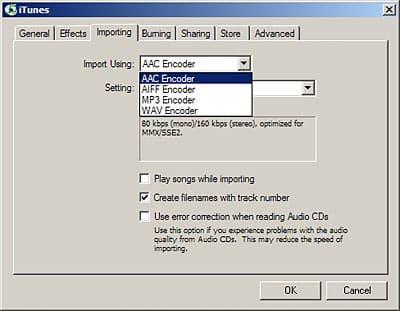
First, we will set up the format you wish to import your music as.  Go to the “Edit” menu (“iTunes” menu on OS X), and select “Preferences…” Select the “Importing” tab.  Apple’s default preference is 128Kbps AAC encoding.  You may choose a higher bitrate to encode at if you wish; you will experience higher sound quality, but each song will take up more space, meaning you will be able to fit less music on your iPod.  While many agree that AAC offers superior quality over MP3 at equivalent bitrates, iTunes also allows you to choose MP3 encoding if you need greater compatibility with other players, people, and devices. 


The AIFF and WAV options are for special uses only. In most cases, you will not want to use these uncompressed audio codecs, because it creates very large file sizes.


pic

Once you choose your encoding preferences, the rest is easy.  Insert an audio CD, and iTunes will attempt to retrieve the album and track titles from CDDB (an Internet database for such information).  Within a second or two, your album information is populated and the CD shows up in the “Source” column in the left of the window.


Double-check the track information listed and correct if needed… by single clicking on a text field twice.  You can batch edit the information for multiple tracks by shift-clicking or control-clicking to select multiple tracks, followed by a right click and “Get Info.”


pic

Once your tracks are titled properly, click the “Import” button in the top right.  iTunes will take a few minutes to digitally encode (or “rip”) the tracks on the CD to your hard drive.

Once imported, your songs will appear in your “Library” (See “Source” column on left).  Unless you have selected other advanced options for iPod syncing, everything in this Library will be automatically synchronized to your iPod each time it is connected to your computer.

Get yourself a tall glass of [insert favorite beverage here], and repeat as needed.  Once your library has been fully digitized, you can start to truly enjoy your music through the features and simplicity of iTunes and the iPod.

Jerrod H. is a Forum Administrator and Contributing Editor for iLounge.


Latest News
The 14-inch MacBook Pro with M5 Chip 16GB RAM/512GB is $250 Off
1 Min Read
Noise and Static on AirPods Pro 3 Still Unfixed
1 Min Read
New iMac with 24-inch OLED Display May be Brighter With 600 Nits
1 Min Read
The 15-inch M4 MacBook Air 256GB Is $250 Off
1 Min Read
Internal Kernel Debug Kit from Apple Reveals Tests for a MacBook with A15 Chip
1 Min Read
Apple Currently In Talks With Suppliers for Chip Assembly & Packaging of iPhones in India
1 Min Read
Apple Allows Easier Battery Replacement For M5 MacBook Pro with 14-inch Display
1 Min Read
The Apple Watch SE 3 44mm GPS is $50 Off
1 Min Read
20th Anniversary iPhone May Launch in Two Years
1 Min Read
Better Image Generation Capabilities and Apple Music Integration Coming to ChatGPT
1 Min Read
A20 Pro Chip Coming to Next Gen iPad Mini OLED
1 Min Read
Amazon has the AirTag 4 Pack Marked $29 off
1 Min Read

iLounge logo

iLounge is an independent resource for all things iPod, iPhone, iPad, and beyond. iPod, iPhone, iPad, iTunes, Apple TV, and the Apple logo are trademarks of Apple Inc.

This website is not affiliated with Apple Inc.
iLounge © 2001 - 2025. All Rights Reserved.
  • Contact Us
  • Submit News
  • About Us
  • Forums
  • Privacy Policy
  • Terms Of Use
Welcome Back!

Sign in to your account

Lost your password?










