
In our previous iPod 101 segment, we learned how to “import” audio CDs using iTunes. More likely than not, your library is now quite large – if you don’t already have more than a thousand songs, you will soon. In no time at all, you will find that the most enjoyable way to listen to your audio collection is not “shuffling” through your entire library. If your library is like mine, you’ll quickly get frustrated when, after finishing a goosebump-inducing listen of Samuel Barber’s beautiful “Adagio for Strings,” you immediately head ruthlessly into The Beastie Boys’ “Fight for your Right to Party.” It just doesn’t work.
The solution? Playlists. Make a playlist (or collection of songs) for the ride to work. Make a “mix” of music to study to, or to exercise to. Make a collection of “Love Songs” or “Hate Songs.” Put together a “Blissful Blend” or a “Melancholy Mix.” The possibilities are endless. Read on and I will walk you through creating your own custom “mixes” in Apple’s iTunes.
iTunes offers two fundamental types of playlists. The manual playlist, which this article will cover, allows you to manually create your custom mixes however you wish. The “smart” playlist, featured in our next iPod 101 segment, is automatically generated from criteria you specify. These may include genre restrictions, ratings, keywords, date added, the number of times a track has been played, and more.
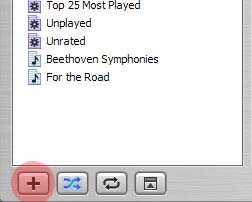
The quickest way to get started in creating a custom playlist is clicking the “+” icon in the bottom left corner of the iTunes library window. You will see a new “untitled playlist” appear in the “Source” column on the left side. The text will be highlighted already, so start typing and give it a name. I’ll call mine “For the Road.”
 Click screenshot for larger view
Click on your playlist title, and you’ll see that there are no songs present, as we must manually add them.
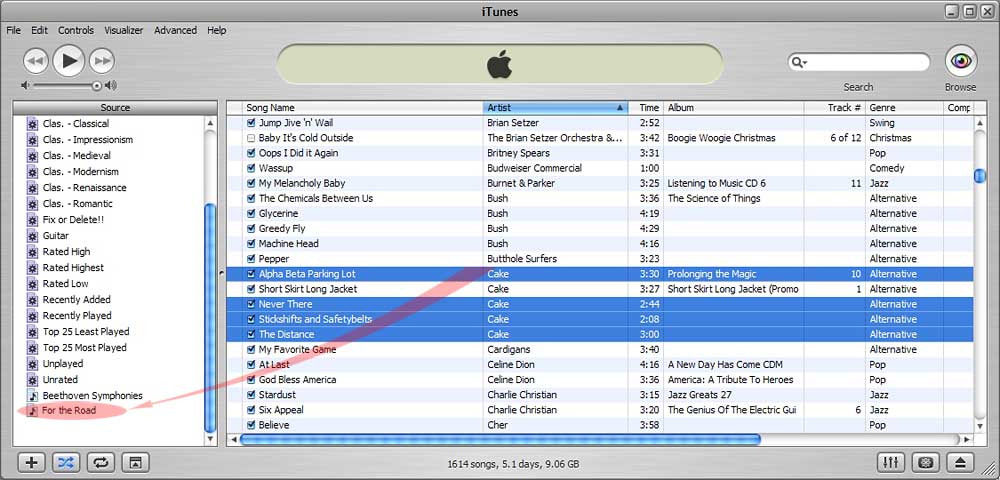
To add songs to your playlist, begin by clicking on “Library” in the source column. Scroll through your library, and find a song you’d like to add. To add it to a playlist, simply drag the song title on top of the playlist name in the Source column, and let go. If you’d like to double check that the song was added, click on the playlist title.
Want to add a few songs at once? You can select multiple songs by holding down shift or control while clicking on song titles. Then simply drag any one of the selected songs onto the playlist. All selected songs will be added.
Continue adding songs as desired. When you’re finished, you can re-arrange the order of the songs in the playlist by simply dragging them around.
Are you catching the interface motif? Apple loves drag-and-drop. In fact, here are a couple useful but lesser-known drag-and-drop tips:
First, playlists can be added to each other. Want to add all of your “Blissful Blend” to your “Exercise Ecstasy” playlist? In the Source column, simply drag the “Blissful Blend” title on top of “Exercise Ecstasy.” It’s that easy.
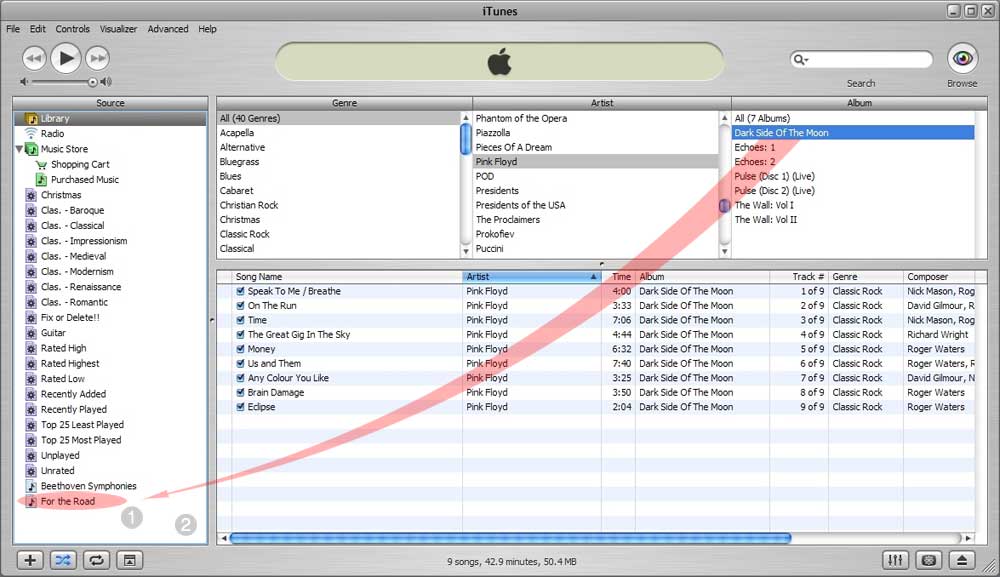
Second, have you ever wanted to add all songs in a genre to a playlist? Wanted to add everything from one artist? An entire album? Go to your Library, and click “Browse” in the top right corner to show the 3-column browse menus. Any genre title, artist name, or album name itself can be dragged onto a playlist title, adding the entire category to it. In addition, you can also drag into an empty area in the “Source” column to create a new playlist automatically. For example: In the picture below, I can either:
(1) Add “Dark Side of the Moon” to my “For the Road” playlist, by dragging and dropping the song onto the playlist , -or-
(2) Automatically create a “Pink Floyd – Dark Side of the Moon” playlist by dragging it into an empty area in the ‘Source’ column.
 Click screenshot for larger view
Result: (2) Automatically create a “Pink Floyd – Dark Side of the Moon” playlist by dragging it into an empty area in the ‘Source’ column:

Other tips & features:
To view any playlist, the music store, or the radio features of iTunes in a separate window, double-click on their title in the source column. Shuffle & Repeat settings are independent between playlists – very helpful.
Enjoy listening to your playlists! Their simplicity and function truly enhance the experience of listening to digital music – both in iTunes and on the iPod!
Stay tuned for iPod 101: iTunes “Smart Playlists” next week.
Jerrod H.











