
Q: My five-year-old son managed to set a parental restriction passcode on my iPhone and turned off my Camera and Safari in the process. He doesn’t remember what passcode he set, so now I can’t browse the web or take pictures. I’m thinking there must be some way to override this passcode in situations like this, but I can’t find it. Or am I really left with an iPhone with no browser or camera? Please help.
– Angela
A: Unfortunately, there’s no simple way around this—after all, parental restrictions would be pretty ineffective if kids could get around them all that easily.
The only way around this is to restore your iPhone from a backup made before the restrictions passcode was set. Unfortunately, while an iTunes backup doesn’t store the main device passcode, it does store the restrictions passcode, so if you were to restore your device to a more recent backup, you’d end up getting the passcode back along with it.
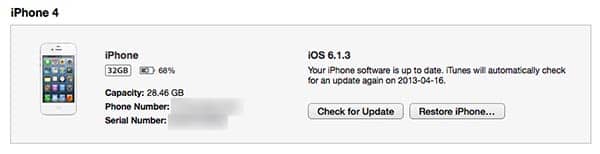
You can easily check the status of your backups by connecting your iPhone to your computer, selecting your device in iTunes, and looking at the Summary screen. This will show your default backup method and the date and time the last backup was made. You can also check the time and date of the last backup made to the other service simply by selecting that option under the “Automatically Back Up” heading.
If you normally back your device up to iTunes and the date and time of this backup is from before your son set the restrictions passcode, you can simply click the “Restore Backup” button to transfer this backup back onto your device. Note that you will lose any information on your iPhone since that backup was made unless that information is stored elsewhere; for example, if you’re using iCloud for Calendars and Contacts, these are stored separately from your backup and will be resented to your device after you’ve restored it, however items such as text messages, iMessages, and recent calls will only be current as of that previous backup. Similarly, for third-party apps this will depend upon whether they store data in their own online cloud service or only on your device.
If you’re backing up to iCloud, you will instead need to select the option to “Restore iPhone” in order to return it to factory settings before you will be able to restore the iCloud backup.
iOS does not provide any way to restore an iCloud backup onto an already configured device. Note that even if you’re using iCloud for your backups, you’ll need to erase your device using iTunes first, as the Erase all Content and Settings option found on the iPhone will require you to enter the Restrictions passcode before it will allow you to erase the device.
If the backup date and time shown for iTunes and iCloud is more recent than the restrictions passcode, you may still be able to find an older backup; if you’re normally backing up to iCloud, Apple actually stores the most recent three backups, and you will be able to select from them during the restore process. If you normally backup to iTunes instead of iCloud and you regularly backup your PC or Mac, you may be able to find a pre-passcode iPhone backup among your computer backups.
For more information on the backup and restore process for iOS devices, see our Guide to Transferring your Content to a new iPhone, iPad or iPod touch.
Note that if you don’t have an appropriate backup, you’re going to have to restore your iPhone back to factory settings and then reconfigure it manually. Follow the guide above to ensure that any content that may exist only on your iPhone is transferred back to iTunes, and then you can transfer it back on from iTunes after you’ve erased your device.











