
iLoungeiLounge
  • News
    • Apple
      • AirPods Pro
      • AirPlay
      • Apps
        • Apple Music
      • iCloud
      • iTunes
      • HealthKit
      • HomeKit
      • HomePod
      • iOS 13
      • Apple Pay
      • Apple TV
      • Siri
    • Rumors
    • Humor
    • Technology
      • CES
    • Daily Deals
    • Articles
    • Web Stories
  • iPhone
    • iPhone Accessories
  • iPad
  • iPod
    • iPod Accessories
  • Apple Watch
    • Apple Watch Accessories
  • Mac
    • MacBook Air
    • MacBook Pro
  • Reviews
    • App Reviews
  • How-to
    • Ask iLounge
Font ResizerAa
iLoungeiLounge
Font ResizerAa
Search
  • News
    • Apple
    • Rumors
    • Humor
    • Technology
    • Daily Deals
    • Articles
    • Web Stories
  • iPhone
    • iPhone Accessories
  • iPad
  • iPod
    • iPod Accessories
  • Apple Watch
    • Apple Watch Accessories
  • Mac
    • MacBook Air
    • MacBook Pro
  • Reviews
    • App Reviews
  • How-to
    • Ask iLounge
Follow US

How-to › Ask iLounge

Ask iLoungeiPhone

Enlarging text on iPhone 3GS

Last updated: May 16, 2021 4:58 pm UTC
By Jesse Hollington
Enlarging text on iPhone 3GS

Q: Hi, I have an iPhone 3G and my friend has the iPhone 3GS. Is there any way to increase the text size on your SMS emssages with either an app or setting in iTunes or the iPhone? My friend loves his iPhone, but has difficulty reading his SMS messages without getting his glasses out (which he normally doesn’t and just ends up deleting them). I have submitted a form suggesting this feature, I have Googled this and it seems to be a fairly common problem.

Enlarging text on iPhone 3GS

– Adrian

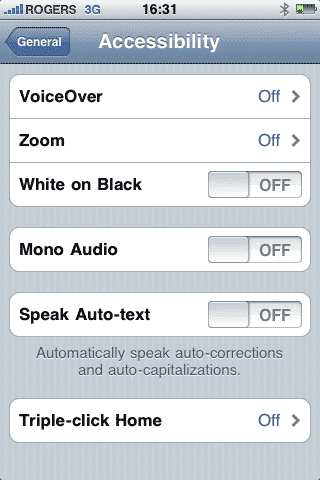
A: The iPhone 3GS has a new “Accessibility” feature that might help in your friend’s case, as it is specifically designed to enlarge any part of the iPhone screen by effectively “zooming in” while viewing the screen. The Accessibility options are accessed under the iPhone Settings app, from the General, Accessibility section.

From here, simply tap on the “Zoom” option and enable it from the next setting screen.

Instructions on how to use the zoom feature are explained on the same screen.

IMG_0167.PNG

Once enabled, this feature can be used anywhere on the iPhone to zoom in on any part of the screen for easier viewing, including of course within the SMS app. Simply double-tap with three fingers on the part of the screen that you want to zoom into, then use all three fingers to pan around the screen as required.



Latest News
The 14-inch MacBook Pro with M5 Chip 16GB RAM/512GB is $250 Off
1 Min Read
Noise and Static on AirPods Pro 3 Still Unfixed
1 Min Read
New iMac with 24-inch OLED Display May be Brighter With 600 Nits
1 Min Read
The 15-inch M4 MacBook Air 256GB Is $250 Off
1 Min Read
Internal Kernel Debug Kit from Apple Reveals Tests for a MacBook with A15 Chip
1 Min Read
Apple Currently In Talks With Suppliers for Chip Assembly & Packaging of iPhones in India
1 Min Read
Apple Allows Easier Battery Replacement For M5 MacBook Pro with 14-inch Display
1 Min Read
The Apple Watch SE 3 44mm GPS is $50 Off
1 Min Read
20th Anniversary iPhone May Launch in Two Years
1 Min Read
Better Image Generation Capabilities and Apple Music Integration Coming to ChatGPT
1 Min Read
A20 Pro Chip Coming to Next Gen iPad Mini OLED
1 Min Read
Amazon has the AirTag 4 Pack Marked $29 off
1 Min Read

iLounge logo

iLounge is an independent resource for all things iPod, iPhone, iPad, and beyond. iPod, iPhone, iPad, iTunes, Apple TV, and the Apple logo are trademarks of Apple Inc.

This website is not affiliated with Apple Inc.
iLounge © 2001 - 2025. All Rights Reserved.
  • Contact Us
  • Submit News
  • About Us
  • Forums
  • Privacy Policy
  • Terms Of Use
Welcome Back!

Sign in to your account

Lost your password?








