
iLoungeiLounge
  • News
    • Apple
      • AirPods Pro
      • AirPlay
      • Apps
        • Apple Music
      • iCloud
      • iTunes
      • HealthKit
      • HomeKit
      • HomePod
      • iOS 13
      • Apple Pay
      • Apple TV
      • Siri
    • Rumors
    • Humor
    • Technology
      • CES
    • Daily Deals
    • Articles
    • Web Stories
  • iPhone
    • iPhone Accessories
  • iPad
  • iPod
    • iPod Accessories
  • Apple Watch
    • Apple Watch Accessories
  • Mac
    • MacBook Air
    • MacBook Pro
  • Reviews
    • App Reviews
  • How-to
    • Ask iLounge
Font ResizerAa
iLoungeiLounge
Font ResizerAa
Search
  • News
    • Apple
    • Rumors
    • Humor
    • Technology
    • Daily Deals
    • Articles
    • Web Stories
  • iPhone
    • iPhone Accessories
  • iPad
  • iPod
    • iPod Accessories
  • Apple Watch
    • Apple Watch Accessories
  • Mac
    • MacBook Air
    • MacBook Pro
  • Reviews
    • App Reviews
  • How-to
    • Ask iLounge
Follow US

How-to › Ask iLounge

Ask iLoungeiCloudiPadiPhoneiPod

Deleting unwanted apps from iCloud

Last updated: May 16, 2021 4:25 pm UTC
By Jesse Hollington
Deleting unwanted apps from iCloud

Q: How do I delete unwanted apps from iCloud ? I have an iPhone 5.


– June
Deleting unwanted apps from iCloud

A: Your applications themselves are not stored in iCloud, but only on your device and in your iTunes library. Some applications will store their data in iCloud, but this is usually optional and does not apply to every application.

The iTunes Store does maintain a list of all of the apps that you have previously purchased or downloaded so that you can re-download them into iTunes or directly onto your device, but these do not take up any storage in your iCloud account—it’s basically just a purchase history linked to the actual apps on the App Store.


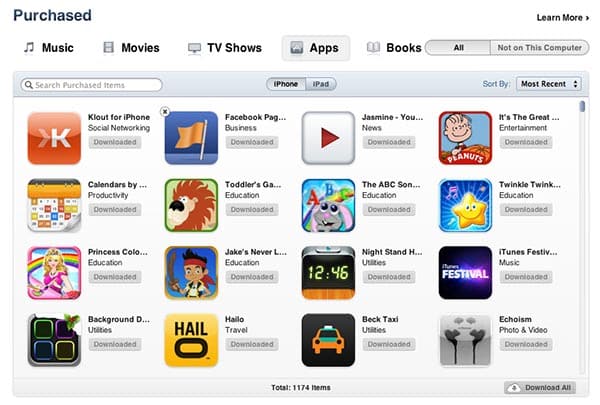
In fact, if an application is removed from the App Store for whatever reason, it will also disappear from this purchased apps list. This is accessed either from the “Purchases” section found in the App Store on your iPhone or in the iTunes Store in your iTunes application on your Mac or PC.

If there’s an app in your purchase history that you don’t want to see on this list, you can “hide” it by going into your Purchase history in iTunes, hovering over the app that you want to hide, and clicking the small “X” that appears in the top-left corner.


Keep in mind that this will only hide the application from your purchase history listing—it does not “remove” it permanently from your account, and if you access the application directly in iTunes or the App Store, it will still show as being previously purchased/downloaded, with an “Install” button shown beside it.

You can find a list of purchased/downloaded items that you’ve previously hidden by going into your iTunes Store account preferences in iTunes and selecting the “View Hidden Purchases” link under the iTunes in the Cloud section.


Deleting unwanted apps from iCloud

This will bring up a Hidden Purchases screen similar to the Purchased view, with only those items that have been hidden displayed, and options to unhide items rather than downloading them.


Deleting unwanted apps from iCloud

If you have an app that stores its data in iCloud and want to remove that data from your device and your iCloud account, you can do this by going into the Settings app and selecting iCloud, Storage and Backup and then the Manage Storage option.


Deleting unwanted apps from iCloud

This will show a list of your device backups and applications currently storing data in iCloud and you can remove the data for individual applications from here.



Latest News
The 14-inch MacBook Pro with M5 Chip 16GB RAM/512GB is $250 Off
1 Min Read
Noise and Static on AirPods Pro 3 Still Unfixed
1 Min Read
New iMac with 24-inch OLED Display May be Brighter With 600 Nits
1 Min Read
The 15-inch M4 MacBook Air 256GB Is $250 Off
1 Min Read
Internal Kernel Debug Kit from Apple Reveals Tests for a MacBook with A15 Chip
1 Min Read
Apple Currently In Talks With Suppliers for Chip Assembly & Packaging of iPhones in India
1 Min Read
Apple Allows Easier Battery Replacement For M5 MacBook Pro with 14-inch Display
1 Min Read
The Apple Watch SE 3 44mm GPS is $50 Off
1 Min Read
20th Anniversary iPhone May Launch in Two Years
1 Min Read
Better Image Generation Capabilities and Apple Music Integration Coming to ChatGPT
1 Min Read
A20 Pro Chip Coming to Next Gen iPad Mini OLED
1 Min Read
Amazon has the AirTag 4 Pack Marked $29 off
1 Min Read

iLounge logo

iLounge is an independent resource for all things iPod, iPhone, iPad, and beyond. iPod, iPhone, iPad, iTunes, Apple TV, and the Apple logo are trademarks of Apple Inc.

This website is not affiliated with Apple Inc.
iLounge © 2001 - 2025. All Rights Reserved.
  • Contact Us
  • Submit News
  • About Us
  • Forums
  • Privacy Policy
  • Terms Of Use
Welcome Back!

Sign in to your account

Lost your password?








