
iLoungeiLounge
  • News
    • Apple
      • AirPods Pro
      • AirPlay
      • Apps
        • Apple Music
      • iCloud
      • iTunes
      • HealthKit
      • HomeKit
      • HomePod
      • iOS 13
      • Apple Pay
      • Apple TV
      • Siri
    • Rumors
    • Humor
    • Technology
      • CES
    • Daily Deals
    • Articles
    • Web Stories
  • iPhone
    • iPhone Accessories
  • iPad
  • iPod
    • iPod Accessories
  • Apple Watch
    • Apple Watch Accessories
  • Mac
    • MacBook Air
    • MacBook Pro
  • Reviews
    • App Reviews
  • How-to
    • Ask iLounge
Font ResizerAa
iLoungeiLounge
Font ResizerAa
Search
  • News
    • Apple
    • Rumors
    • Humor
    • Technology
    • Daily Deals
    • Articles
    • Web Stories
  • iPhone
    • iPhone Accessories
  • iPad
  • iPod
    • iPod Accessories
  • Apple Watch
    • Apple Watch Accessories
  • Mac
    • MacBook Air
    • MacBook Pro
  • Reviews
    • App Reviews
  • How-to
    • Ask iLounge
Follow US

How-to › Ask iLounge

Ask iLoungeiCloudiPhone

Deleting Camera Roll photos after uploading to Photo Stream

Last updated: May 16, 2021 4:28 pm UTC
By Jesse Hollington
Deleting Camera Roll photos after uploading to Photo Stream

Q: I recently upgraded to iOS 5 and am loving the Photo Stream capability with one exception: I can’t figure out how to batch delete photos from the Camera Roll—whether it be on the iPhone itself or in iPhoto—after choosing the ones I like in iPhoto. I enjoy taking as many pictures as possible and then weeding out the ones I don’t like later. Will I be forced to either individually delete every photo or will I have to carry around everything I ever shoot?


– Jordon
Deleting Camera Roll photos after uploading to Photo Stream

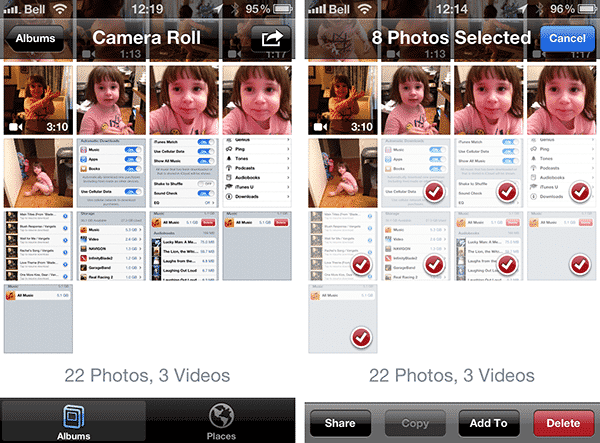
A: Unfortunately, there is no way to automatically batch delete photos that have been uploaded to Photo Stream directly on your iOS device—for that you’re basically stuck deleting photos manually, although you can select multiple photos and delete them in a single step simply by going into the Photos app on your iPhone and tapping the edit button in the top-right corner of the thumbnail view. You’ll still have to tap each one manually to select it and then tap the “Delete” button at the bottom of the screen, but this is still a bit faster than going through and deleting them one-by-one.


iPhoto and Aperture actually can be used to automatically remove photos from your Camera Roll that have been imported via the Photo Stream feature, however this requires that you connect your iPhone to your computer via USB and select it in the appropriate application as if you were importing photos manually.

Note that if you’re recording video on your iPhone, you’ll need to plug it in to transfer your videos anyway as these aren’t supported by Photo Stream.

When you connect your iPhone or other iOS device to your computer and select it in iPhoto, you will be shown a list of items that have already been imported into your library, including those pictures that have already been transferred in via Photo Stream. Items that are on your device but not in your iPhoto library will be shown below and the main “Import” button will only import those items.


Deleting Camera Roll photos after uploading to Photo Stream

However, if all of the items on your device are already in your iPhoto library, you will instead see a note to this effect with a button that can be used to remove all of those items from your device’s Camera Roll.


Deleting Camera Roll photos after uploading to Photo Stream

Note that for this to work you must actually be importing your photos into iPhoto, either automatically or manually, and these photos must still exist in your iPhoto library when you connect your iPhone.

Photos that are simply displayed in the Photo Stream section in iPhoto are not considered part of your actual iPhoto library and will not be detected when comparing your iPhoto library to your iPhone Camera Roll. This also means that if you’re using the main “Photo Stream” section to select photos for importing manually, any photos that you choose not to import will still be detected as new items from your iPhone, as these are not actually in your library.

A better way to handle this is to simply set iPhoto to import everything from your Photo Stream into your library. This option can be enabled in your iPhoto Photo Stream settings.


Deleting Camera Roll photos after uploading to Photo Stream

This will automatically create an iPhoto Event for each month of content in your Photo Stream, placing the appropriate content into each event by month.



Latest News
The 14-inch MacBook Pro with M5 Chip 16GB RAM/512GB is $250 Off
1 Min Read
Noise and Static on AirPods Pro 3 Still Unfixed
1 Min Read
New iMac with 24-inch OLED Display May be Brighter With 600 Nits
1 Min Read
The 15-inch M4 MacBook Air 256GB Is $250 Off
1 Min Read
Internal Kernel Debug Kit from Apple Reveals Tests for a MacBook with A15 Chip
1 Min Read
Apple Currently In Talks With Suppliers for Chip Assembly & Packaging of iPhones in India
1 Min Read
Apple Allows Easier Battery Replacement For M5 MacBook Pro with 14-inch Display
1 Min Read
The Apple Watch SE 3 44mm GPS is $50 Off
1 Min Read
20th Anniversary iPhone May Launch in Two Years
1 Min Read
Better Image Generation Capabilities and Apple Music Integration Coming to ChatGPT
1 Min Read
A20 Pro Chip Coming to Next Gen iPad Mini OLED
1 Min Read
Amazon has the AirTag 4 Pack Marked $29 off
1 Min Read

iLounge logo

iLounge is an independent resource for all things iPod, iPhone, iPad, and beyond. iPod, iPhone, iPad, iTunes, Apple TV, and the Apple logo are trademarks of Apple Inc.

This website is not affiliated with Apple Inc.
iLounge © 2001 - 2025. All Rights Reserved.
  • Contact Us
  • Submit News
  • About Us
  • Forums
  • Privacy Policy
  • Terms Of Use
Welcome Back!

Sign in to your account

Lost your password?








