
Q: I’m not sure where to begin here. I have not used iTunes or any Apple products before. I have my entire music collection stored on an external hard drive – about 80GB. Files are in one main folder, then sub-folders for each CD by artist name.
I just downloaded and installed iTunes and subscribed to the iTunes Match feature, figuring there isn’t enough room for all of the music on my laptop’s hard drive. I thought that may be a good option vs. moving all of the music to my library. What is the best approach to starting my Apple/iTunes experience? I tried adding a folder and pointing to my external drive, but it is a painfully slow process, and again – my laptop’s hard drive isn’t large enough to house all of the music. I’ve tried Googling, etc. and it just doesn’t seem to be getting me where I need to be, so I’m coming to the experts! My next purchase will either be an iPad or a MacBook Pro.
I have no Apple equipment at the moment. I’m using a Dell laptop and an HP external hard drive. I appreciate any help / suggestions you can give me!
– Ken
A: A good starting point would be to check out our Beginner’s Guide to iTunes, which covers the basics of getting your library setup on either Windows or Mac OS X.
In order to use iTunes Match to access your library from the cloud, you first need to create a new library that contains a local copy of your tracks. You can then subscribe to or update iTunes Match in order to create your cloud-based library, by matching your tracks to the iTunes Store and uploading those that cannot be matched.
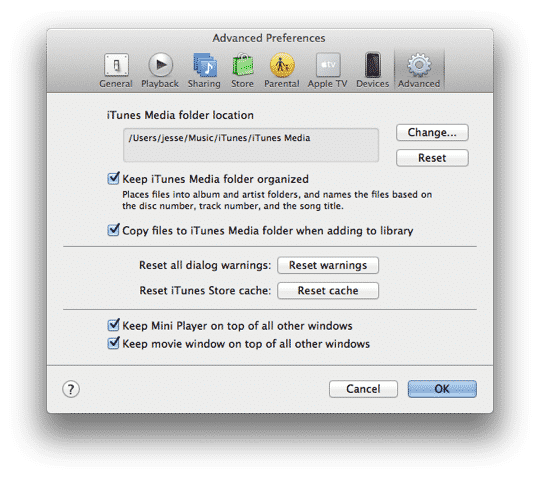
You can import your music into your iTunes library on your laptop while leaving the actual content on your external hard drive. Our Beginner’s Guide explains how to do this in more detail, but basically you just need to go into your Advanced preferences in iTunes and either specify the external hard drive as your iTunes Media folder path or disable the option to Copy files to iTunes Media folder when adding to library.
If you want to preserve your existing file and folder structure on your external hard drive, then it’s best to simply uncheck the Copy files… option. This will leave all of your files in place, organized exactly as they are now, simply placing references to them in the iTunes library database. This will also dramatically speed up the process of imported your tracks into iTunes, since nothing actually need to be copied anywhere.
By comparison, changing the iTunes Media folder path to your external hard drive’s music folder would permit iTunes to reorganize your file and folders to match its own organizational structure, although you could proven this by turning off the Keep iTunes Media folder organized option. Further, however, when removing a track from your library, iTunes will only offer to delete the underlying file if it’s located in the iTunes Media folder, so not setting this path to your external hard drive also provides an extra safety measure against accidentally deleting your actual files.
Keep in mind, however, that regardless of the Copy files… and Keep organized… options, any new tracks that you import from CD or download from the iTunes Store will still be placed in the iTunes Media folder location, organized into folders by Artist, Album and track name; unlike your existing tracks, new files have to be created somewhere, so the defaults apply in this case.
Once you’ve imported your tracks into your iTunes library, you can then subscribe to iTunes Match, or if you’ve already subscribed, select the option to Update iTunes Match found on the Store menu in iTunes. This will tell iTunes to go through your library, matching what it can with the iTunes Store and uploading anything else that doesn’t match.

In theory after this process completes all of your music should be available via iTunes Match. You could then delete the local copies from your library—being careful not to allow iTunes to delete the actual file if prompted to do so—and simply rely on the copies streamed from the cloud. At this point the music on your external hard drive would effectively just be a backup of whatever already exists in the cloud.
The reality, however, is that it’s not uncommon for iTunes Match to fail to match or upload some tracks, so before taking this step you’ll want to confirm that everything was in fact uploaded properly. You can do this by going into your iTunes library, ensuring the iCloud Status column is displayed, and looking for tracks that show an error or ineligible status.











