
iLoungeiLounge
  • News
    • Apple
      • AirPods Pro
      • AirPlay
      • Apps
        • Apple Music
      • iCloud
      • iTunes
      • HealthKit
      • HomeKit
      • HomePod
      • iOS 13
      • Apple Pay
      • Apple TV
      • Siri
    • Rumors
    • Humor
    • Technology
      • CES
    • Daily Deals
    • Articles
    • Web Stories
  • iPhone
    • iPhone Accessories
  • iPad
  • iPod
    • iPod Accessories
  • Apple Watch
    • Apple Watch Accessories
  • Mac
    • MacBook Air
    • MacBook Pro
  • Reviews
    • App Reviews
  • How-to
    • Ask iLounge
Font ResizerAa
iLoungeiLounge
Font ResizerAa
Search
  • News
    • Apple
    • Rumors
    • Humor
    • Technology
    • Daily Deals
    • Articles
    • Web Stories
  • iPhone
    • iPhone Accessories
  • iPad
  • iPod
    • iPod Accessories
  • Apple Watch
    • Apple Watch Accessories
  • Mac
    • MacBook Air
    • MacBook Pro
  • Reviews
    • App Reviews
  • How-to
    • Ask iLounge
Follow US

How-to › Ask iLounge

ArticlesAsk iLoungeiTunes

Converting tracks in iTunes and iPod

Last updated: May 16, 2021 4:54 pm UTC
By Jesse Hollington
Converting tracks in iTunes and iPod

Q: I have a particularly large music collection with many playlists that is quickly being limited by the size of my iPod. I’m tired of turning a blind eye to new albums as they’re released. Much of my music is 320 or 256 kbps, and I know that I can’t tell much difference between that and the 192 and 160 kbps versions. I want save space by formating all of my larger bit-rate albums using the “Create MP3 Version” option, but all of those songs will then vanish from my playlists. Is there a way to format part of my library but retain my playlist associations?


– Cody
Converting tracks in iTunes and iPod

A: If you’re main concern is fitting more music onto your iPod, then you might find it simpler to just use the new option in iTunes to convert your music to a lower bit-rate while syncing it to your iPod.

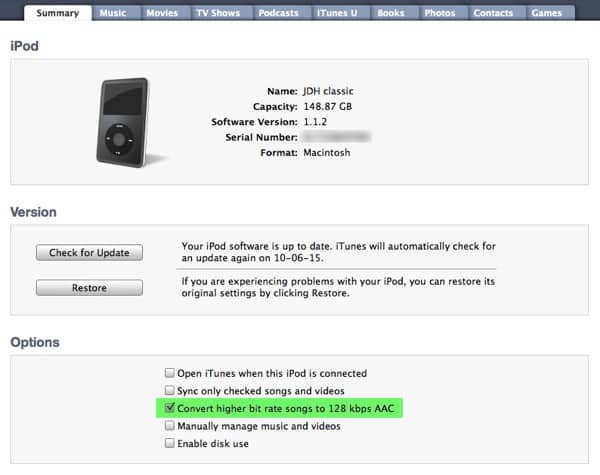
This is far simpler than trying to convert all of the existing music in your iTunes library. To do this, you must be running iTunes 9.1 or later, in which case you should see an option on the “Summary” screen for your device in iTunes to Convert higher bit rate songs to 128 kbps AAC:


Converting tracks in iTunes and iPod

As the name implies, enabling this option will cause iTunes to automatically convert your tracks to 128kbps AAC on-the-fly while transferring them to your device. The original tracks in your iTunes library will remain untouched in whatever format and bit-rate they were originally stored in—only the versions copied to your iPod are converted. Unfortunately you can’t specify your own bit-rate with this option—it’s 128kbps AAC or nothing—but if you find that this is acceptable for your ears you could easily fit twice as much music onto your iPod without having to go through the headache or converting your actual library. As a bonus, you retain the original higher bit-rate songs in your iTunes library for other uses.


If you prefer to use a higher bit-rate and are willing to go through the process of converting all of your tracks, then as you’ve discovered the process is a bit more complicated. If you’re using a Mac, there are some AppleScripts that can automate this process for you—check out Doug’s AppleScripts for iTunes at http://dougscripts.com. Another option is to simply use a third-party tool to convert the tracks outside of iTunes—simply ensure that the converted files keep the same name and location and iTunes will simply continue using them. The only caution with this method is that it can sometimes affect gapless playback with certain tracks, since the gapless playback information used by iTunes is based on the file size and converting the tracks changes this information. If you find that gapless albums are affected adversely, you can always re-rip these specific albums from the original CDs, if you have them, or delete and re-import those specific tracks into iTunes, which should cause it to re-analyze the gapless playback information.



Latest News
The 14-inch MacBook Pro with M5 Chip 16GB RAM/512GB is $250 Off
1 Min Read
Noise and Static on AirPods Pro 3 Still Unfixed
1 Min Read
New iMac with 24-inch OLED Display May be Brighter With 600 Nits
1 Min Read
The 15-inch M4 MacBook Air 256GB Is $250 Off
1 Min Read
Internal Kernel Debug Kit from Apple Reveals Tests for a MacBook with A15 Chip
1 Min Read
Apple Currently In Talks With Suppliers for Chip Assembly & Packaging of iPhones in India
1 Min Read
Apple Allows Easier Battery Replacement For M5 MacBook Pro with 14-inch Display
1 Min Read
The Apple Watch SE 3 44mm GPS is $50 Off
1 Min Read
20th Anniversary iPhone May Launch in Two Years
1 Min Read
Better Image Generation Capabilities and Apple Music Integration Coming to ChatGPT
1 Min Read
A20 Pro Chip Coming to Next Gen iPad Mini OLED
1 Min Read
Amazon has the AirTag 4 Pack Marked $29 off
1 Min Read

iLounge logo

iLounge is an independent resource for all things iPod, iPhone, iPad, and beyond. iPod, iPhone, iPad, iTunes, Apple TV, and the Apple logo are trademarks of Apple Inc.

This website is not affiliated with Apple Inc.
iLounge © 2001 - 2025. All Rights Reserved.
  • Contact Us
  • Submit News
  • About Us
  • Forums
  • Privacy Policy
  • Terms Of Use
Welcome Back!

Sign in to your account

Lost your password?








