
Q: I was wondering if it is better to automatically sync your iPod or manually manage it. What are the advantages and disadvantages to both?
– Leann
A: For the most part, the use of automatic synchronization versus manual management of an iPod’s content is a matter of personal preference. iTunes and the iPod were clearly designed to favour automatic synchronization as the preferred approach, but manual management is still available for those who prefer to have more direct control over their iPod’s content.
It is generally our opinion that automatic synchronization is the preferred choice, as it makes for the most straightforward iPod experience for a novice user who is simply synchronizing one iPod with one computer. However, where automatic synchronization becomes impractical is for those users who are regularly connecting their iPod to more than one computer to load content onto it.
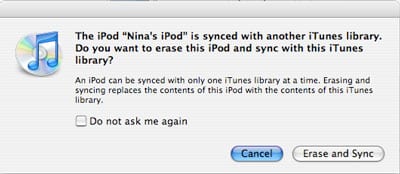
Since automatic synchronization requires the iPod to be effectively “associated” with a single iTunes library, it can become difficult to load content onto the iPod from any other computers. Connecting an iPod that is set to use automatic synchronization to a different iTunes library will result in iTunes prompting you to either cancel the connection of Erase and Sync the iPod to the new iTunes library (erasing all of your existing content on it in the process):
Setting the iPod into manual mode temporarily can help with this, but unfortunately if you load new content on using a secondary computer, this content may be erased as soon as you return to your home computer and set the iPod back to automatic mode. This is because an iPod in automatic synchronization mode mirrors the content in its “home” iTunes library, so in the same way that any content that is present in that library is added to the iPod, any content that is not present would be removed.
Automatic synchronization has the benefit that any new content you add to your iTunes library can be automatically added to your iPod on the next sync without having to track it down and add it yourself. Further, you can manage a single set of playlists for both your computer and your iPod, and information such as ratings, play counts, and last played times will synchronize back to your iTunes library from your iPod.
In manual mode, playlists are managed directly on the iPod itself (via iTunes), and any playlists that you create or modify in iTunes are not transferred to the iPod unless you manually transfer them. Further, playlists cannot be transferred back from your iPod into your iTunes library.
Many users who have iTunes libraries that are larger than their iPod’s capacity fall back on manual management as the solution, but this is not strictly necessary. If you still intend to keep your entire iTunes library on your computer, you can still synchronize a subset of this content through the use of playlists, and still maintain the other benefits of automatic synchronization.

In fact, although many people do prefer to use manual management, there are really only two common scenarios where it’s actually required: For those users who do not intend to maintain an iTunes library on their computer but only on their iPod, and for those users who regularly connect their iPod and load content onto it from multiple computers.











