
Q: I made a mess of my syncing to iCloud, now all of my calendar information is gone. I restored information on my iPhone & iPad from previous back ups, but when it syncs with iCloud, I lose all my Contacts and Calendars. Please tell me how to rectify.
– Karen
A: The most likely problem here is that the contact and calendar information stored in your iCloud account has somehow become erased or corrupted. The information from your iCloud account is technically newer than what is stored in your backup, and therefore once your restored device syncs with iCloud, this overwrites the contact and calendar information that was restored from your backup.
This can be a bit tricky to deal with, but essentially what you want to do is restore the information in such a way that it gets pushed up to iCloud instead of the other way around. The easiest and most reliable way to do this is from your Mac or PC, assuming that you have a backup of your contacts and calendars there.
If you’re a Mac user and have been using Time Machine, you should be able to simply restore your data from a Time Machine backup into your Calendars and Contacts apps; unlike on iOS, this restore operation effectively imports your events and contacts as if they were new entries, pushing the data back up to iCloud, which will in turn push it back to your iPhone and iPad. If you’re using a Windows PC, or a Mac without Time Machine enabled, you probably won’t have a backup handy unless you’ve been using alternative software to backup your computer, or at least your Outlook (Windows) or Contacts/Calendar (OS X) data files.
If restoring the information onto your computer is not practical, then you will need to do this from one of your iOS devices. This will be slightly trickier as you need to avoid syncing your data with iCloud after restoring your device. Restoring a device from iTunes or iCloud actually takes place in two stages: First your application data and settings are restored, after which your device reboots and begins syncing apps and media content. It is during this second stage—when your iPhone has basically rebooted into normal operation—that things like iCloud sync will also occur in the background.
If you turn on Airplane Mode on your device immediately after it reboots at the end of the first stage, your Contact and Calendar information should remain intact on your device, as it won’t have an opportunity to sync with iCloud.
If you’re restoring from iTunes, you don’t need any kind of Internet connection to complete the restore operation, so you could actually leave Airplane Mode on and let iTunes finish syncing your apps and media back onto your device.
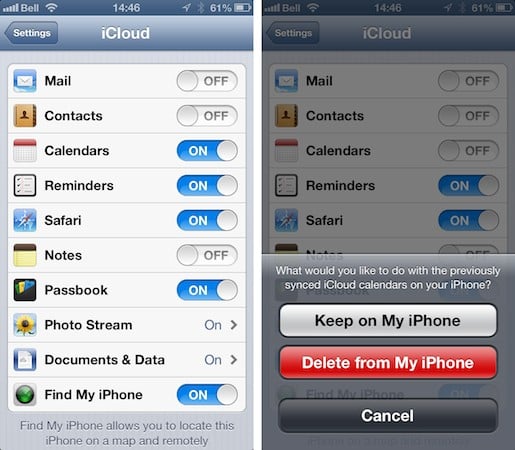
In either case, once you have enabled Airplane Mode, the next thing you want to do is go into your iCloud settings in the iOS Settings app and disable Contacts and Calendars. You should see a prompt asking whether you want to keep or remove the previously synced information; select “Keep on my iPhone” to create a local, non-synced copy of your data.
Once you have done this, you can then turn Airplane Mode back OFF to continue restoring your apps and media content from iCloud, or simply to begin using your device. Your contacts and calendars should remain in place as they are no longer being synced with iCloud.
After your device has finished restoring all of your apps and media, and you’re otherwise satisfied that everything is working as you would expect, you can go back into your iCloud settings and turn Contacts and Calendars back on. This should upload the local contacts and calendars to iCloud as if they were new information, overwriting what is already stored on Apple’s servers.











