
iLoungeiLounge
  • News
    • Apple
      • AirPods Pro
      • AirPlay
      • Apps
        • Apple Music
      • iCloud
      • iTunes
      • HealthKit
      • HomeKit
      • HomePod
      • iOS 13
      • Apple Pay
      • Apple TV
      • Siri
    • Rumors
    • Humor
    • Technology
      • CES
    • Daily Deals
    • Articles
    • Web Stories
  • iPhone
    • iPhone Accessories
  • iPad
  • iPod
    • iPod Accessories
  • Apple Watch
    • Apple Watch Accessories
  • Mac
    • MacBook Air
    • MacBook Pro
  • Reviews
    • App Reviews
  • How-to
    • Ask iLounge
Font ResizerAa
iLoungeiLounge
Font ResizerAa
Search
  • News
    • Apple
    • Rumors
    • Humor
    • Technology
    • Daily Deals
    • Articles
    • Web Stories
  • iPhone
    • iPhone Accessories
  • iPad
  • iPod
    • iPod Accessories
  • Apple Watch
    • Apple Watch Accessories
  • Mac
    • MacBook Air
    • MacBook Pro
  • Reviews
    • App Reviews
  • How-to
    • Ask iLounge
Follow US

How-to › Ask iLounge

ArticlesAsk iLoungeiTunes

Burning Purchased Tracks

Last updated: May 16, 2021 5:21 pm UTC
By Jesse Hollington
Burning Purchased Tracks

Q: I bought and downloaded an album from the iTunes Store. When I try to burn the albums to a CD, they are locked in an MPEG-4 file format. When I downloaded the music, I made sure it was setup in the preferences menu to download my music as an WAV. How do I change the format so that I can listen to it from the cd in my car?


– Jodi
Burning Purchased Tracks

A: Firstly it’s important to understand that tracks purchased from the iTunes Store are always downloaded in an MPEG-4/AAC format, regardless of your settings in your iTunes preferences. The iTunes “Import” settings only affect the format used when you import, or “rip” a CD into your iTunes library yourself or convert an existing file that is already in your library.

For burning a CD, there are two basic types of CD you may wish to burn: either a normal audio CD or an MP3 CD. Which you prefer will depend upon the capabilities of your car CD player and where else you may want to listen to these CDs.


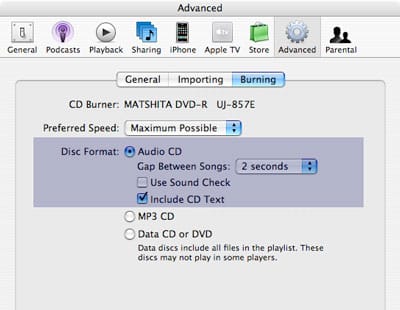
iTunes purchased tracks can only be burned to an audio CD, which is the standard format supported by all CD players. This will only allow you to hold approximately 70 minutes of music on a single CD, but will play in any CD player.

To burn an audio CD from within iTunes, simply select “Audio CD” under iTunes’ burning preferneces (Edit, Preferences, Advanced, Burning):

Burning Purchased Tracks

Once you’ve selected the format in your preferences, you can simply build a playlist of the tracks you would like to burn, and then burn them as you normally would.


On the other hand, as the name implies, an “MP3 CD” is comprised of MP3 files burned onto a CD as a data disc (in a similar way to copying any file to a recordable CD). Since the format for an MP3 CD consists of MP3 files, and iTunes Store purchases are in a protected MPEG-4/AAC format, it is not possible to burn these to an MP3 CD, since they cannot be converted to MP3 due to the digital rights management restrictions.


The one exception to this is the newer “iTunes Plus” tracks that are now available from certain artists on the iTunes Store. These tracks are still in an MPEG-4/AAC format, and will not burn to an MP3 CD natively, but as they are not protected by Digital Rights Management (DRM) they can be converted manually to an MP3 format from within iTunes, and then the resulting (converted) MP3 files can be burned to an MP3 CD in the same way as any other MP3 file.

To convert existing tracks to an MP3 format, ensure that your “Import” preference is set to “MP3” within your iTunes preferences:


Burning Purchased Tracks

You can then select the tracks in your iTunes library that you would like to convert, and choose Convert Selection to MP3 from the iTunes Advanced menu.



Latest News
The 14-inch MacBook Pro with M5 Chip 16GB RAM/512GB is $250 Off
1 Min Read
Noise and Static on AirPods Pro 3 Still Unfixed
1 Min Read
New iMac with 24-inch OLED Display May be Brighter With 600 Nits
1 Min Read
The 15-inch M4 MacBook Air 256GB Is $250 Off
1 Min Read
Internal Kernel Debug Kit from Apple Reveals Tests for a MacBook with A15 Chip
1 Min Read
Apple Currently In Talks With Suppliers for Chip Assembly & Packaging of iPhones in India
1 Min Read
Apple Allows Easier Battery Replacement For M5 MacBook Pro with 14-inch Display
1 Min Read
The Apple Watch SE 3 44mm GPS is $50 Off
1 Min Read
20th Anniversary iPhone May Launch in Two Years
1 Min Read
Better Image Generation Capabilities and Apple Music Integration Coming to ChatGPT
1 Min Read
A20 Pro Chip Coming to Next Gen iPad Mini OLED
1 Min Read
Amazon has the AirTag 4 Pack Marked $29 off
1 Min Read

iLounge logo

iLounge is an independent resource for all things iPod, iPhone, iPad, and beyond. iPod, iPhone, iPad, iTunes, Apple TV, and the Apple logo are trademarks of Apple Inc.

This website is not affiliated with Apple Inc.
iLounge © 2001 - 2025. All Rights Reserved.
  • Contact Us
  • Submit News
  • About Us
  • Forums
  • Privacy Policy
  • Terms Of Use
Welcome Back!

Sign in to your account

Lost your password?








