
iPods are made for music, right? Well, yes, but your iPod can do a lot more than that: you can also use your iPod as a hard disk to store files, back up your work, or transfer files from one computer to another. After all, an iPod is simply a tiny storage device with a screen, audio hardware, and a special case. Standard iPods use miniature hard drives, while iPod shuffles use memory chips. Both are as good at storing data as they are at storing music.
Many people – 44% of readers responding to an iLounge survey, in fact – use the iPod as a music and data device, and the reasons are obvious: it’s easy to carry between home and office; you can use it to back up work-related files during the day, just in case you lose your work; and you can use it for storing personal files as well, if you have enough room after you’ve filled your iPod with tunes (and possibly pictures).
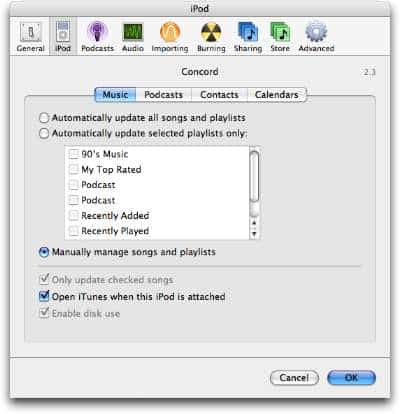
Using the iPod as a hard disk begins with one step: change some settings in iTunes’ iPod preferences. After that, it’s as simple as dragging files to and from the iPod.
Setting Up your iPod (full-sized or mini)
To use your iPod as a hard disk, start by connecting it to your computer, then open iTunes if it doesn’t open automatically. Click the iPod in the Source list, then click the iPod Options button at the bottom right of the iTunes window. This opens the iPod tab of iTunes’ preferences.
If you’ve set your iPod to manually manage songs and playlists, as in the example above, then it is already set to work as a hard disk. All you have to do is drag files to the iPod’s icon on your desktop, or in the Windows Explorer or Finder. You may want to uncheck Open iTunes when this iPod is Attached, so you don’t have to worry about iTunes getting in your way each time you want to connect the iPod and copy files to or from it.
If you want to use automatic syncing for your iPod, you need to turn on the Enable Disk Use setting. Display the iPod preferences the same way as described above, and check that option.

Again, you may want to uncheck Open iTunes when this iPod is Attached; this will prevent a different computer’s copy of iTunes from trying to update your iPod when you connect it. Make sure, however, to quit iTunes before connecting your iPod.
Setting Up the iPod shuffle
The above explanations apply to both iPod minis and white iPods (either black-and-white- or color-screened). However, if you have an iPod shuffle, things are slightly different. While iPods and iPod minis automatically let you use any or all available space for files without using special settings, the iPod shuffle requires you to choose how much space you want to allocate for file storage. This setting is managed in iTunes, and you can change it at any time.
Practically speaking, this means that if you choose, say, 100 MB for files on your iPod shuffle, you won’t be able to use that 100MB of space for songs until you tell iTunes otherwise. From then on, the 100MB will be set aside and kept empty except for your data files.
To set up your iPod shuffle as a hard disk, open iTunes and click the iPod icon at the bottom of the iTunes window. When the preferences window opens, check Enable Disk Use, then move the slider to determine how much of your iPod shuffle’s disk space you’d like to keep available for files. This slider shows a number of songs on the left (this is an estimate) and an amount of disk space on the right; use the latter to set the disk space you want to use.
(As with other iPods, you’ll find that unchecking Open iTunes when this iPod is Attached makes it easier to work with.)

Copying Files to and from your iPod
To copy files to your iPod, just drag them onto the iPod’s icon in the Windows Explorer or in the Finder. On Windows, you can access the iPod from My Computer. On Macs, the iPod shows up in the Finder window sidebar and on the Desktop (unless you’ve set Finder preferences to not show external devices there).
When you use an iPod as a hard disk, it really is just like any other external storage device – you copy files to it and from it as on any other device, hopefully setting up a folder for your files to keep them organized. You can even use the iPod as a destination for backup software, and, in some cases, mount it as a network volume on other computers, if you’re connected to a network.
However, if you copy music files to it in this manner, you won’t be able to listen to them on the iPod; only songs you’ve added to your iTunes music library are playable on the iPod. You can, however, use the iPod like this to transfer music files between computers, such as when you want to copy an iTunes library from an old computer to a new one.
You’ll need to bear in mind how your iPod is formatted. If your iPod is formatted for a Windows computer, you’ll be able to access its contents on both Macs and PCs. However, if it’s formatted for use on a Mac, you’ll only be able to use it on Macs. Mac users also need to be aware that they cannot copy some files to Windows-formatted iPods, or to iPod shuffles (which are all formatted for Windows, using FAT32 formatting).
Which files? Mac users can’t copy files to Windows-formatted iPods if their names contain any of the following characters:
* . ” / \ [ ] : ; | = ,
If you try to copy files containing any of these characters, your Mac will display an error message. If you try to copy a folder and any of the files contains one or more of these characters, you’ll get the same error message, but the alert won’t tell you which file is the culprit.











