
Q: Is there any way that free apps downloaded to a fourth-generation iPod touch can be backed up when synching?
– Anonymous
A: Definitely. In fact, this should normally happen automatically whenever you sync your iPod touch with your iTunes library; however with the release of iCloud and iOS 5 there are actually a couple of different ways this can now be handled.
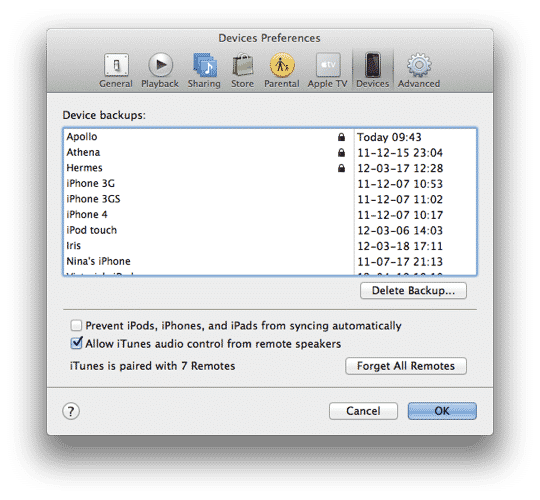
Traditionally, apps are backed up into your iTunes library, along with a backup of the data on your iPod touch. This happens whenever you plug your iPod into your computer and sync with your iTunes library; any new apps that are found on your device that are not in your iTunes library will be transferred into your library, and a backup of all of the data and settings on your iPod is made each time you connect. If you are backing up to iTunes rather than iCloud (more on that later), you can check the status of your backups by going into your iTunes Preferences and selecting the Devices screen.
Note that for the applications to be transferred to your iTunes library, your computer must be authorized for whichever iTunes Store account was used to purchase them. This should be the case already unless you’ve never downloaded or purchased an app or any other content from the iTunes Store directly on your computer.
You can make sure your computer is authorized simply by going to the Store menu in iTunes and choosing Authorize this Computer… and entering your Apple ID and password when prompted. You can do this even if your computer is already authorized, so it doesn’t hurt to go through this process again if you’re unsure.

Further, apps will only be transferred automatically back to your primary iTunes library—normally the first one you used with your iPod touch or the one with which you sync your apps. You can always transfer purchased manually at any time, however, simply by going to the File menu in iTunes while your iPod touch is connected and selecting the Transfer Purchases from… option. This will search through your iPod for any purchased content—apps, music, books, movies, etc—that is on your iPod but not in your iTunes library, copying anything that it finds back into your library.

This process will handle backing up the apps themselves, but your data in those apps (e.g. high scores, settings, documents, etc), is backed up separately, as part of your full device backup.
This backup can be stored by iTunes on your computer or you can choose to backup your device to iCloud instead.
If you are backing up to iTunes, a backup will be done automatically each time you plug your device into your computer or sync to your computer over a Wi-Fi connection. If you are backing up to iCloud, a backup will occur once every 24 hours whenever your device is connected to the Internet via Wi-Fi and plugged into an external power source. You can choose which backup destination to use either by selecting it on the Summary screen in iTunes for your iPod touch, or simply by toggling the “iCloud Backup” setting on or off directly on your iPod under Settings, iCloud, Storage & Backup.

Note that you can also still make a backup in iTunes manually even if you’re normally backing up to iCloud; simply right-click on your iPod in the Devices list in iTunes and choose Back Up from the context menu that appears. An extra, one-time backup of your iPod touch will be made to your computer, however your regular backups will still go to iCloud unless you manually change the setting as described above.

In an iCloud-enabled world, most people won’t need to backup the apps themselves.











