
Q: Thanks for your helpful article on Removing music from iTunes after copying to iPod from last week. What frustrates me, however, is that there is apparently no such simple option (to manage one’s music and videos manually) when it comes to the iPhone and iPad versions of iTunes. Can you please write a follow-up article that can help show users of iOS devices how to avoid the auto-loading syndrome in the same way that you’ve shown is possible with the iPod?
– Benjamin
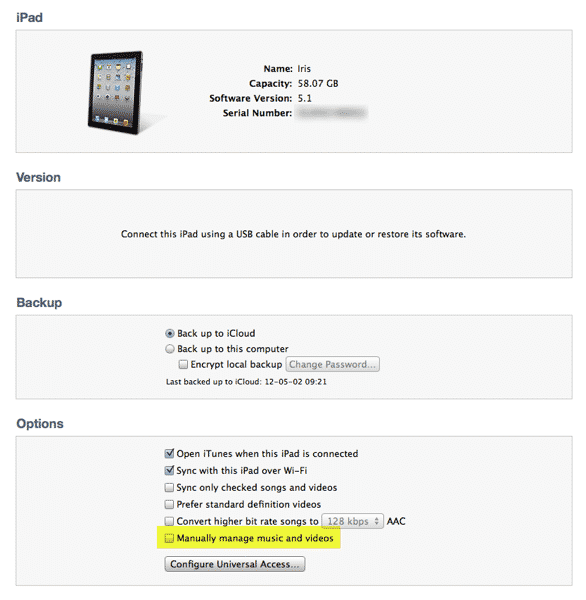
A: Actually, the process for managing content manually on an iOS device (iPhone, iPad and iPod touch) is virtually identical in concept to the option for traditional iPod models explained in last week’s article, with a few exceptions regarding the iPhone as well as some of Apple’s newer iCloud services.
Firstly, just to review, the manual management option is found in the same place in iTunes: Visit the Summary screen for your device and you should see the option to Manually manage music and videos.
Enabling this option allows you to manage the content on your iPhone, iPad or iPod touch manually in the same manner as you would on an iPod classic or iPod nano. In this mode, automatic sync of music and video content will not occur; instead you must manually drag-and-drop content from your iTunes library onto your device and manage the content directly on the device from within iTunes.
Note that the manual option only applies to music and videos (Movies and TV Shows). Other content such as podcasts, iTunes U collections, apps, iBooks, audiobooks and photos will still be synchronized automatically regardless of this setting. This has always been true of traditional iPod models as well as iOS devices.
The oddest exception regarding manual management concerns the iPhone. Enabling manual management on an iPod or iPad allows you to load content from more than one iTunes library, it seems that this is still not the case for the iPhone. Enabling the Manage manually option will allow you to manage the content on your iPhone manually from your primary iTunes library, but you will not be able to add content when connected to a secondary computer.
It remains unclear why this limitation exists, but it has been the case ever since manual management was first introduced to the iPhone with iOS 1.1 back in 2007.
Keep in mind that you can’t manage your music content manually when using iTunes Match, since this bypasses iTunes synchronization of your music entirely. Once iTunes Match is enabled on your iOS device, even automatic synchronization of music is disabled, and you’ll notice that in this case the manual option will instead simply read Manually manage videos, allowing you to still enable manual management for your movies and TV shows while synchronizing your music via iCloud.


If you have enabled iTunes Match on a given iOS device, all of your music will always be available on that device. This includes new music as it’s added to your iTunes library as well, effectively providing automatic synchronization via iCloud, although your content is not stored locally on the device by default, merely available from iCloud for downloading on demand. If you want to keep your music library pared down to only show content that actually is stored on the device, you can toggle the Show All Music option OFF under Settings, Music on your device.











