
Q: I found your article last week on Refreshing Photo Albums on the Apple TV and I’m in a similar situation. I’m a Mac user, but I prefer to use folders for my Apple TV as I want to be able to quickly add new pictures without having to go through iPhoto. I also leave my iMac and iTunes on all of the time, which I gather from your article is why I don’t see new photos showing up. Is there some way to automatically refresh my photos through AppleScript or something that would be easier than going in and messing with the sharing settings whenever I add something to my photo folders? I’ve seen some tips on setting up iTunes to restart automatically on a schedule, but I don’t want to do that because I’m often downloading new stuff or using the Apple TV to watch or listen to something from iTunes.
– Patrick
A: This actually is possible via AppleScript; it’s a bit kludgy since it uses a feature known as “GUI Scripting” which basically just selects the normal iTunes options on your behalf, but it gets the job done.
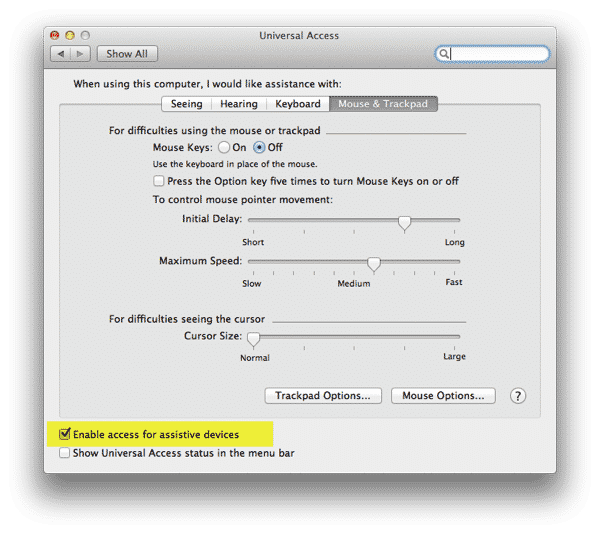
Unfortunately, none of the photo sharing features in iTunes are exposed directly to AppleScript, so we’re forced to resort to manipulating iTunes controls directly. To allow AppleScript to do this on your behalf, it is first necessary to go into your OS X System Preferences application and select the Enable access for assistive devices option under your Universal Access settings.
The option allows AppleScript to directly access user interface elements in applications on your Mac. Once you’ve done this, an AppleScript such as the following can be used to refresh your photo folders in iTunes simply by going through the steps of opening the Choose Photos to Share dialog, changing some options and then closing that window afterwards.
tell application "System Events"
	if my appIsRunning("iTunes") then
		tell process "iTunes"
			# Open the Photo Sharing settings from the "Advanced" menu
			click menu item "Choose Photos to Share…" of menu ¬
				"Advanced" of menu bar item "Advanced" of menu bar 1

			# Toggle the status of the "Include videos" checkbox to force a change
			click checkbox "Include videos" of scroll area 1 of window "Photo Sharing Preferences"
			click button "Apply" of window "Photo Sharing Preferences"

			# Toggle the status of the "Include videos" checkbox again to return it to its original setting
			click checkbox "Include videos" of scroll area 1 of window "Photo Sharing Preferences"
			click button "Apply" of window "Photo Sharing Preferences"

			# Close the Photo Sharing settings window
			click (first button of window "Photo Sharing Preferences" whose subrole is "AXCloseButton")
		end tell
	end if
end tell

on appIsRunning(appname)
	tell application "System Events" to (name of processes) contains appname
end appIsRunning
The in-line comments in the script above describe what it does. To summarize, we’re confirming that iTunes is running, and if so simply toggling the Include videos option to force iTunes to re-read the photo collection. The Include videos option is toggled a second time to return it to its original setting before closing the window. Note that if you don’t normally include videos in your photo folders anyway, you can remove this second section as it doesn’t matter whether the Include videos option is set or not.
If iTunes is not running in this case, the script does nothing, since starting up iTunes would refresh the photo folders anyway, effectively rendering the remainder of the script redundant.
To use the script, you can simply choose to run it manually, saving it in AppleScript editor as an “Application” that you can then put somewhere convenient—such as on your Desktop or in your Dock—and simply run by clicking on it.

Alternatively, you could set the script up to run either on a scheduled basis or as a Folder Action that is triggered whenever you make a change to one of your photo folders.
Setting your script up to run on a schedule is most easily and transparently done with the third-party utility Lingon ($3), however it is also possible to schedule it as a recurring iCal event with an alert type of “Run Script”.

Another way to approach this is to setup the script to run as a Folder Action against whatever folders you normally use for photos. This first requires a very slight modification to the above AppleScript to add the appropriate Folder Action handlers, as follows:
At the top of the script, add…
on adding folder items to this_folder after receiving added_items

	tell application "System Events"
		if my appIsRunning("iTunes") then
			tell process "iTunes"
			…
			…
…and at the bottom, insert:
	…
	…
	end tell
end adding folder items to

on appIsRunning(appname)
	tell application "System Events" to (name of processes) contains appname
end appIsRunning
You then need to save the script in your ~/Library/Scripts/Folder Action Scripts folder and you should then be able to associate the script with the appropriate folder by right-clicking on the folder in Finder and choosing Services, Folder Actions Setup…

Note that Folder Actions do not include sub-folders by default, so you will need to associate the script with each folder where you plan to add photos on a regular basis. Further, the script modifications above will only be initiated when adding new items to your Photos folder; if you want to have the script also run when removing items, you will need to add another copy of the main code block with the handler on removing folder items from this_folder after losing removed_items. This is left as an exercise for the reader, or you can simply download a complete version of the script ready to be used as a Folder Action.











