
Today, Apple announced a significant, exciting new update to their iTunes software, version 7. In this article, we take a quick look at each of iTunes 7’s many new features:
A Refined Look
iTunes 7 further refines the look originally streamlined by iTunes 5, universally removing the bright “aqua” accent color scheme in favor of a more subdued blue-grey color.

Buttons have been restyled as well:

As you might expect, however, iTunes 7’s beauty is far from being only skin deep. The best real new features are described below individually:
Source Column Organization
The first thing one might notice upon installing iTunes 7 is the cleaner, more organized “Source” column on the left side of iTunes’ main window. Now, the library is separated into distinct collections based on the media type – Music, Movies, TV Shows, Podcasts, Audiobooks, iPod Games, and Radio are all displayed separately, and no longer mix with one another in one comprehensive view, as was the case with iTunes 6. For those who preferred iTunes 6’s method of displaying the library contents, one can not simply highlight “Library” to view all media types at once.

New Library View Options
Another major, overt feature in iTunes 7 is its new media-viewing options. In previous version of iTunes, the only way to view one’s library was in a list view, organizing media and their tags with a spreadsheet-like listing. Recent versions of iTunes added a thumbnail view for Videos, but the new viewing options in iTunes 7 go far beyond this.
At the top of the iTunes window next to the search bar, three new buttons are available for the new varying viewing modes. Note also that the “Browse” button and “Burn Disc” buttons are no longer present in the top right corner—they’ve moved to the bottom right, appearing when available.

The first of the three buttons activates “Details” view, which is identical to the text-based listing from previous versions of iTunes.
The second button activates a view which combines items from an Album or TV Show together, displaying a thumbnail view of the album’s artwork (or a TV Show preview graphic) next to the listing. The result is vaguely similar to iTunes 6’s “Print Album Listing” function, except that the listings that this view generates are fully functional, interactive iTunes windows.


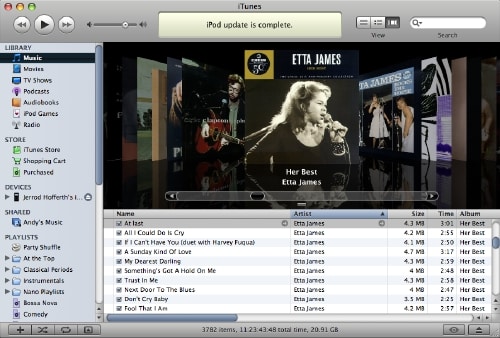
The third, and undeniably ‘neatest’ view that iTunes 7 offers is the “Cover Flow” view.
This view allows you to browse your iTunes Music, Movies, TV Shows, or Audiobooks by visually flipping through the album artwork, poster frames, or cover material that is associated with them. All images scroll smoothly and quickly over a black background, with a video iChat-style reflection beneath them. Simply scroll using the bar or arrows, and the item of interest is scrolled to and highlighted in the text listing below Cover Flow. We’d have preferred that the songs from the highlighted album would be the only items shown in the listing, but such is not the case. Still, the feature is handy for visually browsing through your library.

As a side note, it has been revealed that the feature was acquired from third-party company Steel Sky’s technology demonstrator program for the Mac of the same name.
“It’s Showtime!”: Movies on iTunes
As widely expected, Apple launched the first full-length movies available for sale via the iTunes Store. (Note, the word “Music” has appropriately been removed to reflect the increasingly multimedia catalog).

Movies are sold for $12.99 until they’ve been available for a week, after which the price goes to $14.99. Older titles are priced at $9.99. Movies are sold as 640×480 “Near-DVD” quality files.

Download Progress Display
With the large, time-consuming downloads brought upon by 640×480 full-length movies in iTunes, Apple has introduced a better display and capability for iTunes Store downloads. Multiple items can now be downloaded at once, and their status in doing so is nicely displayed in the new “Downloading” list that appears in the “Store” section of iTunes 7’s “Source” column when necessary.

iPod Games
Also available for iTunes 7 and fifth-generation iPods (including those launched today and those sold previously, with an update to version 1.2) are extra downloadable games. Games are sold at the iTunes Store for $4.99 each, or $44.91 for all 9 games currently available.
These include:
- Vortex
- Tetris
- Pac-Man
- Cubis 2
- Zuma
- Texas Hold’em
- MiniGolf
- Mah Jong
- Bejeweled

The description of each game in one’s Library is attractively formatted, and includes a pictorial description of the controls required to play the game:

iPod Summary and Preferences Changes
iPod Summary, new to iTunes 7, provides a central control station for your iPod. This feature provides a one-stop replacement for the features formerly found in iTunes’ Preferences (see the tabs below), and also for the “iPod Software Updater” utilities that have historically been separate programs (see “Version” area below).

In addition, iTunes Summary also provides a more detailed view of your iPod’s disk space utilization, attractively colorizing it according to the amount of each type of media on your iPod.

An important note to users of manual synchronization: this is now a global option on the “Summary” page of the iPod settings feature, entitled “Manually manage music and videos.” Don’t look for it in its classic locations, under the “Music” and “Videos” tabs.
iTunes Backup Wizard
Discreetly added to iTunes’ “File” menu is a new option called “Back Up to Disc…”, which starts a new wizard that looks like the following:

There’s an option to back up your entire library and playlists, iTunes Store purchases only, and even to create only an incremental backup, writing to disc only those items that have changed or been added since the last use of the wizard. This simplifies the process of backing up your library significantly.
Gapless Playback
iTunes now has options that enable the long-requested feature called “gapless playback.” This enables the continuous, uninterrupted playback of certain albums which were meant to be played without the short gaps that iTunes and previous iPods had to place between tracks. Good examples are live concert albums and electronic mixes.
To enable gapless playback for these albums, select the tracks in the album, choose “Get Info” from iTunes’ “File” menu, toggle “Gapless Album” to “Yes,” and click “OK.”

With this tag set properly, the iPod and iTunes will automatically play the tracks without gaps.
Sync Both Ways
One of things we hear most often from iPod users is that they’d like (or, often, desparately need) the ability to copy songs from an iPod to a computer, whether to restore a lost library, transfer songs to a new computer, or simply to share a few with a friend.
Apple, in the past, has been almost entirely opposed to this feature, intentionally making it rather difficult for most users to extract content from an iPod and upload it to another computer, at least without third party software.
Now, with iTunes 7, they’ve at least partially made this possible, except the feature is not without its limitations: only content purchased from the iTunes Store is uploaded to a computer, and that computer must be one of the 5 authorized to play songs from that iTunes Store account.
To use the feature, simply plug the iPod into the computer you’d like to receive the music, open iTunes 7, and select “Transfer Purchases from [iPod name]”:

This is certainly not the comprehensive iPod-to-PC transfer solution users have wanted built into iTunes for so long, but given Apple’s obligation to content owners to not facilitate mass piracy using iPods, we expect that this is as good as it gets. Still, the purchased content only still has its uses: in addition to making it easy to propagate iTunes content to the 5 computers authorized to play it, it turns the iPod into an automatic redundant backup system should your main library fail – an excellent feature.
Automatic Album Art Retrieval
iTunes now has the capability to retrieve album artwork from the iTunes Store for all of the music in your library, regardless of whether it was originally purchased from iTunes, imported from a purchased CD, or otherwise downloaded from another source.











