
Earlier this week, Apple announced that it would be bringing long-awaited public transit directions to its maps service with the release of iOS 9 this fall, and those running the first beta of the new iOS version have discovered that transit directions are already live now in at least some of the supported cities — and even somewhat beyond. We’ll take a quick first look at what Apple has actually done with public transit in iOS 9.

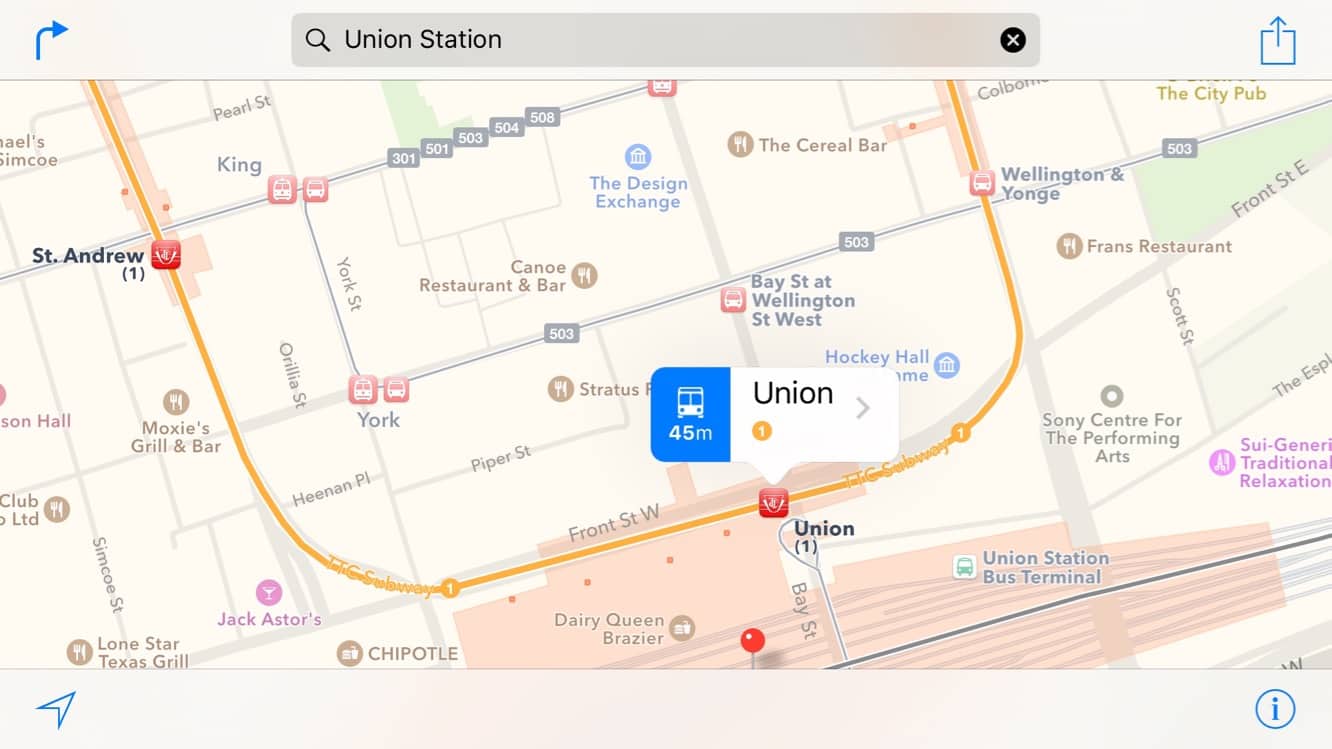
Transit has been deeply integrated through Apple Maps right off the bat, with a new “Transit” view that replaces the old “Hybrid” view in the map selector (hybrid view is now available by going directly to “Satellite” view and choosing the “Show Labels” option that appears once in that view).

In Transit view, roads are grayed out to blend into the background, with emphasis placed on transit lines and stations. Major transit access points, such as subway and train stations, also get clear and bold labels, even at broader zoom levels, and lines are color-coded where appropriate – for example in Toronto, subway lines show numbering and colors that match those used by the TTC.

Zooming in more closely on the map will show not only subway and train stations, but also individual bus stops, along with the bus route numbers servicing each stop. As demonstrated by Apple on Monday, individual station entrances are even indicated on the map, helping users to find their way into the appropriate access points.

In fact, this is one area where Apple Maps’ transit directions particularly shine — unlike other services such as Google Maps, when plotting a transit route, Apple’s implementation will actually provide turn-by-turn walking directions on both ends of the trip, helping you find your way not only to the appropriate subway station or bus stop, but right to the closest entrance to that station.
It’s a nice touch that makes the transit directions that much more useful, especially for users in unfamiliar territory, and it’s a safe assumption that the walking directions will even work with haptic feedback on the Apple Watch.

Getting transit directions started is also pretty straightforward, and in fact iOS 9 has replaced the old text-based “Get Directions” link with new icons that appear at the top of a location card, providing not only options for getting directions to a location, but also travel time estimates to that location by various means — walking (if practical), transit, or driving. Tapping on an icon will immediately bring up directions to the selected location using the chosen method of transport.

Of course, you can also enter directions to a location manually in much the same way you did in iOS 8, by tapping on the arrow icon in the top left corner of the Maps app and entering the location information manually, either starting from your current location or between any two arbitrary locations. The UI for this has been enhanced slightly in iOS 9, providing nice big shortcut buttons for home, work, and access to your favorite locations.

On the routing screen, an option for Transit replaces the old “Apps” button, however those who still want to use third-party apps for getting directions can find a “Routing Apps” button on the Share sheet, accessed by tapping the “Share” button that appears in the top right corner when getting directions.

For transit routing, several options will be presented using a combination of available transit means leaving within the next few minutes, showing approximate travel time, walking distance involved, and the frequency of departure for each. Tapping “Options” provides the ability to choose a specific departure or arrival time, or to limit your trip to only certain modes of transportation.

Tapping on a specific route will provide detailed directions for that route, with walking directions summarized by default; however, beside each walk is a “Detail” button that can be used to expand the step to show the specific walking route for that leg of the journey.

Transit stops and stations themselves are also tappable targets that can be used to display more detail about the routes available at each station and their departure times — a handy feature for determining what’s available when you’re already at or near a station. At this point, the information provided in these views is static, based on transit provider schedules rather than dynamic GPS information used by third-party apps such as Transit App, but as this is the first beta, it’s entirely possible Apple may still add this capability before the final release.


WatchOS 2 Support
Naturally, Apple will also include Apple Maps’ new transit support in watchOS 2 when it ships this fall, adding the ability to get transit directions from your wrist in much the same way as you can get walking and driving directions. The new “Transit” map view from iOS 9 can also be accessed from the watchOS app by bringing up the menu with a Force Touch press.

As on the iPhone itself, you can ask Siri for transit directions, or simply select a point on the map and you will be offered transit directions in addition to walking or driving. The same step-by-step directions are provided as on the iPhone, although notably, for now at least, the walking directions to the nearest transit station or stop do not offer haptic feedback — they seem to be provided simply as a static list of steps that you can swipe through. Likewise, although you’ll get walking directions to your ultimate destination from the stop/station on the other end, they remain presented as a static list — you’ll need to manually switch to walking directions if you want full turn-by-turn guidance.











