
Discover the innovative world of iPhone Standby Mode – your iPhone’s transformation into a smart, interactive display. Experience a revolution in accessing information at your fingertips.
iPhone Standby Mode in iOS 17 has redefined the way we interact with our smartphones. This guide delves into the depths of Standby Mode, a feature that turns your iPhone into an intelligent display for glanceable information, whether you’re at home or work. Learn how to activate, customize, and maximize this cutting-edge feature for your everyday life.
How to Activate and Use Standby Mode
Activating Standby Mode is straightforward. Ensure your iPhone is in landscape orientation and connected to a charger – MagSafe, Qi-based wireless, or Lightning. It activates automatically on locked iPhones, presenting a smart display of information when needed.
If not activated by default, you can manually enable it in Settings -> Standby. This feature reimagines how you use your iPhone, turning it into a versatile tool for various environments, like kitchens or nightstands.
To set your iPhone into standby mode, follow these simple steps:
- Navigate to your Settings app.
- Scroll down and select the Standby option.
- Ensure that the Standby switch is toggled on.
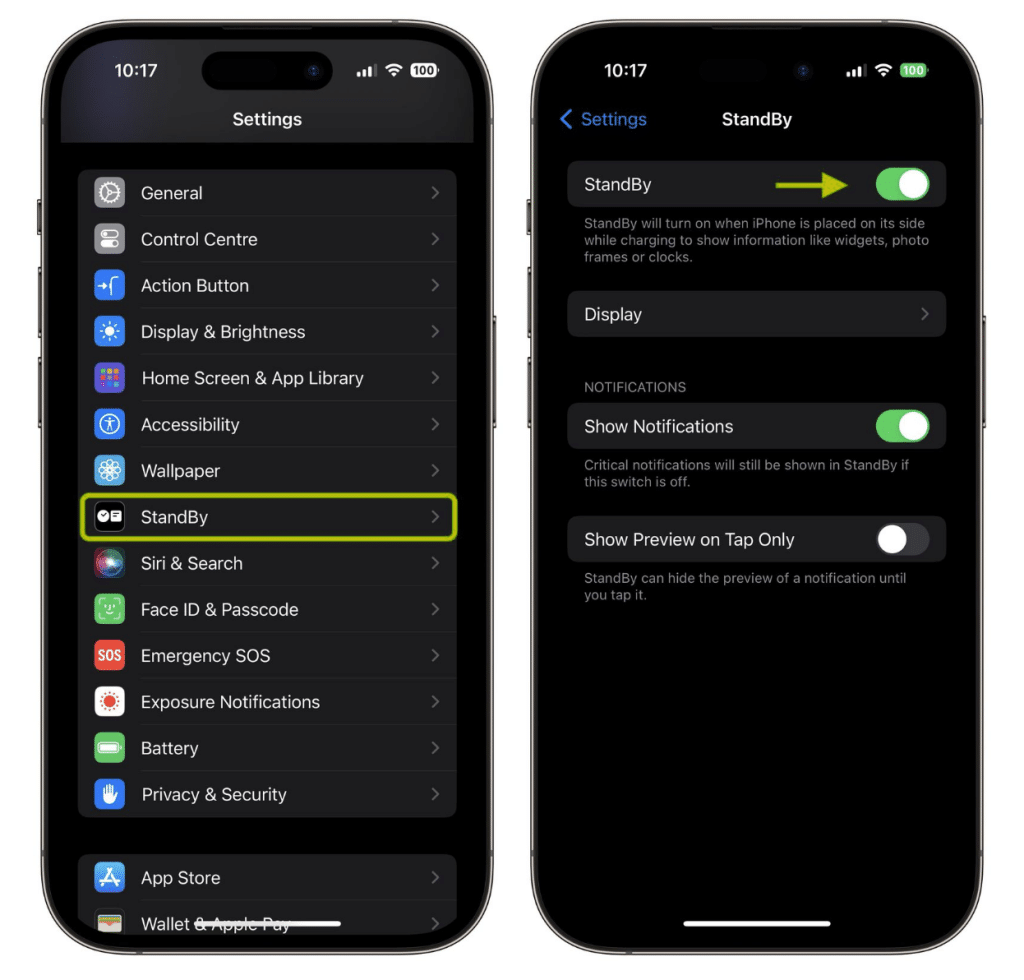
After ensuring that the standby mode is enabled, connect your iPhone to a charger. Position it on its side, ensuring it remains stationary. Then, press the side button. Your iPhone is now in standby mode, ready to present you with a wealth of information at a glance.
Key Takeaways
- Standby Mode is an advanced feature in iOS 17.
- Available on all iPhone models supporting iOS 17; Always-On display exclusive to iPhone 14 Pro and 15 Pro.
- Customizable screens for widgets, photos, and clock.
Understanding iPhone Standby Mode
Standby Mode is a revolutionary feature introduced in iOS 17, transforming your iPhone into a dynamic smart display. Compatible with all iPhones supporting iOS 17, Standby Mode activates when your device is charging and positioned on its side, offering fast access to different screens of glanceable information. It’s particularly effective on models like iPhone 14 Pro and iPhone 15 Pro, thanks to their Always-On display capabilities.
Customizing Standby Mode
Standby Mode boasts three customizable screens – Widgets, Photos, and Clock. Swipe horizontally to access each. The widgets screen includes interactive stacks for quick information, while the photos screen allows for personal photo display.

The clock screen offers various themes, including digital, analog, and more, some even showing additional information like temperature or alarms. Customize these to fit your daily routine, adding a personal touch to your iPhone’s display.
Advanced Features of Standby Mode
Standby Mode is more than just a display tool. It includes Night Mode, adapting to low light with a red tint for minimal disruption. Notifications and Live Activities are seamlessly integrated, keeping you updated in real-time.
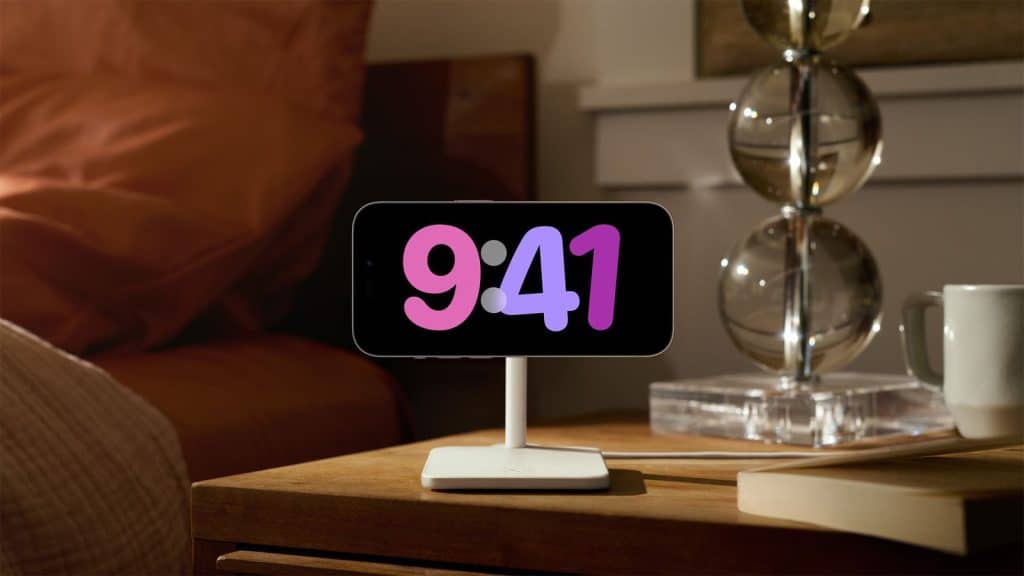
The MagSafe Location Awareness feature remembers your preferred screen and widget setup at different charging locations, offering a personalized experience whether you’re in the office or by your bedside.
Taking Advantage of the Always-On Display
The iPhone models, iPhone 14 Pro, iPhone 14 Pro Max, iPhone 15 Pro, and iPhone 15 Pro Max come equipped with an Always-On display feature. This feature allows the standby mode to stay on constantly, showing you useful information at all times.
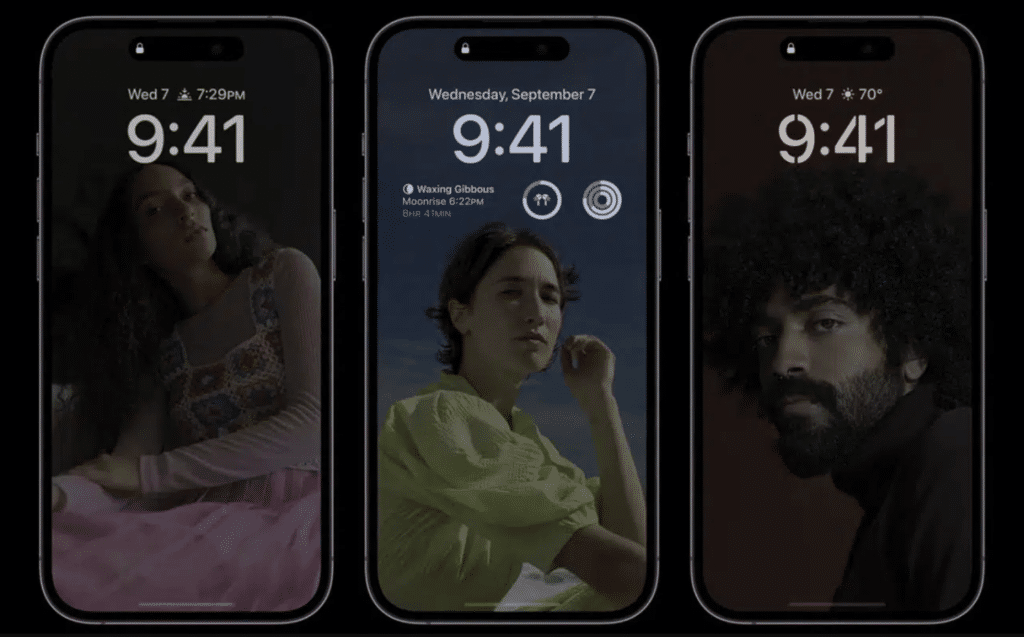
For all other iPhone models, activating the standby mode is still a breeze. You can bring the standby mode to life by simply tapping the screen, gently nudging the table your iPhone is on, or even using Siri. This ensures that the information you need is always just a tap or a voice command away.
Personalizing Standby Mode with MagSafe
Standby mode also introduces a unique feature that works in conjunction with MagSafe. In each location where you charge your iPhone with MagSafe, the standby mode remembers your preferred view.
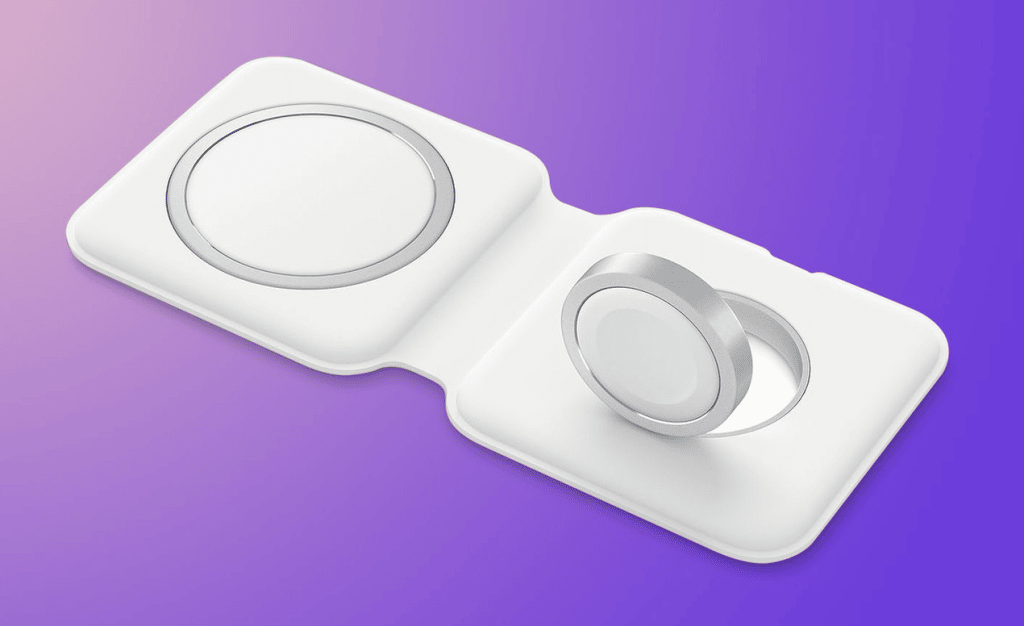
This means that you can customize your standby mode for different locations. For instance, you can set it to display family photos when charging in the kitchen, or transform it into an alarm clock at your bedside. This level of personalization makes the standby mode a versatile feature that adapts to your lifestyle.
How Standby Mode Works with Notifications and Siri
By default, incoming notifications are displayed full screen when your iPhone is in standby mode. This means that if you receive an iMessage, for instance, it will pop up with the sender’s name and the Messages icon, letting you know you have a new message.
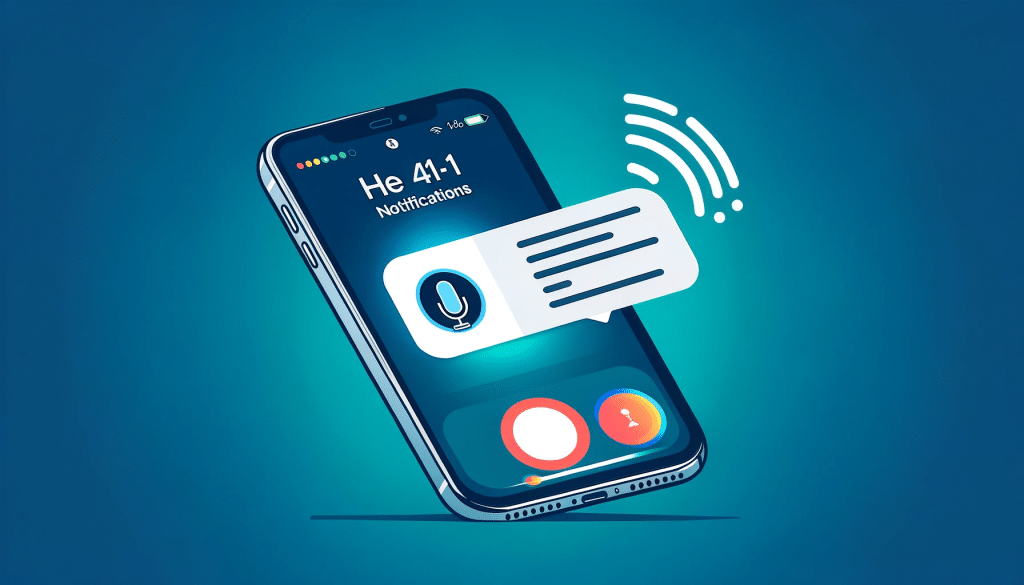
Similarly, the results of Siri queries and commands are also presented in a full-screen style during standby mode. This makes it easy for you to engage with Siri and receive responses without having to exit the standby mode.
Improving Battery Life with Standby Mode
It’s worth noting that the standby mode is not just about providing information at a glance. It’s also about optimizing the use of your iPhone’s battery.
In some countries, the release notes for iOS updates have mentioned improvements in battery life when using the standby mode. This means that using the standby mode not only keeps you updated with essential information but also contributes to the efficient use of your iPhone’s battery.
Troubleshooting Common Issues
Even with its intuitive design, users may encounter issues with Standby Mode. If it doesn’t activate, ensure your iPhone is correctly positioned and that the mode is enabled in settings. If it turns off unexpectedly, check the display settings or whether Low Power Mode is activated, as this can affect functionality. For continuous Standby display, note that this feature is exclusive to iPhone models with an Always-on display.
Conclusion
Standby Mode in iOS 17 marks a significant evolution in how we interact with our iPhones. By turning the device into a versatile display, it offers convenience and customization, enhancing the user experience in various settings.
Whether as a smart nightstand display, an interactive photo frame, or a quick information dashboard, Standby Mode caters to diverse needs. Its ease of activation, personalization options, and advanced features like Night Mode and MagSafe Location Awareness make it a valuable addition to the iPhone’s capabilities. This feature represents a leap forward in making our smartphones even more integral and responsive to our daily lives.











