
Managing numerous apps on your iPhone can become overwhelming, making it challenging to locate the ones you need. If you have unused apps cluttering your home screen, hiding them can help save space and improve organization. In this ultimate guide, we will walk you through various methods to effectively hide apps on your iPhone, ensuring easy access to the ones you frequently use.
Method 1: Hide Apps by Creating Folders
One simple and built-in way to hide apps on your iPhone is by creating folders. By grouping similar apps together, you can reduce clutter and maintain a tidy home screen. Follow these easy steps:
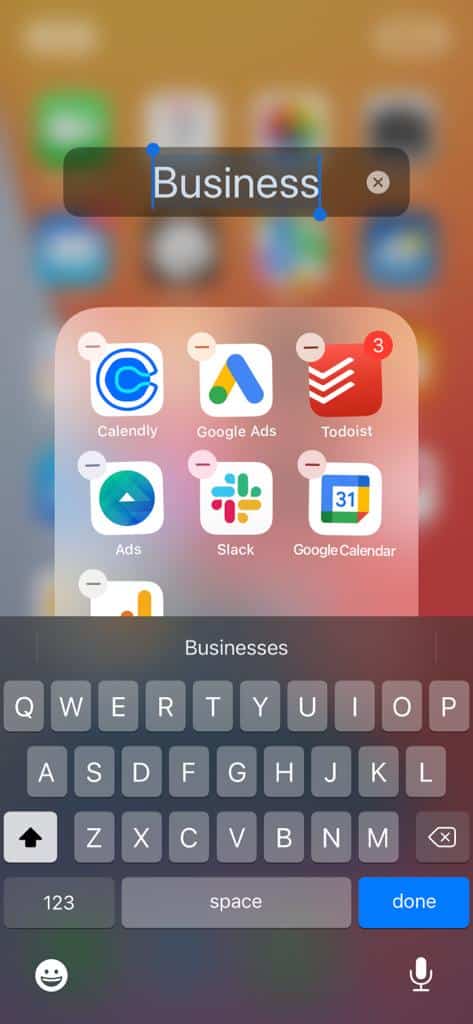
- Tap and hold any app icon until all icons start jiggling.
- Drag the app icon onto another app you want to include in the same folder.
- A new folder containing both icons will be created.
- To rename the folder, tap the name field and enter a new name.
- Repeat steps 1-3 to add more apps to the folder.
Method 2: Hide Apps Using Screen Time
If your iPhone runs on iOS 12 or later, you can leverage the Screen Time feature to hide apps. Screen Time offers the ability to limit app usage and silence notifications during designated “quiet hours.” Follow these steps to hide apps using Screen Time:
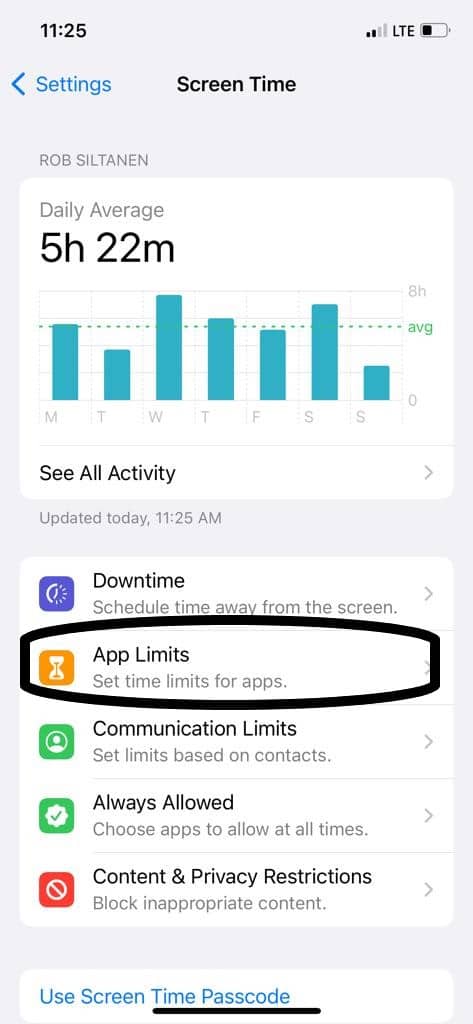
- Open the Settings app and tap on “Screen Time.”
- Select “App Limits” and choose the type of app you want to limit.
- Tap “Add Limit” and set the daily usage limit for the app.
- Once you’ve set the limit, tap “Add” in the top right corner.
- When you exceed the set limit, a lock screen message will appear when attempting to open the app.
Note: Ensure Screen Time is enabled for this method to work. Alternatively, you can explore other options like hiding apps within folders or utilizing restrictions.
Method 3: Hide Apps Using Guided Access
Guided Access, an accessibility feature on the iPhone, grants control over app usage. It temporarily disables specific phone features, such as the touch screen, to prevent accidental interactions. To hide apps using Guided Access, follow these steps:
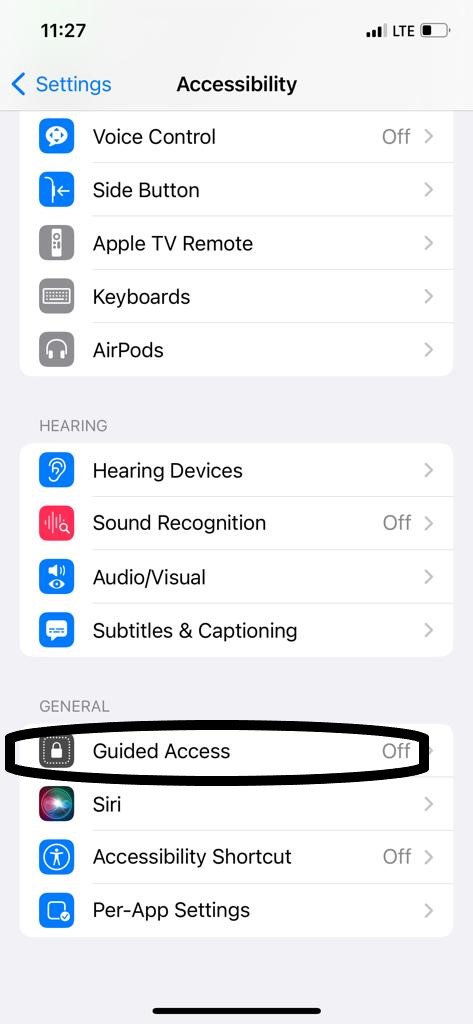
- Open the Settings app and scroll down to “Accessibility.”
- Tap on “Accessibility” and navigate to “Guided Access,” then enable it.
- Return to the home screen and launch the app you wish to hide.
- Once the app is open, triple-click the side button to activate Guided Access.
- Use your finger to encircle the app’s screen area, preventing input beyond it.
- Finally, tap “Start” in the top right corner to initiate Guided Access.
The app will now be hidden, and access requires triple-clicking the side button and entering your passcode.
Method 4: Hide Apps Using Restrictions
Another effective method to hide apps on your iPhone is through the use of restrictions. This built-in feature allows you to control app usage. Follow these steps:
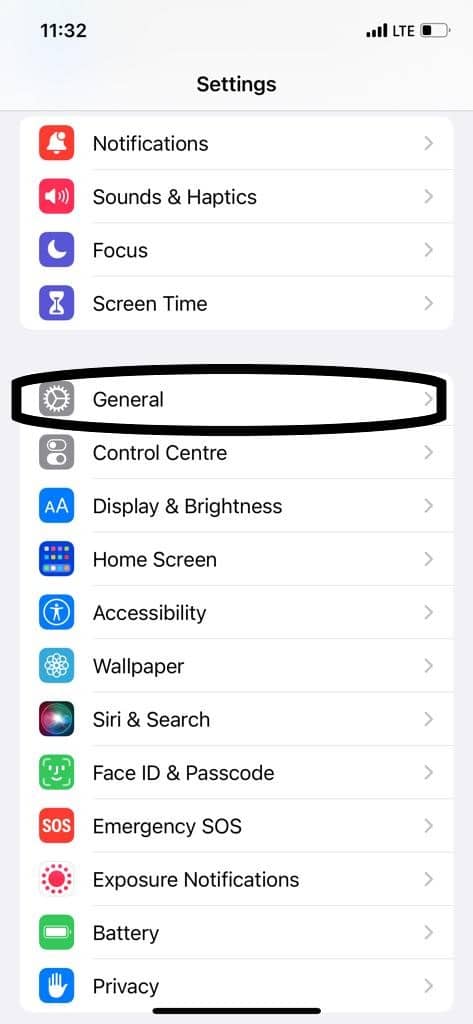
- Open the Settings app on your iPhone.
- Tap “General” and select “Restrictions.”
- Click “Enable Restrictions” and set a 4-digit passcode.
- Under “Allowed Content,” tap “Apps.”
- You’ll find a list of installed apps; toggle off the switch next to the app you wish to hide.
- Hidden apps will disappear from your home screen and app folders.
- To access a hidden app, return to the Restrictions menu, enter your passcode, and tap the desired app. It will reappear temporarily.
Method 5: Use Siri & Search
Siri, Apple’s virtual assistant, can also assist in hiding apps on your iPhone. Activate Siri by saying “Hey Siri” and command it to “Hide [name of app].” Siri will promptly hide the specified app. Additionally, you can utilize the Search function to hide apps:
- Open the Search feature by swiping down from the top of the home screen.
- Type the name of the app you want to hide.
- When the app appears in the search results, swipe left on it and tap “Hide.”
- The app will be hidden from your home screen.
- To access a hidden app, use Siri or the Search function to find it again.
Conclusion
With the various methods outlined in this guide, you can easily hide apps on your iPhone, declutter your home screen, and enhance privacy. Whether you choose to create folders, utilize Screen Time, Guided Access, restrictions, or leverage Siri and Search, there is a method that suits your needs. Take control of your iPhone’s organization and enjoy seamless app accessibility.











