
In this comprehensive guide, we will provide you with step-by-step instructions to effortlessly check your phone number on iOS and Android devices. With the convenience of smartphones, memorizing phone numbers has become obsolete.
Instead, we rely on our devices to store and retrieve vital information, including our own phone numbers. Whether you need to quickly access your own number or assist others in finding theirs, the following instructions will ensure you never face any difficulty in this task again.

Let’s delve into the process and empower you to discover your phone number on your preferred device effortlessly.
How to check your Phone Number on iOS (iPhone)
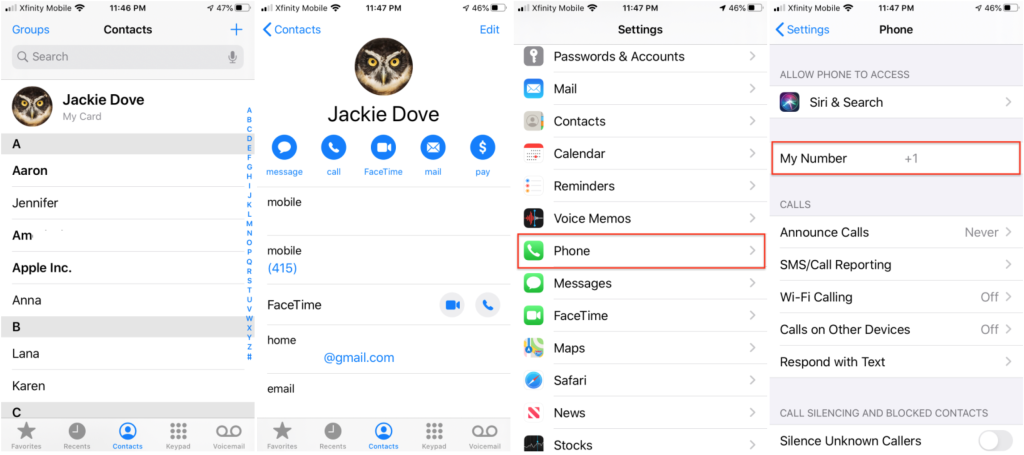
- Contacts: Begin by opening the Phone app on your iPhone. Tap on the Contacts tab, and you’ll find your phone number listed at the top. It’s conveniently displayed for quick reference.
- Settings: Another way to access your phone number is through the Settings app. Simply go to Settings > Phone. Your phone number will be prominently displayed as the first entry on the list. If necessary, you can easily edit it to ensure accuracy.
How to check your Phone Number on Android
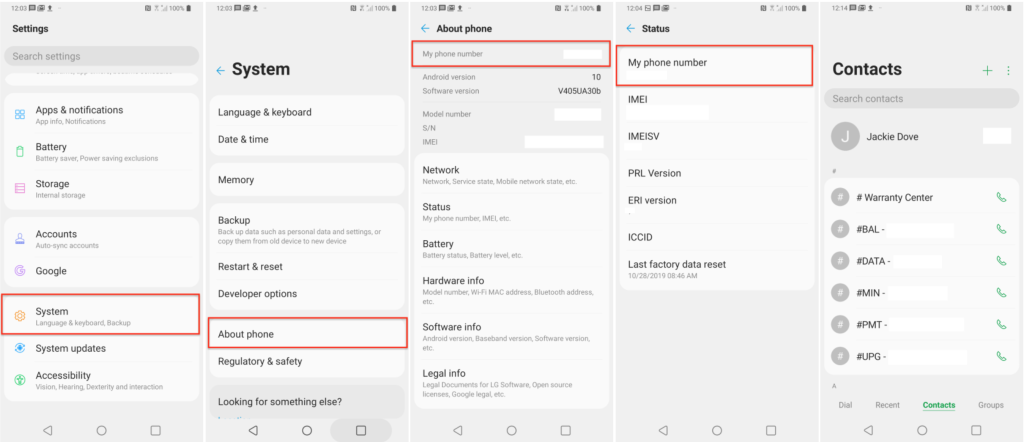
Please note that the process may vary slightly depending on the brand of your Android device and the version of the operating system you’re using. However, the general steps remain similar across most devices.
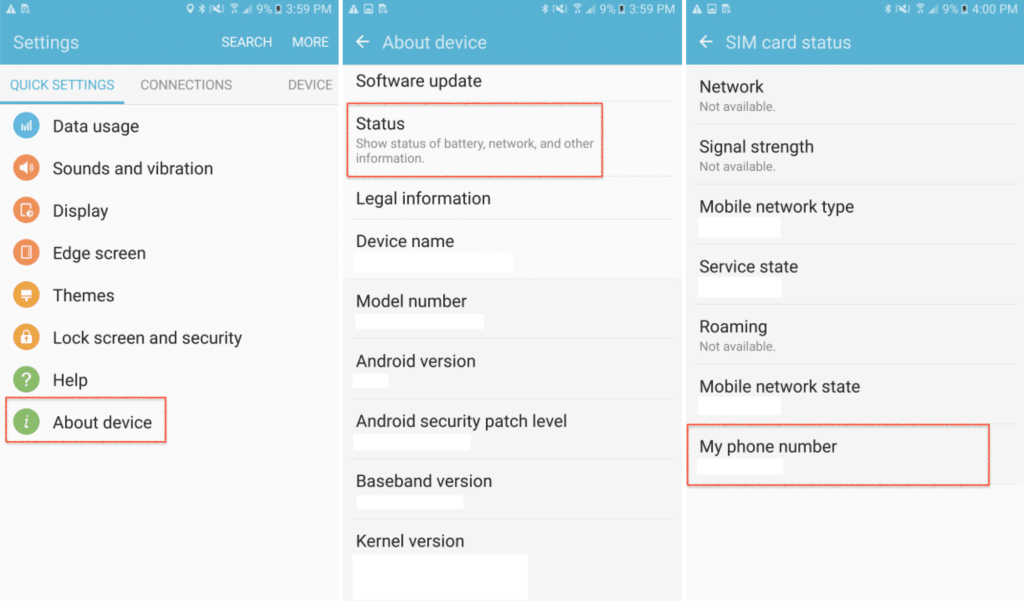
- Settings Method: Start by opening the Settings app on your Android device. Depending on your device model and OS version, the exact location of the option may vary. In the search bar within Settings, type “My phone number” to quickly locate the relevant setting. Follow the path that appears, which may include options like System > About phone > Status. You’ll find your phone number displayed within this section.
- Contacts Method: Alternatively, you can use the Contacts app on your Android device. Open the app, and your own contact information should be readily available at the top of the list. Scroll through the contact details, and you’ll find your phone number displayed prominently.
Stock Android Devices
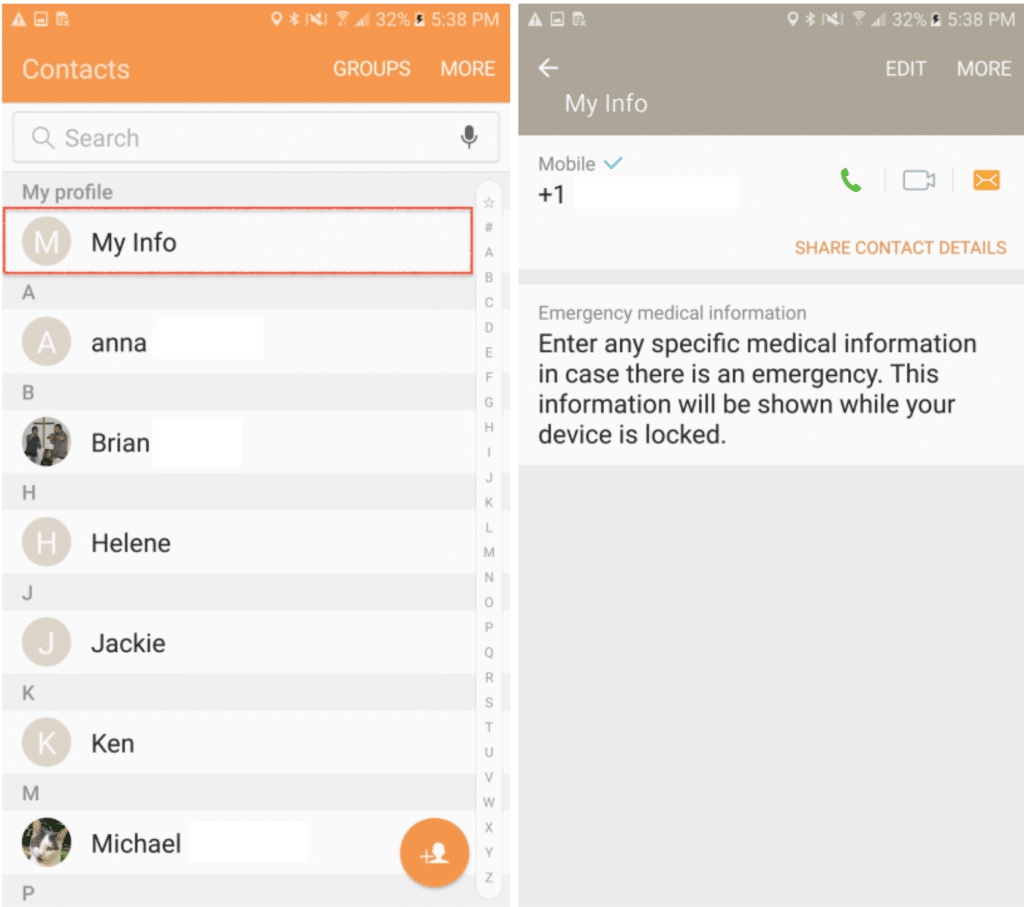
For devices running stock Android, such as Google Pixel, Nexus, or certain Motorola phones, follow these steps:
- Contacts App: Open the Contacts app on your device. Look for an entry titled “My Info” or “Me.” Tap on it, and your phone number will be listed there.
For All Android Phones
Regardless of the device brand, you can find your phone number using the following method:
- Settings: Navigate to the Settings app on your Android device. Look for options like “About Phone” or “About Device.” Within this section, you’ll find a category called “Status.” Tap on it to access your phone number.
- SIM Card Status: Some Android devices may have the phone number information listed within the SIM or SIM card status. If this is the case, you can find your phone number by going to Settings > About Phone or About Device > Status > SIM card status.
- Search Bar: If you prefer a quick way to access your phone number without navigating through menus, use the search bar within the Settings app. Type “My Phone Number,” and the relevant information should appear directly.
Beware of Scams
It’s important to note that scammers have been known to employ number spoofing techniques, which may display your own number on incoming calls. To protect yourself, exercise caution when receiving calls from your own number. Legitimate calls typically wouldn’t appear this way, and it’s advisable to avoid answering such calls or engaging with suspicious activity.
By following the simple steps outlined above, you can easily find your phone number on both iPhone and Android devices. Whether you need it for personal reference or to assist others, this knowledge will come in handy in various situations.











