
Though you can get ISO files from various sources, you should pick a reliable one for the consideration of security. There are two recommendations for you. The first one is the Windows Media Creation Tool offered by Microsoft, while the second one is Windows and Office ISO Downloader from HeiDoc.net.
The focus of this post lies on Windows ISO Downloader. The content below shows you the details.
What Is Windows ISO Downloader
Microsoft Windows and Office ISO Downloader is a tool that enables you to download genuine disk images of Windows 11/10/8.1/7 (August 2018), as well Office 2013/2016/2019 and Office for Mac. It offers options including Dell, Insider Preview, Developer, and New addition to you.
Tip: The disk images of Office 2018 and Windows 7 (before August 2018) have been pulled by Microsoft, so you will fail to download them from Windows ISO Downloader.
You are not required to install Microsoft ISO Downloader on your PC. Instead, you just need to download its setup file. Check if your PC meets these requirements before downloading it.
- Network: .NET Framework 4.x
- Browser: Internet Explorer 8 or newer
- OS: Windows 7 or higher versions
How to Download and Use Microsoft ISO Downloader
Step 1: Download the Windows ISO Downloader from its official website.
Step 2: Launch this Microsoft ISO Downloader by clicking on its setup file (Windows-ISO-Downloader.exe).
Step 3: On the right side of the window, select a Windows system based on your needs under the Windows tab. Here, I choose Windows 10.
Tip: Windows 11 ISO files are included in the Windows 10 option.
Step 4: Tap on the down arrow icon behind Select edition and then choose a system edition from the prompted list. After returning to the main interface, click Confirm to continue.
Step 5: Likewise, open the drop-down menu by clicking the down arrow button behind Select language, and then choose a language and click Confirm.
Step 6: Select a download link (32-bit or 64-bit) based on your condition.

Step 7: In the pop-up window, click Open or Save and follow the prompted instructions to finish the ISO download process.
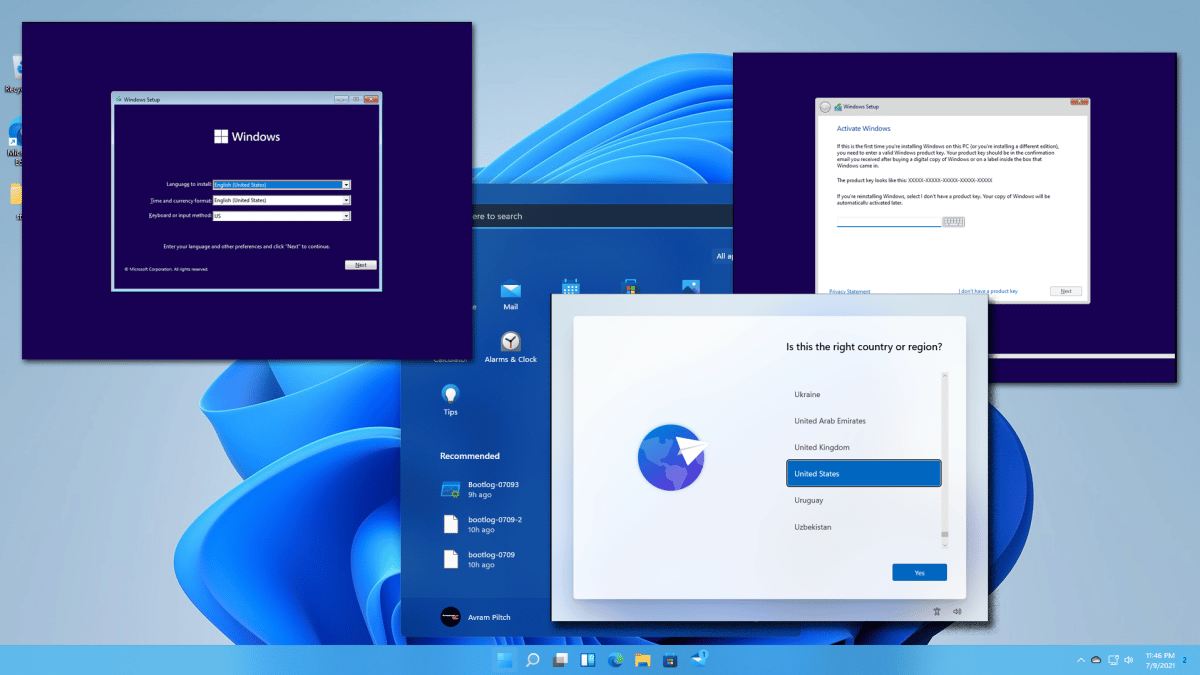
If you want to install a Windows system with the downloaded ISO file, make an installation media using a piece of USB bootable software like Rufus and Windows USB/DVD Download Tool. After that, plug the drive into the target device and set it as the first boot option after entering the BIOS setup page. Once you save the changes, the target PC will boot from the selected drive. Then follow the on-screen instructions to finish the installation process.
How to Install Windows without ISO File
As you see, installing Windows with an ISO file is complicated. A simple way to get Windows is to directly migrate it from another proper running PC using a Windows migration tool like MiniTool Partition Wizard. Its Migrate OS to SSD/HD Wizard feature allows you to migrate Windows easily.
To do that, you need to take out your system disk and connect it to a PC with the desired system with a SATA-to-USB cable. If there are important data on the disk, please back them up in advance. Then download and install partition manager software. After that, follow the given steps to migrate OS.
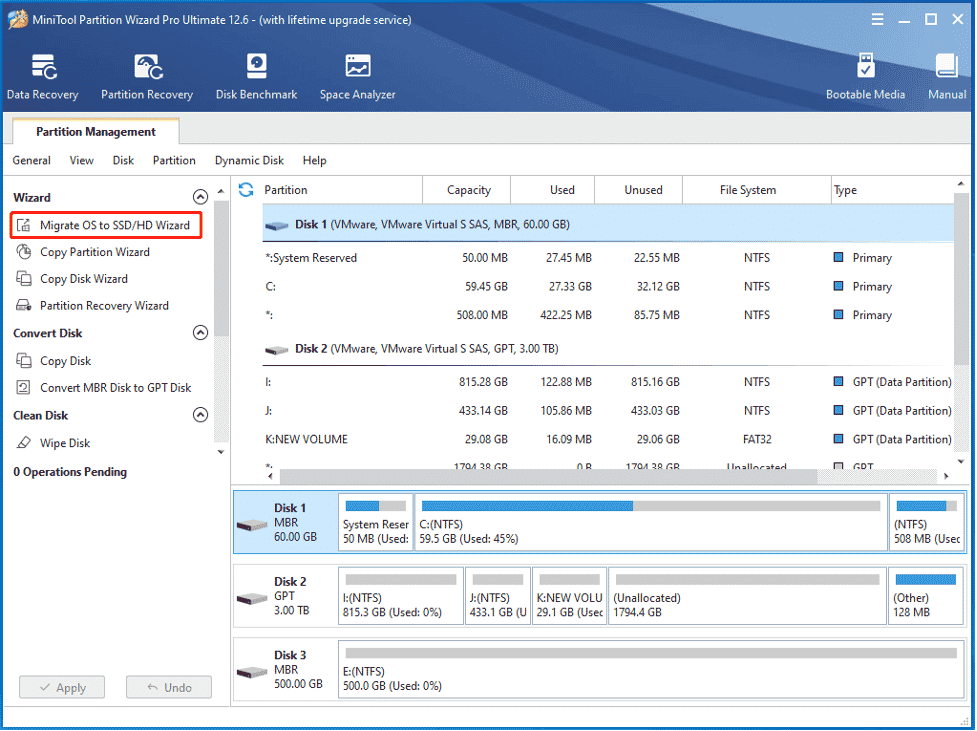
Step 1: After launching MiniTool Partition Wizard, click Migrate OS to SSD/HD Wizard in the action panel.
Step 2: Select a migration option in the next window. Since you just need the operating system, simply choose option B and click Next to move on.
Step 3: In the Select Destination Disk window, choose the connected disk and click Next. Then click Yes in the elevated warning window.
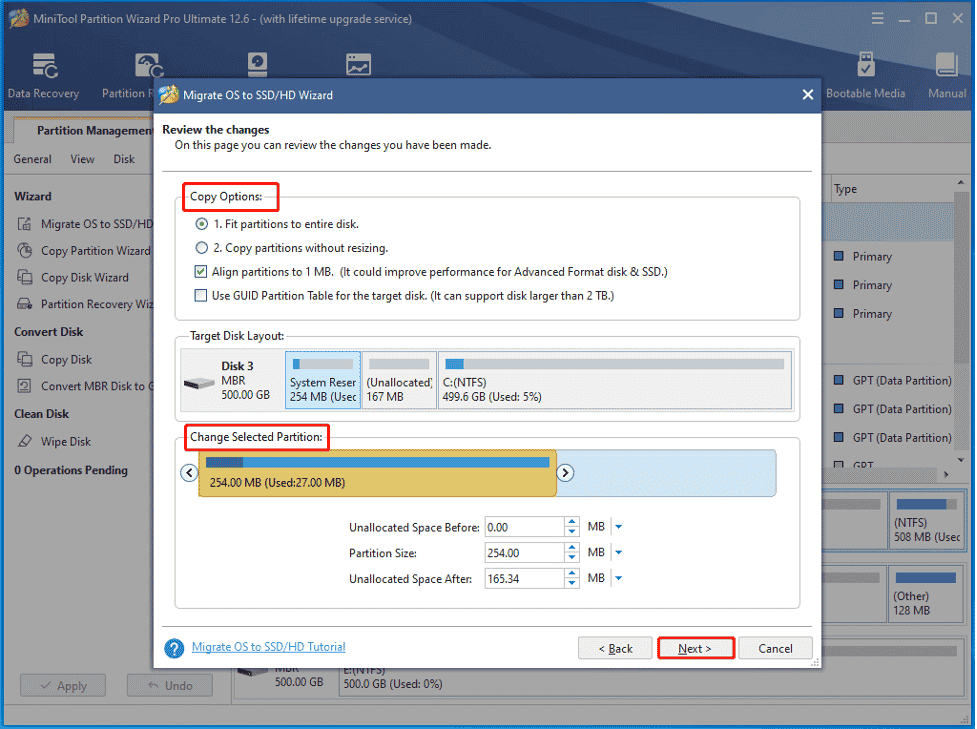
Step 4: Choose copy options and change the size & location of the selected partition based on your needs. After that, click Next.
Step 5: Tap the Finish button to save the changes you have made and then click Apply to execute the operation.
Step 6: After the migration process ends, disconnect the connected disk and put it back to the original computer. Power on the PC and the migrated Windows will run.











