
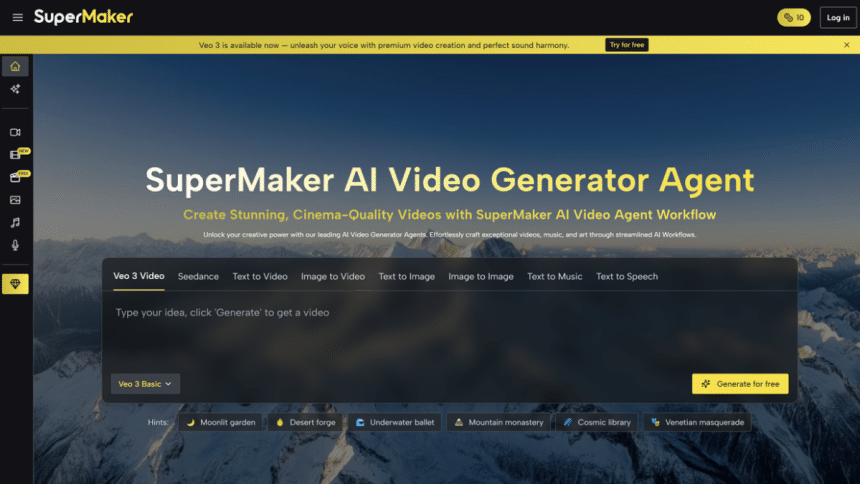
In today’s fast-paced digital world, AI-generated videos are taking social media by storm. And everyone is curious to see what these cutting-edge creations look like. With powerful tools like Veo 3, anyone can turn their ideas into amazing videos with audio in just seconds. All you have to do is describe what you want to see and get about the video.
SuperMaker AI takes an innovative step further by working hand-in-hand with Veo 3 in order to offer a seamless experience for users. This powerful combination empowers users to generate compelling videos with just a few well-crafted prompts.
The Overview of SuperMaker AI
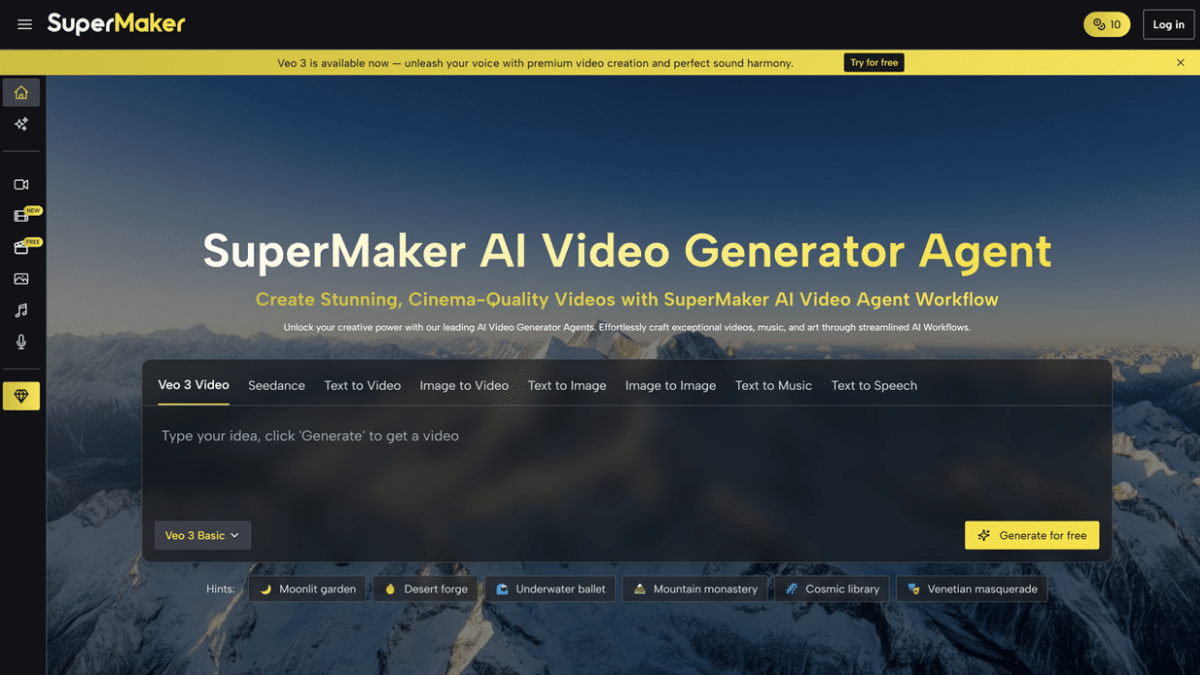
SuperMaker AI is a multifunctional all-in-one video generator which could generate image, video, music and speech in one online platform. And users could experience the risk-free AI content generation using SuperMaker AI without money or login needed.
AI Image Generator: This is an advanced image generator which could transform text prompts into images or transform reference images into brand-new images. With the AI image generator, you can not only get the creative images you want, but also easily enhance them or change their aspect ratios.Users could choose different image effects or filters from the library, then get desired images with just clicks effortlessly.
AI Video Generator: SuperMaker AI can not only generate videos, but also help users generate videos with audio. Veo 3 is the core video generation model which adds audio into videos and has better understanding of prompts. You could get better videos with immersive background sound, different style music, lip-synched dialogues, natural interactions and optimized video contents using Veo 3 model.
AI Music Generator: You could get loyalty-free music with lyrics using the AI music generator. There are two modes to choose from: Simple Mode, where you describe a general music idea, and Custom Mode, which lets you share more detailed music thoughts. You can generate both songs with lyrics and instrumental music with SuperMaker AI.
AI Speech Generator: The AI speech generator could transform your text scripts into audible speech. With customized language and voice style, SuperMaker AI could set your contents apart from others.
AI Chat: The AI Chat will come soon, which will give suggestions for your tasks and spend time with you just like friends.
Ⅱ. The Introduction of Veo 3
Veo 3 is Google’s latest video model, marking a significant milestone in AI-powered video generation industry. Prior to its release, AI-generated videos had no audio or high-quality visuals at all.
Now, with Veo 3 and SuperMaker AI, AI videos feature immersive background sound, diverse music styles, high-quality auido-visual consistency, lip-synced dialogues with specified languages and cinematic views. What’s more, Veo 3 has a perfect understanding of prompts and can automatically optimize your video content based on your description.
This breakthrough not only dramatically enhances work efficiency but also expands the practical applications of AI-generated videos across various fields.
Ⅲ. The Key Points About Veo 3 Video Generation
Unlocking the full power of Veo 3 starts with mastering the art of prompt creation.
i. Clarify the Video Content
Before entering your prompt, you should take a moment to take about the vidual content you want. And then use clear natural language to describe it. Define the content theme, scene, audio and shot language. A clear description ensures that Veo 3 understands the vision of your video, enabling it to generate content that aligns with your intent.
ii. Structure Your Prompts
A well-structured prompt like a roadmap for Veo 3. Break down your instructions into logical segments—such as setting, characters, mood, and visual style.
For example:
“A team is having meeting in a brilliant meeting room. The whole atmosphere is upbeat and positive. We can not hear their talking content but can see they are talking. Use bright colors and energetic background music to fill the whole video.”
iii. Use Keywords and Descriptive Language
Use keywords to capture the tone, emotion, or style you want—such as “cinematic” “sad” “minimalist” or “futuristic”. And descriptive adjectives and action verbs help the AI understand exactly what you’re looking for, leading to higher-quality outputs.
iv. Optimize with English and Localized Expressions
Veo 3 supports generating multilingual contents. You could describe the specified contents in English and emphasize the specified language in English as well. Remember to enter all prompts in English.
For example:
“Two boys are chatting in the playground and the boy in black shirt said: I want to buy a new game but my parents don’t allow. And then the boy in white shirt said: No worries, your birthday is coming soon, I guess your parents maybe will buy it as gift for you. The talk is in Spanish.”
Ⅳ. How to Enter Effective Prompts for Veo 3 Video Generation?
Your prompts should include these elements: use case, scenario, scene, atmosphere, video style, dialogues, background sound, camera language and requirements. All of these will make sure the generated video be in line with your imagination.
If you want to generate a video about one Komodo is resting under a tree. These will be a good prompt template to follow:
USE CASE: (This part can be added or not) Teaching
SCENE: The Komodo dragon leans against the big tree, its mouth slightly open and drooling.
SCENARIO: A Komodo dragon is resting under a big tree.
ENVIRONMENT OR ATMOSPHERE: The environment is like an insulated island, and the big tree is on the bank of an extensive sea. The land is filled with grains and sands.
BACKGROUND SOUND: The background sound is real and natural, wind, water, leaves and the breath of Komodo.
VIDEO STYLE: The video is like the documentary—Animal World.
DIALOGUES: (This part can be added or not)
CAMERA OR SHOT LANGUAGE: The video stars with a long-distance shot which could view the whole tree and most of water and land. Then the camera zooms in smoothly, focusing on the Komodo.
REQUIREMENTS: (This part could be used to adjust details according to the generated videos)
Ⅴ. Guidance to Generate Video with Audio
Follow the step-by-step below to generate the best videos with audio.
Step 1: Enter the Veo 3 Video Generation Interface
Make sure you have entered the Veo 3 video generation interface and choose the mode you want: text-to video or image-to-video.
Step 2: Input High-Quality Prompts
Use natural language to describe the video content you want. Pay attention to structuring your vision and using some logical words, such as “The video starts…” “After …,the character said:…” “They act naturally and smoothly” and so on. You could follow the means (in the fourth point) to enter a well-crafted prompt.
All of these settings aim to make your description like a completed story so that the AI could understand and turn it into a ideal video.
Step 3: Generate
Click the “Generate video” button and wait one moment to get the video wth audio.
Step 4: Preview and Share
Preview the video content and adjust the prompt words in detail according to the generated video until you generate a video that you are satisfied with.
Ⅵ. Why Do Prompts Matter So Much?
In the process of generating AI video, prompts are the bridge between your creative vision and the final result.
The role of prompts in AI video generation
To generate desired videos with audio, the most important element is prompt. Prompts act just as the blueprint for your video. Because all the parts and details of your videos come from the descriptions. They guide the AI in understanding your intent, style, and desired outcome.
How effective prompts impact video quality
The quality of your video is directly tied to the clarity and detail of your prompt. With Veo 3, even subtle differences in wording can lead to strikingly different outcomes. The more detailed and well-crafted your prompts are, the more the video you get will be in line with your imagination.
Common pitfalls and optimization tips
While AI models like Veo 3 are incredibly powerful, vague or ambiguous prompts can still lead to underwhelming results. The best prompts include subject, scene, context, shot language, and audio description.
Conclusion
With the groundbreaking Veo 3 model at its core, SuperMaker AI empowers users to turn imagination into reality—faster, smarter, and more creatively than ever before. Embrace the future of AI video creation and master the skills of prompt to let Veo 3 elevate your storytelling into a higher level.
Try Veo 3 today and experience the unparalleled features of SuperMaker AI.











