iLoungeiLounge
  • News
    • Apple
      • AirPods Pro
      • AirPlay
      • Apps
        • Apple Music
      • iCloud
      • iTunes
      • HealthKit
      • HomeKit
      • HomePod
      • iOS 13
      • Apple Pay
      • Apple TV
      • Siri
    • Rumors
    • Humor
    • Technology
      • CES
    • Daily Deals
    • Articles
    • Web Stories
  • iPhone
    • iPhone Accessories
  • iPad
  • iPod
    • iPod Accessories
  • Apple Watch
    • Apple Watch Accessories
  • Mac
    • MacBook Air
    • MacBook Pro
  • Reviews
    • App Reviews
  • How-to
    • Ask iLounge
Font ResizerAa
iLoungeiLounge
Font ResizerAa
Search
  • News
    • Apple
    • Rumors
    • Humor
    • Technology
    • Daily Deals
    • Articles
    • Web Stories
  • iPhone
    • iPhone Accessories
  • iPad
  • iPod
    • iPod Accessories
  • Apple Watch
    • Apple Watch Accessories
  • Mac
    • MacBook Air
    • MacBook Pro
  • Reviews
    • App Reviews
  • How-to
    • Ask iLounge
Follow US

Articles

Articles

Want a Bigger Picture? Here’s How to View All Files on Mac

Last updated: Sep 24, 2021 6:02 pm UTC
By Lucy Bennett
Want a Bigger Picture? Here's How to View All Files on Mac

Mac devices usually have many folders and files. While you can view your files, the system also has other invisible files. Apple developers hide some crucial files to prevent users from tampering and causing system malfunctions. However, it is possible to view all the files in your machine when performing particular actions.  For instance, when you want to delete unnecessary data, perform cache clearing or troubleshoot specific programs. Or you might be curious to know the nature of the files in your machine.


It does not matter why you need to view your files; here are practical options to follow.

Want a Bigger Picture? Here's How to View All Files on Mac
Want a Bigger Picture? Here’s How to View All Files on Mac

Use Finder Option

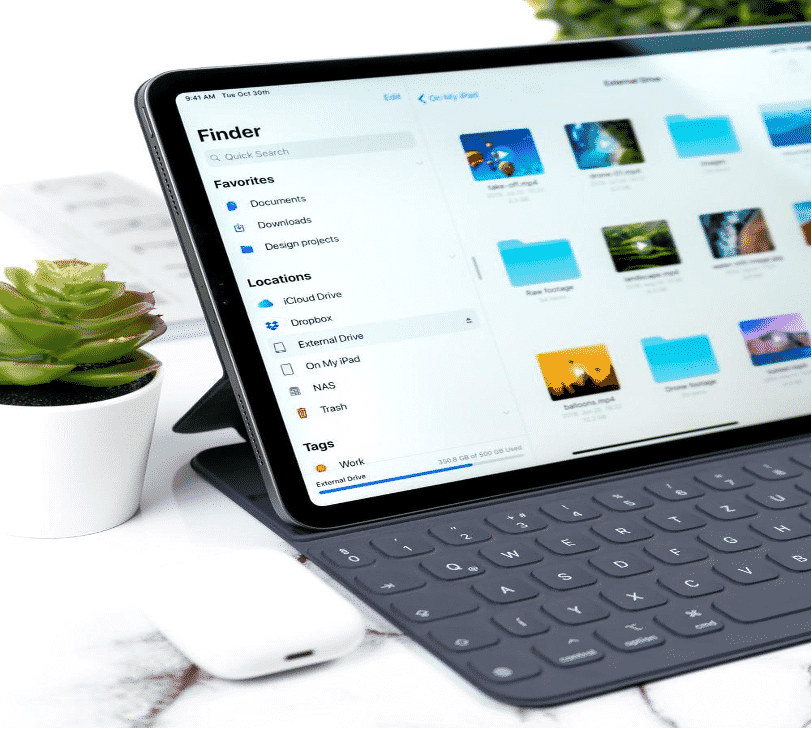
The Finder is an essential feature that assists users in searching and organize the files, and it also allows them to view all the files in the Mac system. It is an easily visible icon on the computer screen.

You can also use a keyboard shortcut to locate it – command + F will open the Finder window. If you want the Finder icon to appear on the dock, go to the core services in the system library, drag and drop. 


Once you open it, you can access all the files through the steps below:

  • Open the preference option
  • Go to the ‘sidebar’ section
  • You will see many options; you can activate or deactivate the option of ‘All My Files.’
  • Another option is to hold down Command + Shift + F to view all the files.

Use Library Option

Apart from using Finder, users can also use the library option to view files. Follow the steps below:

  • Open the Go tab
  • Proceed to the folder button
  • Enter ‘~/Library,’ and it will display all the saved files

Gallery View

Furthermore, users can also change the file presentation according to personal preferences. Viewing files is possible as a column, list, icon, or gallery. In addition, you can customize your views by sorting the files in terms of sizes, dates, or a similar kind.


Sometimes you might want to view bigger images in the preview section for easy identification. Besides, the view supports documents and videos, not forgetting documents with multiple pages. Old Mac operating systems have this view known as the cover flow, but it is not as powerful as the latest versions’ gallery.

Sidebar

As mentioned above, you can view files via the finder option. The sidebar is accessible through the Finder window. You can view the hard drive, standard folders, iCloud drive, etc. One click opens these files easily. In addition, it is also possible to customize the sidebar through the preference settings. Users can add or remove files by dragging them in and out of the sidebar window. Use the above options to view your files with ease and convenience. Whether you want to view larger files or listed folders, use the Finder option for easy navigation. Moreover, it is essential to name your files and folders correctly to achieve proper organization.                                                                                


Latest News
The AirPods Pro 3 is $20 Off
1 Min Read
Exynos 2600 Chip 2nm Process Revealed by Samsung
1 Min Read
New Celebrity Ad Campaign Featuring Travis Scott Released by Beats
1 Min Read
Australia Getting Hypertension Notification Feature
1 Min Read
The 14-inch MacBook Pro with M5 Chip 16GB RAM/512GB is $250 Off
1 Min Read
Noise and Static on AirPods Pro 3 Still Unfixed
1 Min Read
New iMac with 24-inch OLED Display May be Brighter With 600 Nits
1 Min Read
The 15-inch M4 MacBook Air 256GB Is $250 Off
1 Min Read
Internal Kernel Debug Kit from Apple Reveals Tests for a MacBook with A15 Chip
1 Min Read
Apple Currently In Talks With Suppliers for Chip Assembly & Packaging of iPhones in India
1 Min Read
Apple Allows Easier Battery Replacement For M5 MacBook Pro with 14-inch Display
1 Min Read
The Apple Watch SE 3 44mm GPS is $50 Off
1 Min Read

iLounge logo

iLounge is an independent resource for all things iPod, iPhone, iPad, and beyond. iPod, iPhone, iPad, iTunes, Apple TV, and the Apple logo are trademarks of Apple Inc.

This website is not affiliated with Apple Inc.
iLounge © 2001 - 2025. All Rights Reserved.
  • Contact Us
  • Submit News
  • About Us
  • Forums
  • Privacy Policy
  • Terms Of Use
Welcome Back!

Sign in to your account

Lost your password?